
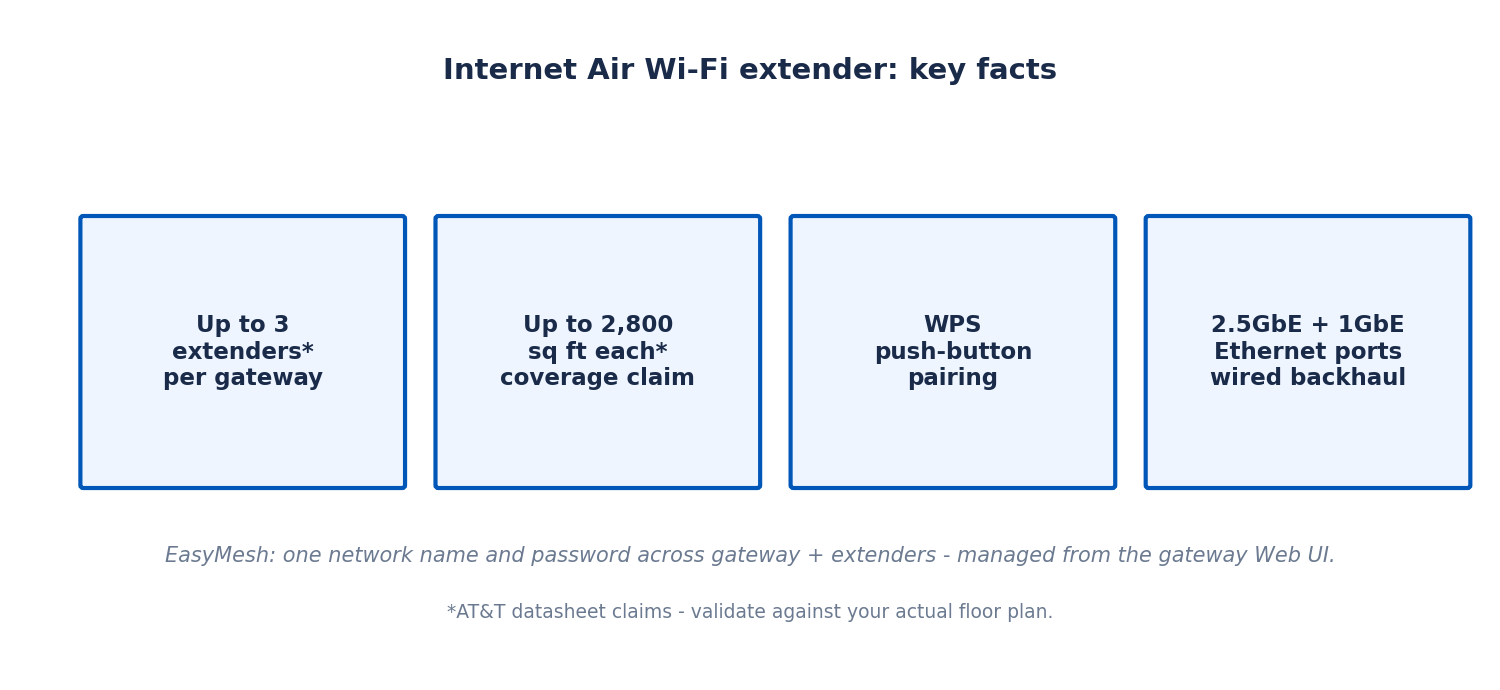
The short answer: yes — if parts of your office get weak Wi-Fi from the Internet Air 5G Gateway, the official AT&T Internet Air for Business Wi-Fi Extender is the right fix, and setup takes about ten minutes. You place the extender next to the gateway, press the WPS button on the gateway until its Wi-Fi LED flashes blue, press the WPS button on the extender, wait for solid blue lights on both plus the extender’s Mesh LED, then move the extender to its permanent spot within 30 feet of the gateway. It joins the gateway’s network as one seamless EasyMesh system — same network name, same password, no separate network to manage.
That simplicity is the whole appeal: no new SSID for staff to learn, no manual handoffs as people walk across the office, and management from the same gateway web interface you already use. But placement makes or breaks the result — an extender parked too far from the gateway just rebroadcasts a weak signal — and there are limits worth knowing (up to 3 extenders per gateway, per AT&T’s datasheet, each claimed to add up to 2,800 square feet of coverage). This guide covers the full att wifi extender setup process, placement strategy for a real office, the extender-position table, and the limitations to plan around.
Extend your Internet Air Wi-Fi across the whole office
Start with the Internet Air gateway, then add the official extender for dead zones — plans from $65/mo list.
What the official Internet Air Wi-Fi extender does for your office
The AT&T Internet Air for Business Wi-Fi Extender is a white cylindrical unit designed specifically to pair with the Internet Air 5G Gateway. It is not a generic third-party repeater: it speaks EasyMesh, the industry standard for multi-unit Wi-Fi systems, which means the extender and the gateway operate as a single coordinated network rather than two separate networks that happen to share a password.
That distinction matters in practice. With a generic repeater, your phone often clings to a fading signal from the main router even when the repeater is closer, because nothing coordinates the handoff — you end up toggling Wi-Fi off and on as you walk across the office. With an EasyMesh system, the gateway and extender manage client steering together: devices roam to the strongest unit without you doing anything, under the same network name and password printed on the gateway’s sticker. Staff set up Wi-Fi once, on one network, and it simply works everywhere the mesh reaches.
The extender also carries its own Ethernet ports — a 2.5GbE port and a 1GbE port — which opens up a useful option: wired backhaul. If you can run an Ethernet cable from the gateway (or your switch) to the extender’s location, the extender uses the cable for its uplink instead of Wi-Fi, which typically delivers better speed and lower latency at the far end. Even without a cable, the ports are handy for wiring a nearby device that prefers Ethernet — a desktop PC, a network printer, or a point-of-sale terminal — directly into the extender.
Management happens from the gateway’s web admin portal — the same interface used for the gateway’s own Wi-Fi settings. There is no separate app or account for the extender. As for how far the system scales: AT&T’s datasheet claims support for up to 3 extenders on one gateway, with each extender claimed to add up to 2,800 square feet of coverage. Treat those as vendor claims and validate against your actual floor plan — real-world coverage depends on walls, layout, and interference — but they give a reasonable planning starting point. For the full picture of the service the extender attaches to, see our AT&T Internet Air for Business overview.
A note on cost: extender pricing and availability were not in our verified fact set for this guide — confirm current extender pricing and whether it is included, discounted, or sold separately with an AT&T Business rep before you budget. What follows assumes you have the extender in hand.
How to pair your Wi-Fi extender with the Internet Air gateway (WPS setup)
Pairing uses WPS — Wi-Fi Protected Setup — the push-button method where two devices agree to connect without you typing passwords. The whole process has four moves: position, press, press, wait. Here is the detailed version so nothing surprises you.
Before you start the WPS pairing process for your Internet Air extender
Do the pairing next to the gateway, not at the extender’s final location. WPS pairing is a short-range handshake, and doing it with the units side by side eliminates signal as a variable — if pairing fails at three feet, you know it is a procedure problem, not a distance problem. You will move the extender to its real spot after pairing succeeds.
Confirm the gateway is fully online first: powered on, connected to the mobile network (4G/5G LEDs showing green for strong or blue for fair signal), and broadcasting Wi-Fi (Wi-Fi LED lit green or blue — if it is gray, Wi-Fi is turned off and you need to re-enable it in the gateway’s web admin portal under Network, then Wi-Fi). Have the extender’s power adapter plugged into a wall outlet — not a power strip shared with heavy equipment if you can avoid it, though any outlet works for pairing. Give yourself ten unhurried minutes; rushing WPS timing is the most common cause of failed pairings.
One more check: if you are adding a second or third extender, pair them one at a time, and let each one finish completely (solid blue lights plus Mesh LED) before starting the next. Pairing two simultaneously can cause them to fight over the handshake.
Step-by-step WPS pairing for your Internet Air Wi-Fi extender
Step 1 — Place the extender next to the gateway. Set the extender within a few feet of the 5G Gateway, both powered on. Patience starts here: make sure the gateway has finished its own startup (up to three minutes after power-on) before you begin.
Step 2 — Press the WPS button on the gateway until its Wi-Fi LED flashes blue. The flashing blue Wi-Fi LED means the gateway is in WPS pairing mode and listening for the extender. This window is time-limited — typically a couple of minutes — so move promptly to the next step.
Step 3 — Press the WPS button on the extender. The extender should acknowledge and begin negotiating with the gateway. You will usually see its lights change pattern as the handshake progresses.
Step 4 — Wait for solid blue on both units plus the Mesh LED on the extender. This is the success signal: solid blue Wi-Fi LEDs on the gateway and the extender, and the extender’s Mesh LED lit, confirming it has joined the EasyMesh network. The negotiation can take a minute or two — do not power-cycle anything while the lights are still changing.
Step 5 — Move the extender to its permanent spot. Unplug it, carry it to the location you chose (placement guidance below — within 30 feet of the gateway), plug it in, and give it a minute or two to reconnect. Confirm the Mesh LED comes back on at the new location. If it does not, the spot is too far or too obstructed — move it closer and try again.
Step 6 — Verify from a device. Walk to the far area with your phone or laptop and confirm it connects to the same network name, shows a strong signal, and loads pages quickly. Run a speed test there and compare it with a test taken next to the gateway — the extender-fed result should be a healthy fraction of the gateway-adjacent result, not a tiny sliver of it.
If pairing fails — the lights never settle to solid blue — the usual culprits are: starting before the gateway finished booting, letting the WPS window expire between button presses, or a brief power flicker. Power-cycle the extender, wait for the gateway to be fully settled, and run the sequence again promptly. If it fails twice in a row, try pairing with the extender in a different outlet in the same room to rule out a wiring quirk, and check the gateway’s web admin portal for any extender or mesh status messages.
Where to place the extender to extend office Wi-Fi coverage
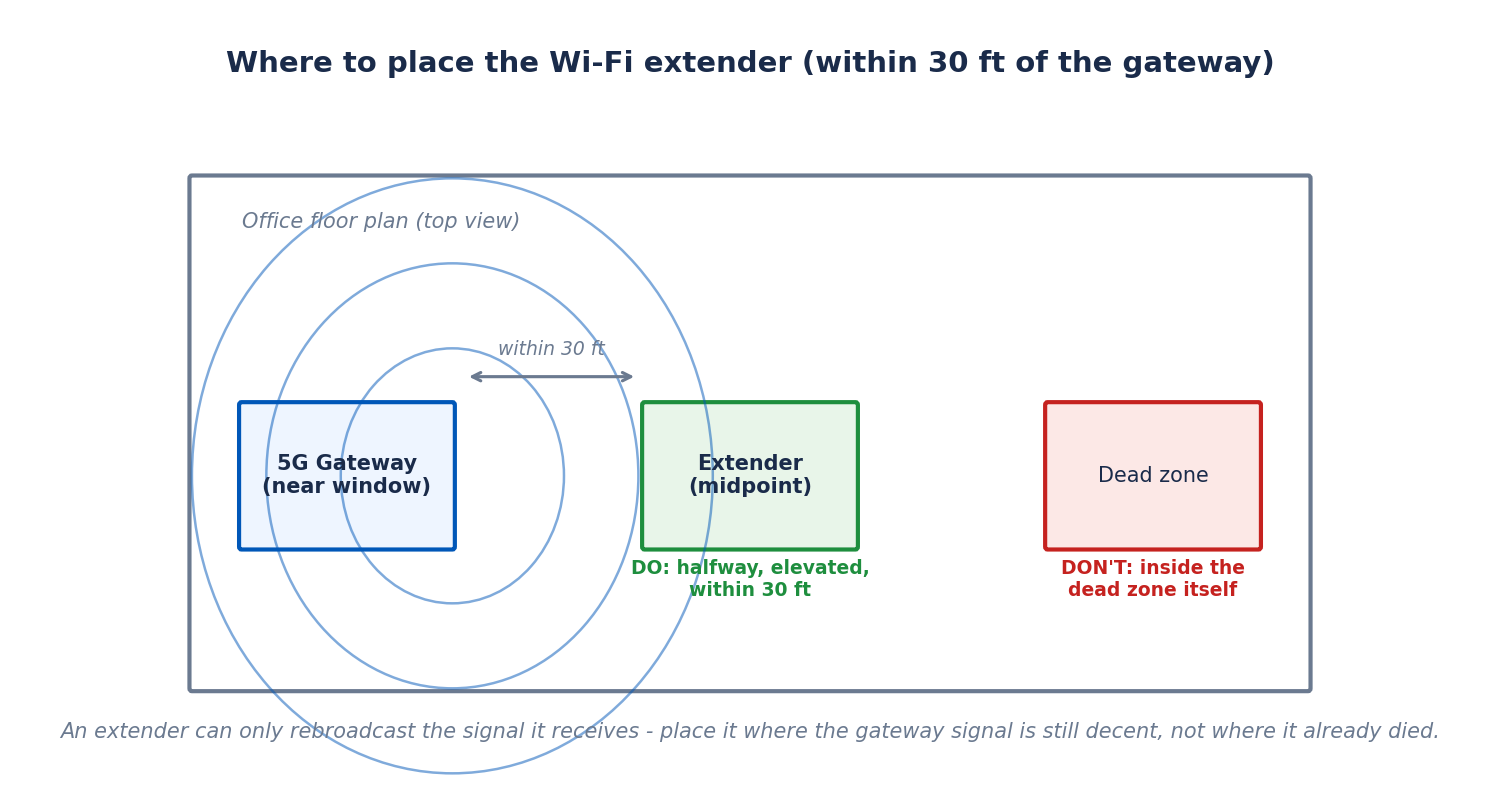
Placement is where extender projects succeed or fail, and the rule is counterintuitive: put the extender halfway between the gateway and the dead zone, not inside the dead zone. An extender can only rebroadcast the signal it receives. Park it in the dead zone and it faithfully rebroadcasts almost nothing. Park it where the gateway’s signal is still decent — roughly the midpoint — and it has something worth amplifying.
AT&T’s Quick Start Guide specifies within 30 feet of the gateway for the extender’s operating position. Treat 30 feet as the outer limit through open air; walls, especially thick concrete, metal studs, or foil-backed insulation, shrink the effective range. The practical test after placement is the Mesh LED plus a device speed test at the far end: if the extender connects but far-end speeds are poor, it is too far from the gateway or blocked by something dense — move it closer or shift it to dodge the obstruction.
Height and surroundings matter as much as distance. Elevate the extender on a shelf or bookcase rather than leaving it on the floor behind furniture. Keep it away from the classic signal killers: metal filing cabinets, refrigerators and microwaves (in a break room), thick concrete or brick walls, mirrors, and large aquariums. Do not hide it inside a closed cabinet — the enclosure attenuates the very signal you are trying to spread. And keep it away from other strong 2.4 GHz noise sources where practical.
Best mesh extender positions for a small office layout
Walk your office with the gateway’s location as the anchor and identify where the signal actually dies — a phone’s Wi-Fi indicator or, better, a free Wi-Fi analyzer app gives you real data instead of guesses. The extender belongs at the midpoint between the gateway and each dead area, biased slightly toward the gateway side. In a typical rectangular office with the gateway at one end near a window (where the cellular signal is best), the first extender usually lands in a hallway or open area around the middle of the space.
For L-shaped offices or spaces with a dense core (elevator shafts, stairwells, thick fire walls), think in terms of signal paths, not straight-line distance: the extender needs a relatively clear radio path back to the gateway, which may mean placing it around the corner rather than at the geometric midpoint. With up to 3 extenders supported, a larger or awkwardly shaped office can chain coverage: gateway → extender 1 (midpoint) → extender 2 (far wing), with each hop within its 30-foot operating window of the mesh. Just remember each wireless hop costs some speed — which is why wired backhaul (an Ethernet cable to the extender) is worth the trouble wherever you can run one.
Match the extender’s position to how the space is actually used. The extender serves people, not floor plans: prioritize the conference room where video calls happen, the register area where the card reader lives, and the desks of staff on cloud apps, over storage rooms and corridors. If two areas need help and you only have one extender, serve the revenue-critical one first.
Spots to avoid when placing your mesh extender
Some locations actively sabotage an extender. Avoid the far corner of the dead zone itself (nothing to amplify), inside closed metal or wooden cabinets, directly on top of or behind large metal objects, next to microwaves or baby monitors, in unventilated hot spots like above radiators or inside sun-baked window bays (heat shortens electronics life), and outdoors or in damp areas — this is an indoor unit. Also avoid placing it right next to the gateway permanently: an extender three feet from the gateway adds no coverage and just adds radio noise. After the side-by-side pairing, it needs to move out to do its job.
The table below summarizes good and bad extender positions for quick reference:
| Situation | Good extender position | Bad extender position |
|---|---|---|
| Long rectangular office, gateway at one end | Hallway or open area near the middle, elevated on a shelf | Far end office where the signal already died |
| L-shaped office with thick core walls | Around the corner with a clear radio path to the gateway | Behind the elevator shaft or stairwell core |
| Conference room with weak signal | Just outside the room or on a credenza inside, within 30 ft of gateway | Inside the AV cabinet with the other electronics |
| Retail floor, register at the back | Mid-floor on a high shelf, clear of metal fixtures | Under the counter next to the metal cash drawer |
| Two-story office, gateway downstairs | Top of the stairs or landing, not enclosed | Basement corner or inside a closet |
| Break room dead zone | Hallway outside the break room, away from the microwave | On top of the refrigerator next to the microwave |
Disclaimer: This article contains affiliate links to AT&T Business services. We may earn a commission if you purchase through them, at no extra cost to you. Ortelcom.com is an independent publisher and is not affiliated with or endorsed by AT&T. Pricing, speeds, and availability are not guaranteed, were checked in October 2026, and vary by address and promotions — please confirm all details before ordering. AT&T and all related marks are trademarks of their respective owners.
How many extenders you can add: up to 3 mesh extenders per gateway
AT&T’s datasheet claims a single 5G Gateway supports up to 3 Wi-Fi extenders, with each extender claimed to add up to 2,800 square feet of coverage. Those are vendor claims — your mileage depends on construction and layout — but they frame the planning question: most small offices need one extender, larger or oddly shaped spaces need two, and three is the ceiling.
Start with one and measure. After placing the first extender, walk the full office and map where signal is now strong, acceptable, and still weak. Only add a second if a real dead zone remains that matters — a weak corner of a storage room does not justify the hardware. When adding a second or third, pair and place them one at a time, verifying each joins the mesh (Mesh LED lit) before starting the next, and keep each within its operating window of the mesh rather than daisy-chaining at maximum range.
Be realistic about what multiple wireless hops do to speed. Every extender that uplinks over Wi-Fi (rather than Ethernet backhaul) shares airtime with the gateway, so far-end speeds on a two-hop chain will be notably lower than at the gateway. For most office work — email, cloud apps, card transactions — that is still plenty. For a conference room that hosts all-hands video calls, run the Ethernet backhaul cable if you possibly can; it converts the far extender from a repeater into what is effectively a wired access point.
If three extenders still do not cover the space, the honest answer is usually not a fourth extender — it is that the gateway is in the wrong place, the building needs a wired access-point design, or the space has outgrown a mesh built for small offices. At that point the right move is a conversation with a networking professional about structured cabling, not more mesh units. Businesses with staff working from multiple locations should also look at our business internet guide for remote teams for the bigger connectivity picture.
Using the Wi-Fi extender’s Ethernet ports and the gateway Web UI
The extender’s 2.5GbE and 1GbE Ethernet ports deserve their own mention because they solve two common office problems. First, wired backhaul: connect an Ethernet cable from your gateway or switch to the extender, and the extender’s uplink stops consuming Wi-Fi airtime entirely — far-end performance jumps, latency drops, and the mesh becomes dramatically more robust. If you are running cable anyway for a far office, terminating one drop at the extender location is cheap insurance.
Second, the ports give nearby wired-only (or wired-preferring) devices a network home. A desktop PC without Wi-Fi, a network printer, or a POS terminal near the extender can plug directly in and get a stable connection without their own Wi-Fi configuration. This is particularly useful for devices that are fussy about Wi-Fi — older printers, some card readers — since Ethernet sidesteps the whole wireless compatibility question.
Management lives in the 5G Gateway’s web admin portal — the browser-based interface you use for the gateway’s own settings. That is where you confirm the extender joined the mesh, see which clients are connected through it, and manage the Wi-Fi settings (network name, password, guest network) that apply across the whole EasyMesh system at once. One interface, one network, one password to rotate — that administrative simplicity is a genuine operational benefit for a small business without IT staff. Note that some Smart Home Manager app features can be limited on Internet Air setups, so treat the web portal as the primary management path for the gateway and its extenders.
Limitations of the Internet Air Wi-Fi extender setup
No extender fixes every coverage problem, and knowing the boundaries saves a wasted purchase. First, the 30-foot operating window is real: the extender must live within about 30 feet of the gateway (less through dense walls), so it cannot rescue a detached garage, a far warehouse bay, or a second building. Those need their own connectivity solution — a second internet line, a point-to-point wireless bridge, or proper structured wiring.
Second, an extender extends your Wi-Fi; it does not improve your internet. If the Internet Air connection itself is slow — weak cellular signal at the gateway, tower congestion — the extender faithfully distributes that slow connection over a wider area. When far-end speeds disappoint, diagnose in order: check the gateway’s own speed first (wired or next to it). If the gateway is fast and the far end is slow, it is a mesh/placement problem. If the gateway itself is slow, it is a cellular signal problem — relocate the gateway using the 4G/5G LEDs before blaming the extender.
Third, the mesh shares one radio environment. Extenders that uplink wirelessly halve the available airtime on that band in the worst case, and in a dense office with dozens of devices, adding mesh hops adds contention. For most small offices this never becomes the binding constraint — the internet connection is the bottleneck long before the mesh is — but it is why wired backhaul is recommended wherever practical.
Fourth, band compatibility: the mesh is a single EasyMesh network, which is convenient, but some older 2.4 GHz-only devices (certain printers, older smart devices) can be finicky about joining mesh networks during their own setup routines. If a device refuses to connect through the extender, try joining it near the gateway first, then move it to its spot — and check the device maker’s guidance for mesh networks.
Finally, remember the fixed-wireless rule: the gateway — and by extension the mesh built on it — stays at the qualified business address. The extender does not make the service portable.
Check Internet Air availability for your address — confirm your location qualifies, then plan extender placement around the gateway’s best-signal spot. Businesses bundling connectivity may also want our AT&T fiber and wireless bundle guide for the broader savings picture.
Wi-Fi extender Internet Air setup: frequently asked questions
How do I pair the Wi-Fi extender with my Internet Air gateway?
Place the extender next to the gateway, press the gateway’s WPS button until its Wi-Fi LED flashes blue, then press the extender’s WPS button. Wait for solid blue LEDs on both units plus the extender’s Mesh LED — that confirms it joined the EasyMesh network. Then move the extender to its permanent spot within 30 feet of the gateway and confirm the Mesh LED reconnects there.
How many Wi-Fi extenders can I add to Internet Air for business?
AT&T’s datasheet claims up to 3 extenders per 5G Gateway, each claimed to add up to 2,800 square feet of coverage. Add them one at a time, verify each joins the mesh before placing the next, and prefer Ethernet backhaul for far units to preserve speed across multiple hops.
Does the Wi-Fi extender create a separate network name?
No. The extender joins the gateway’s EasyMesh system and shares the same network name and password — one seamless network. Devices roam between the gateway and extender automatically, and you manage everything from the gateway’s web admin portal.
Where should I place the extender to extend office Wi-Fi best?
Halfway between the gateway and the dead zone (biased toward the gateway), elevated on a shelf, within 30 feet of the gateway, with a clear radio path — away from metal, thick concrete, microwaves, and closed cabinets. Never place it inside the dead zone itself; it can only rebroadcast the signal it receives.
Can I use the Wi-Fi extender’s Ethernet ports for wired devices?
Yes. The extender has 2.5GbE and 1GbE Ethernet ports. Use them for wired backhaul (a cable from the gateway or switch to the extender, which greatly improves far-end performance) or to wire nearby devices like a desktop PC, printer, or POS terminal directly into the network.
What should I do if WPS pairing for the extender keeps failing?
Confirm the gateway finished booting and shows a healthy 4G/5G signal, redo the button presses promptly (the WPS window is time-limited), and power-cycle the extender before retrying. Pair side-by-side with the gateway — not at the final location — and add multiple extenders one at a time.

