
Verdict: for most small offices, start with the gateway included with AT&T Business Fiber, add a mesh system only when you have real dead zones or a multi-room layout, choose mesh over a single extender when you need seamless roaming across rooms, and use wired backhaul wherever you can run a cable. A separate router or mesh system is an add-on choice, not a requirement. Buying the biggest system first, before you know where your gateway sits and where coverage actually fails, is the most common waste of money in small-office Wi-Fi.
This guide explains small office router mesh selection by capability, not by brand or model. It covers when a single gateway is enough, how mesh differs from an extender, what office size and layout point to which setup, how to handle 2.4GHz-only devices such as POS terminals and printers, and the security basics that matter for a business network. Pricing for AT&T Business Fiber is included for reference, checked in October 2026. No specific router brand or model is recommended here, because this article keeps recommendations generic by capability, as an unverified brand recommendation would be guessing, not guidance.
Small Office Router Mesh Planning Starts With AT&T Business Fiber
Check fiber availability and speeds for your office before choosing extra Wi-Fi equipment.
The first question is not which mesh system to buy. It is whether you need one at all. The gateway included with AT&T Business Fiber provides Wi-Fi for the office, and for a small open-plan office with the gateway in a central, elevated position, that gateway alone is often enough. The right order is: install fiber, place the gateway well, test coverage in every working area, and only then decide what extra equipment, if any, is needed. Testing first turns a purchase into a solution for a measured problem.
That order also protects your budget. A mesh system bought before testing may solve a problem you do not have, while missing the problem you do have, such as a gateway hidden in a back closet or a POS terminal that only speaks 2.4GHz. Measure first, buy second, and buy only the capability that fixes the measured gap.
Business Router Selection: Start With the Included Fiber Gateway
AT&T Business Fiber includes a gateway, so a separate router or mesh system is an optional addition, not a starting requirement. The gateway handles the fiber connection and provides Wi-Fi, and many small offices run entirely on it. Before adding anything, confirm what the gateway already provides: its Wi-Fi bands, its Ethernet ports, and its management options. Check plan details and confirm any gateway question with an AT&T Business rep, since gateway models can vary by install.
Adding a router or mesh system usually means one of two arrangements: the new equipment works behind the gateway, or it takes over the Wi-Fi role while the gateway keeps handling the fiber connection. Which arrangement fits your office depends on the equipment and your network needs, so confirm the arrangement with your IT support or an AT&T Business rep before buying. Do not assume that every mesh product works the same way with every gateway. Compatibility and setup mode are questions to answer before purchase, not after the boxes arrive.
Keep the old equipment until the new setup is proven, just as you would keep an old internet connection until a new one passes tests. If the mesh system does not improve coverage, or if a device stops working on the new network, you need a working fallback. Label cables, photograph the original setup, and note the original Wi-Fi name and password before changing anything.
Small Office Router Mesh Basics: What a Gateway Already Covers
For a single-room office, a small open-plan space, or an office where everyone works within sight of the gateway, the gateway alone usually covers the space. Coverage problems in such offices are more often placement problems: a gateway on the floor, inside a metal cabinet, behind a stack of boxes, or in a far corner. Moving the gateway to a central, elevated, ventilated spot often fixes what looks like a hardware shortage. Test placement before spending money.
Also check the wired option before adding wireless equipment. A desktop computer, a printer, or a POS terminal that can use Ethernet does not need better Wi-Fi at all. It needs a cable. Wiring fixed devices frees Wi-Fi capacity for the devices that genuinely move, such as laptops, tablets, and phones. That simple split, wired for fixed devices and Wi-Fi for mobile ones, improves many offices more than any new wireless box.
When a Small Office Router Mesh System Actually Helps

Mesh helps when coverage, not speed, is the problem. The signs are consistent: Wi-Fi works well near the gateway but drops or slows sharply in one or more rooms, staff lose connection when they move between rooms, or a far corner such as a stockroom, a meeting room, or a shop floor has no usable signal. If the problem is the same everywhere, including right next to the gateway, it is more likely a service, placement, or device problem, and mesh will not fix it. Diagnose first.
Layout is the other trigger. Multi-room offices, offices split across floors, long narrow premises, and buildings with thick walls, metal shelving, or concrete partitions are the classic mesh cases. Wi-Fi signals weaken through walls and floors, and a single radio in one room cannot repeal physics. Mesh places additional nodes in the weak areas, so devices connect to a nearby node instead of straining to reach a distant gateway.
Device count matters too, but less than layout. An office with many devices spread across rooms benefits from nodes that spread the load, while an office with many devices in one room may benefit more from a wired switch or from moving fixed devices to Ethernet. Count devices by room, not just in total, when you judge whether mesh is the answer. A room-by-room device map is the most useful preparation for a mesh purchase.
Office Mesh Wi-Fi System Signs: Dead Zones, Roaming Drops, and Far Rooms
Walk the office with a phone or laptop and note signal strength in each working area. Note where video calls freeze, where pages load slowly, and where devices disconnect. That walk is your coverage map, and it tells you where nodes need to go. A mesh node placed where signal is already strong adds little. A node placed where signal is weak but still usable, roughly halfway between the gateway and the dead zone, is the useful position. Nodes need a decent signal from the gateway or from another node to pass on, so placing a node inside the dead zone itself usually fails.
Also note the difference between slow Wi-Fi and a slow connection. Test wired speed at the gateway first. If wired speed matches your fiber tier but Wi-Fi in a far room is slow, you have a coverage problem that mesh can address. If wired speed is also slow, investigate the service and the gateway first. Buying mesh for a service problem wastes money and delays the real fix.
Mesh vs Extender Office Choices: Seamless Roaming or Simple Extension
Mesh and extenders both extend coverage, but they work differently, and the difference matters for an office. A mesh system uses multiple nodes that work as one coordinated network, usually with a single network name, so devices move between nodes without the user having to reconnect manually. An extender repeats the signal from the gateway into a weak area, which can work well for a single weak spot, but roaming between the gateway and the extender can be less smooth, and performance depends heavily on where the extender sits.
For a small office, the rule of thumb is guidance, not a specification: one weak room or one weak corner may suit an extender, while several weak rooms, a multi-room layout, or staff who move around while on calls usually suit mesh. Mesh costs more and takes more setup, but it gives a more consistent experience across rooms. An extender costs less and is simpler, but it is a patch for a spot, not a system for a building.
Do not transfer specifications between products. Extender specifications published for AT&T Internet Air for Business belong to that product and its gateway, and they do not apply to a fiber gateway setup. Likewise, a mesh capability claimed for one product line does not automatically apply to another. When a number or a limit matters to your decision, confirm it for the exact product you are buying, and treat any specification you cannot confirm as unverified. This article therefore gives no extender count or coverage figure for fiber setups, because none is verified here for that combination.
Business Router Selection Between Mesh and Extender by Office Layout
Ask three questions to choose. First, how many areas are weak? One area points toward an extender; several point toward mesh. Second, do people move while connected? Roaming staff on calls or tablets point toward mesh. Third, can you run cables to the new nodes? If yes, mesh with wired backhaul is the strongest option, as explained below. If no, mesh still works wirelessly, but node placement becomes more critical, because each node needs a good wireless link back toward the gateway.
Also consider management. A mesh system is managed as one system, with one set of settings for the whole office, while separate extenders may each need attention. For an office without dedicated IT staff, single-system management is a real advantage. It means one place to change the Wi-Fi password, one place to check connected devices, and one guest-network setting for the whole office, rather than a patchwork of devices.
Best Router Mesh Small Office Setups by Office Size and Layout
The table below gives setup recommendations by office size and layout. These are guidance based on layout principles, not vendor specifications, and they assume the gateway starts in a reasonable central position. Adjust for your walls, floors, and device map. If your office does not fit a row neatly, use the row for the larger or more divided layout, and test before adding more nodes.
| Office size and layout | Starting setup | When to add more |
|---|---|---|
| Single room, under about 10 devices | Gateway alone | Only if a corner tests weak after placement fixes |
| Small open-plan office, 1-2 rooms | Gateway alone, wired fixed devices | One extender or node if a far desk tests weak |
| Multi-room office, 3-5 rooms | Gateway plus mesh nodes in weak rooms | Add a node only where the coverage walk shows a gap |
| Two floors or long narrow premises | Gateway plus mesh, one node per floor or zone | Use wired backhaul where a cable run is possible |
| Shop floor plus back office and stockroom | Gateway plus mesh covering each working zone | Keep POS and printers wired or on 2.4GHz as needed |
Node count should follow the coverage walk, not the box contents. A three-node kit in a two-room office is not better than a two-node setup that covers both rooms well. Extra nodes placed too close together can interfere with each other and complicate roaming. Start with the smallest setup that covers your weak areas, test it, and add a node only for a remaining gap. That discipline keeps the network simpler and easier to manage.
Budget follows the same discipline. Mesh is an investment in coverage, not a status purchase. Spend on the nodes that fix measured gaps, on cables for wired backhaul where possible, and on a UPS for the gateway and key nodes if uptime matters. Do not spend on extra nodes, premium features you will not use, or a system sized for a much larger building. The best system for a small office is the smallest one that covers every working area reliably.
Disclaimer: This article contains affiliate links to AT&T Business services. We may earn a commission if you purchase through them, at no extra cost to you. Ortelcom.com is an independent publisher and is not affiliated with or endorsed by AT&T. Pricing, speeds, and availability are not guaranteed, were checked in October 2026, and vary by address and promotions — please confirm all details before ordering. AT&T and all related marks are trademarks of their respective owners.
Small Office Router Mesh Wired Backhaul: Cables Wherever Possible
Wired backhaul means connecting mesh nodes to the gateway or to each other with Ethernet cables, instead of relying entirely on Wi-Fi links between nodes. It is the single most effective improvement for a mesh system, because it frees Wi-Fi capacity for devices instead of spending it on node-to-node traffic. If you can run a cable to a node’s location, do so, even if the cable run takes some planning. The performance difference is often larger than the difference between mesh models.
Plan cable runs during the same walk that maps coverage. Note where cables can run along walls, through ceilings, or through existing conduits, and where they cannot run because of landlord rules or building construction. A node that cannot be wired should still be placed where it has a good wireless link to the gateway, not inside the dead zone it is meant to fix. For nodes that must stay wireless, keep the chain short: a node connected directly to the gateway performs better than a node connected through two other wireless hops.
Wiring also helps fixed devices directly. A printer, a desktop, a POS terminal, or a camera that uses Ethernet does not compete for Wi-Fi at all. When you run a cable for backhaul, consider whether a nearby fixed device can share the run. One tidy cable route can serve both a mesh node and a fixed device, and that is usually a better use of effort than adding another wireless node.
Office Mesh Wi-Fi System Cable Planning for Backhaul and Fixed Devices
Label every cable and every node location. Note which node connects to which port, and keep a simple diagram of the network. That diagram is what makes future troubleshooting possible without guessing. When a node goes offline or a device drops, the diagram tells you whether the problem is a cable, a node, or a device, instead of leaving you to test everything at random.
If running cables is not possible, accept the wireless limitation and place nodes accordingly. Keep nodes closer to the gateway, avoid placing them behind thick walls or metal shelving, and test after each addition rather than installing everything at once. Testing node by node shows which node actually helped and which one added nothing, and it keeps the network as simple as it can be.
Small Office Router Mesh Bands: 2.4GHz Devices, 5GHz Speed, and POS Terminals
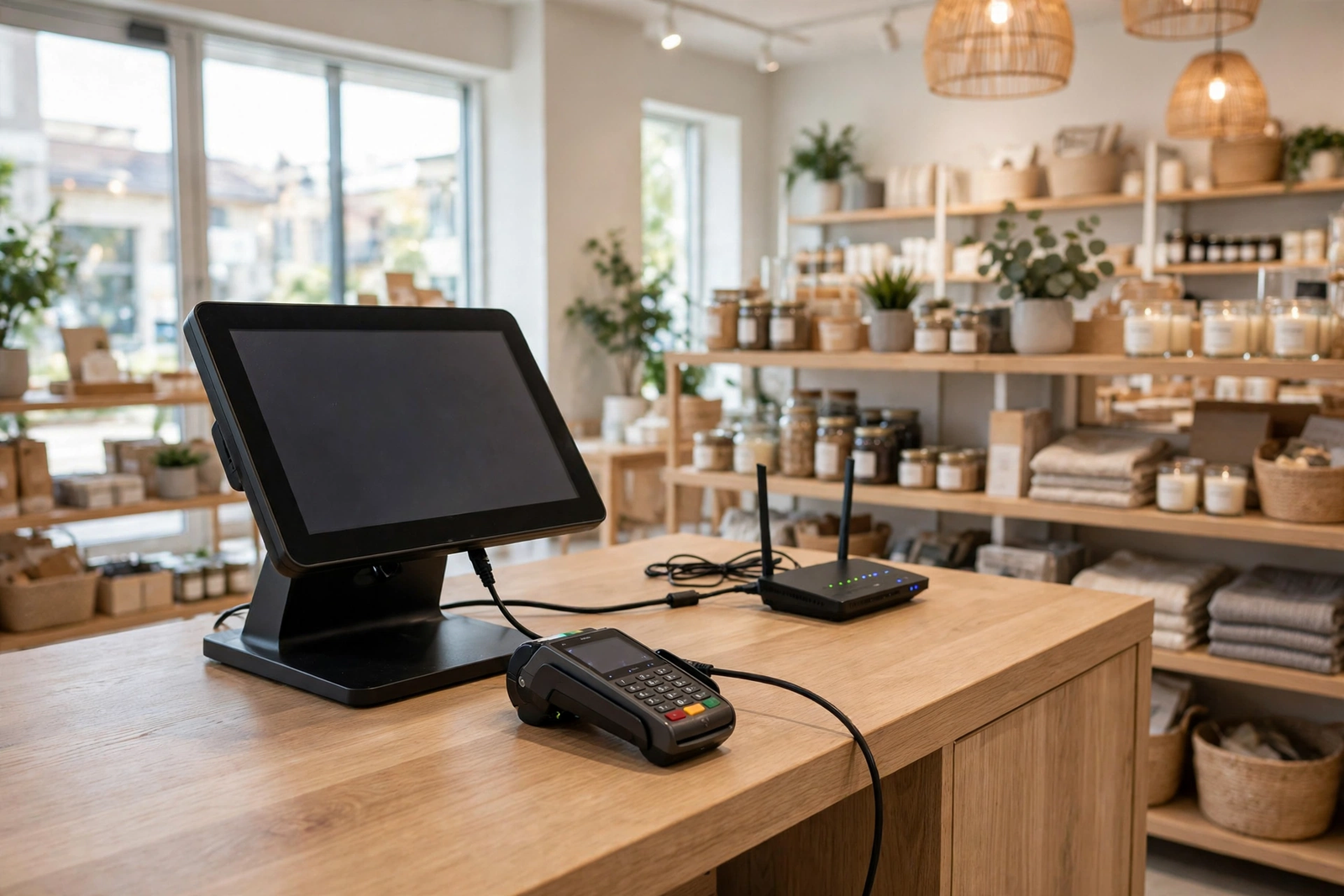
Wi-Fi bands are a practical detail that causes real office problems. The 2.4GHz band travels farther and passes through walls better, but it is slower and more crowded. The 5GHz band is faster but shorter in range. Modern laptops and phones use both, but many business devices do not: a significant number of POS printers, card readers, and older peripherals are 2.4GHz-only, as a matter of device design, not network choice. Those devices simply cannot see a 5GHz-only network.
Make sure your mesh setup keeps a 2.4GHz network available for those devices, and keep them on it deliberately rather than hoping they connect correctly. If your mesh system combines bands under one network name, confirm that 2.4GHz-only devices can still join, and check the device list after setup to confirm each POS terminal and printer is actually connected. A device that connected fine to the old gateway may fail on a new system for exactly this band reason, and the symptom looks like a broken printer rather than a band mismatch.
Separate the traffic sensibly. Put staff laptops and phones on the faster band where they can use it, keep POS terminals and printers on 2.4GHz or on Ethernet where supported, and keep guest traffic on a separate guest network. That separation is not just about speed. It keeps payment devices off the guest network and keeps guest traffic from competing with business traffic at busy times. Our guide to setting up guest Wi-Fi on AT&T Business Internet covers the guest separation routine in detail.
Business Router Selection for POS Printers and Card Readers on Mesh Wi-Fi
For POS and card readers, reliability beats speed. A card reader does not need gigabit Wi-Fi. It needs a stable connection in the exact spot where payments are taken. Test payment devices in their real positions, not next to the gateway, and keep them within good coverage. If a reader sits far from any node, move a node, wire the device where supported, or move the reader’s home position, rather than accepting intermittent failures at the till. Payment failures cost more than a cable run.
Also consider reserved addresses for fixed business devices. A device that keeps the same address is easier to find, easier to support, and less likely to drop after a network change. This is guidance for your IT support to implement, not a gateway specification, and the exact steps depend on your equipment. Confirm the steps for your setup rather than following a generic procedure blindly.
Office Mesh Wi-Fi System Security: Passwords, Guest Networks, and ActiveArmor
Security for a small-office mesh system starts with the basics, and the basics are non-negotiable. Use a strong, unique Wi-Fi password for the staff network and a different one for the guest network. Change any default admin password on the new equipment. Use WPA2 or WPA3 encryption, never an open network and never the obsolete WEP standard. Keep the system firmware updated, which is usually automatic, and never attempt to flash firmware manually. These steps are guidance, and they apply to any mesh system, regardless of brand.
AT&T Business Fiber includes ActiveArmor security, checked in October 2026, which adds a layer of network protection for the fiber service. ActiveArmor does not replace the basics above: strong passwords, a separate guest network, and regular reviews of connected devices still matter. Think of it as one layer among several, not as a substitute for the others. For more detail, see AT&T ActiveArmor for business.
Review connected devices regularly. A mesh system that shows a device list makes this easy: look for devices you do not recognize, remove devices that belong to departed staff or old equipment, and rotate the guest password periodically. If a device you do not recognize appears, block it and investigate before assuming it is harmless. A small office network is small enough to review properly, and that review is one of the cheapest security measures available.
Small Office Router Mesh Security Checklist for Staff and Guest Networks
Keep staff and guest traffic separate, always. Guests, vendors, and contractors use the guest network, never the staff network, and never the network that carries POS traffic. Rotate the guest password on a routine schedule, such as when a contractor finishes work or at a regular interval your team can remember. Record the rotation in the same place you record other network changes, so the next person to manage the network does not have to guess.
Also disable features you do not use. If you do not need remote management from outside the office, turn it off. If you used a temporary pairing feature to add a node, turn it off afterward. Every enabled feature is a potential entry point, and a small office benefits from a small attack surface. Review the settings after setup, not just during it, because setup defaults are chosen for convenience, not for your office.
AT&T Business Fiber Pricing Reference for Small Office Router Mesh Planning
Mesh planning sits on top of the fiber plan, so confirm the plan before sizing the network. The table below shows official AT&T Business Fiber list prices and the price with an eligible wireless plan, checked in October 2026. Pricing and availability vary by address and promotions, so confirm all details before ordering. A faster tier does not fix a coverage problem, and a mesh system does not fix a tier that is too slow for your workload, so judge the two separately.
| AT&T Business Fiber tier | List price per month | With eligible wireless |
|---|---|---|
| 300 Mbps | $60 | $40 |
| 500 Mbps | $100 | $60 |
| 1 GIG | $140 | $90 |
| 2 GIG | $185 | $135 |
| 5 GIG | $285 | $235 |
Choosing a tier is a separate decision from choosing mesh. Use our guide to how much internet speed a business needs to judge the tier against headcount, devices, video calls, and cloud use, and use the coverage walk in this article to judge mesh. An office can have the right tier and the wrong coverage, or the right coverage and the wrong tier, and each failure looks like “slow internet” until you separate them with a wired test.
For the wider fiber picture, see AT&T Business Fiber as the product starting point. Confirm availability for your address, confirm the tier, and then plan mesh only for the coverage gaps your testing actually shows.
Small Office Router Mesh FAQs for Business Wi-Fi Buyers
Does a small office router mesh system replace the AT&T Business Fiber gateway?
No, not as a starting assumption. The gateway handles the fiber connection, and a mesh system is an add-on for Wi-Fi coverage. How the two work together depends on the equipment and the setup mode, so confirm the arrangement with your IT support or an AT&T Business rep before buying. Do not disconnect the gateway expecting the mesh system to replace the fiber connection itself.
How does office mesh Wi-Fi system coverage differ from a single extender?
Mesh uses coordinated nodes under one network, so devices roam between rooms more smoothly. An extender repeats the gateway signal into one weak spot, which can work for a single area but roams less smoothly. For several weak rooms or staff who move while connected, mesh is usually the better fit. For one weak corner, an extender may be enough. Judge by the number of weak areas and by whether people move while connected.
Can business router selection ignore 2.4GHz for a modern small office?
No. Many POS printers, card readers, and older peripherals are 2.4GHz-only, and they cannot join a 5GHz-only network. Keep 2.4GHz available, confirm each such device connects after any network change, and keep payment devices off the guest network. Ignoring 2.4GHz is one of the most common causes of a “broken printer” after a Wi-Fi upgrade.
Does a small office router mesh system need wired backhaul to work?
No, mesh works wirelessly, but wired backhaul performs better wherever a cable run is possible, because it frees Wi-Fi capacity for devices. If you cannot run cables, place nodes where they have a good wireless link to the gateway and test node by node. Wired backhaul is a performance improvement, not a requirement, but it is worth planning for during any office refit or cable work.
What small office router mesh security steps matter most for a business?
Strong unique passwords for staff and guest networks, WPA2 or WPA3 encryption, a separate guest network, regular device reviews, and automatic firmware updates cover most of the risk for a small office. Change default admin passwords, disable features you do not use, and rotate the guest password regularly. ActiveArmor on AT&T Business Fiber adds a further layer, but it does not replace these basics.
Business Router Selection Checklist: Final Small Office Mesh Steps
Work through this final checklist before buying. Test wired speed at the gateway, walk the office and map weak areas, count devices by room, decide mesh or extender by the number of weak areas, plan wired backhaul where possible, confirm 2.4GHz for POS and printers, set up a separate guest network, and keep the old setup until the new one is proven. If any step is skipped, the purchase is a guess, not a plan.
When the plan is confirmed and the coverage gaps are measured, you can choose a system by capability with confidence: enough nodes for the weak areas, wired backhaul where cables allow, 2.4GHz support for business devices, and single-system management for the whole office. Check AT&T Business Fiber for your small office first, confirm the tier and availability for your address, and then add mesh only where your testing shows you need it.

