
Verdict: the best way to prepare for fiber installation is to confirm the appointment and the on-site contact, clear access to the entry point and telecom closet, decide gateway placement in advance, arrange power backup, and keep your old connection running until the new fiber service passes wired, Wi-Fi, and POS tests. Most installation-day problems are not about the fiber itself. They are about locked doors, blocked closets, missing decision-makers, and nobody knowing where the router should live. A few hours of office fiber install prep before the technician arrives can save a second visit and a day of disruption.
This guide walks through a practical fiber installation day checklist for a small office: what to confirm, what to clear, what to decide, and what to test before the technician leaves. It covers AT&T Business Fiber tiers and official pricing checked in October 2026, the power and backup note for 1 GIG and faster plans, and the handover tests that matter for a working office, not just a working speed test. Where a detail depends on your building or order, this article says so and tells you to confirm it with an AT&T Business rep rather than guessing.
Prepare for Fiber Installation With AT&T Business Fiber
Check availability for your office address and compare fiber speeds before installation day.
Start with the distinction that shapes the whole day. Fiber installation has two parts: getting fiber to your building and getting a working office network out of it. The technician handles the first part and the gateway setup. Your team handles the second part: where equipment lives, which devices connect where, and whether printers, card readers, phones, and computers all work after the changeover. If you only plan for the technician, you can end the day with a green light on the gateway and a dead printer at the front desk. Plan for both parts.
Small offices often assume installation day is a single short visit with no preparation needed. That assumption is the main risk. The technician cannot move your storage, unlock a landlord-controlled closet, or decide your network layout for you. The work below is deliberately unglamorous: confirmations, clearances, labels, passwords, and tests. It is also the work that turns installation day from a disruption into a routine changeover.
What a Fiber Installation Day Checklist Covers for Your Office
A good fiber installation day checklist covers five areas: people, access, placement, power, and testing. People means knowing who must be on site and who can make decisions. Access means entry points, closets, ceilings, and locked rooms. Placement means where the gateway and router will sit and where Wi-Fi must reach. Power means outlets and, for faster plans, backup power. Testing means the checks you run before the technician leaves and before you cancel anything old.
Work through the checklist in that order, because each area unlocks the next. There is no point choosing a gateway location in a closet nobody can open. There is no point testing Wi-Fi coverage from a gateway that has no reliable power. And there is no point testing at all if the person who knows the POS password or the Wi-Fi password has gone home. Put names, not just tasks, on the checklist.
Assign one on-site contact for the day. That person should be able to open every relevant room, answer questions about where equipment should go, and approve small on-the-spot decisions, such as a cable route along a wall rather than through a ceiling. If the decision-maker cannot be on site, give the on-site contact written authority for those choices and a phone number for anything larger. Tell the whole office who the contact is, so the technician is not passed from person to person.
Who Must Be On Site for Fiber Installation Day in a Small Office
At minimum, the on-site contact and anyone who manages your current network should be present. If an outside IT person manages your network, ask whether they need to be there in person or available by phone during the install window. For offices with a POS system, a card reader, or a security camera system, have the person who knows those devices available too, or at least reachable. A technician can install fiber; only your team can confirm that your business systems work on it.
Also confirm the appointment itself before the day. Check the date, the arrival window, the service address, and the contact number on the order. If anything looks wrong, raise it before the technician is standing in your lobby. Guidance from experience in office moves applies here: allow a generous window for the visit and do not schedule a critical client meeting, a stock delivery, or a POS software update in the same window. Installation day deserves a quiet calendar, not a packed one.
How to Prepare for Fiber Installation Before the Technician Arrives
Preparation starts with confirming what was ordered. Check the plan tier, the service address, and any equipment included in the order, and keep the order details where the on-site contact can find them. If your order includes a gateway, confirm that it is part of the install. If you plan to use your own router or mesh system, have it on site and know whether it will sit behind the gateway or replace part of the setup. Do not leave that decision for installation day if you can avoid it, because it affects cabling and testing.
Next, gather the information the day will need. That includes the current Wi-Fi network name and password, the admin password for your current router if you have one, and the list of devices that must reconnect: computers, printers, POS terminals, card readers, cameras, and any smart devices. Write down which devices use Wi-Fi and which use Ethernet. This list becomes your testing checklist later, and it prevents the classic installation-day failure of discovering a forgotten device after the technician has left.
Tell your team what will happen and what will not happen. Staff should know that Wi-Fi may drop during the changeover, that they may need to reconnect devices, and that they should not cancel or unplug the old connection on their own. If your office takes card payments, plan the changeover for a quiet period and keep a fallback ready, such as a mobile payment option your staff already knows how to use. A short team briefing the day before prevents confusion and improvisation on the day.
Office Fiber Install Prep Documents and Passwords to Gather Early
Put the following in one folder, physical or digital, for the on-site contact: the order confirmation, the appointment details, the building access notes, the current network passwords, the device list, and the contact number for your IT support. Do not store passwords in an email thread that nobody can find. A single page with the essentials is worth more than a long thread of forwarded messages.
Also note any building rules that affect the visit. Some buildings require the technician to sign in, use a service entrance, or work only within certain hours. Some landlords must approve drilling or cable runs through common areas. Confirm those rules before installation day, not when the technician is asking for access. If landlord permission is needed in writing, get it in writing and keep a copy on site.
Office Fiber Install Prep: Clearing Access to Entry Points and Telecom Closets
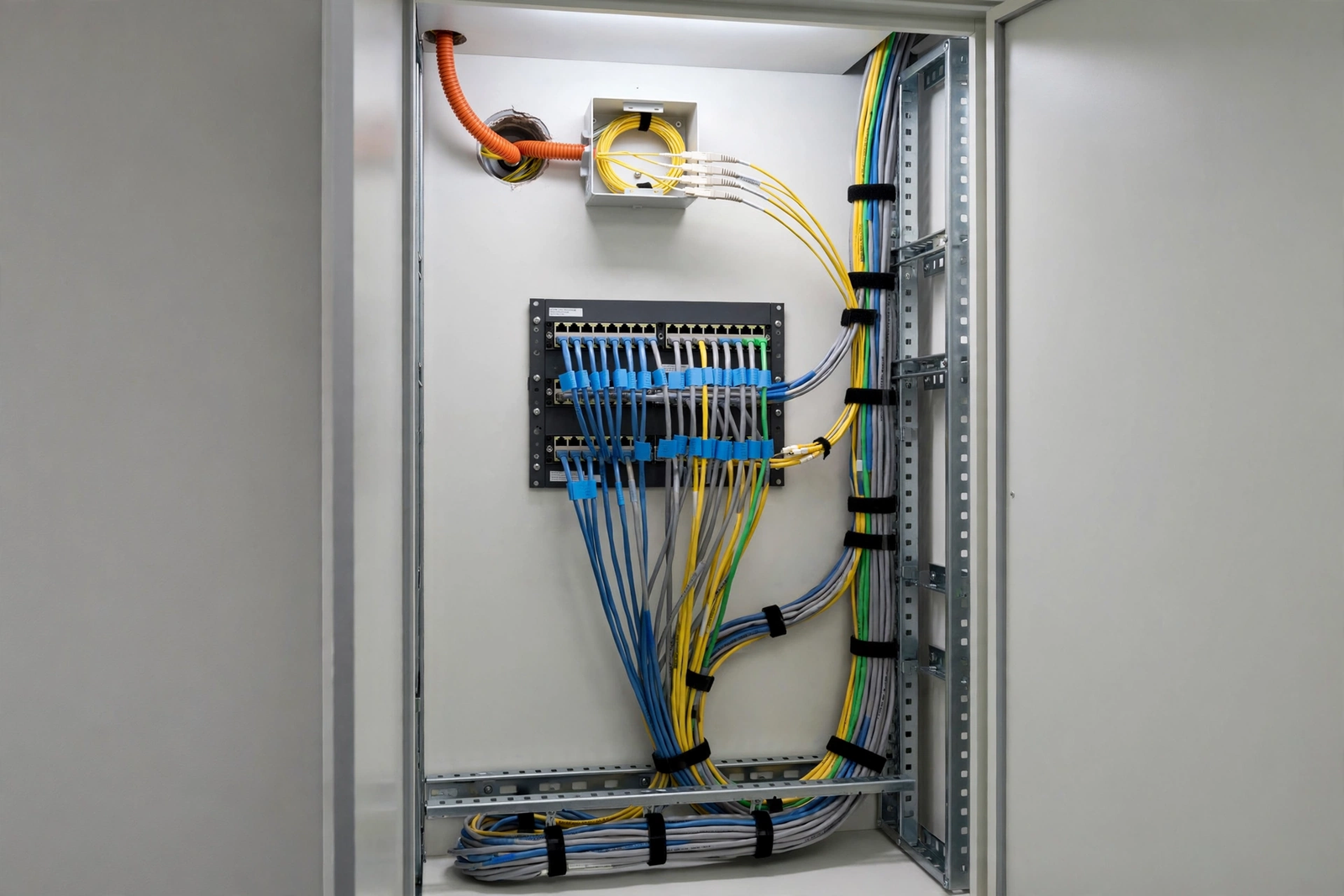
Clear access is the most common avoidable delay on installation day. Walk the route the technician is likely to need: the building entry point where fiber enters, the path to the telecom closet or main distribution point, and the spot where the gateway will sit. Move boxes, stock, cleaning equipment, and furniture away from those areas. A closet that takes twenty minutes to empty is twenty minutes the technician cannot spend on your installation.
Check that doors along the route can be opened. Test keys, codes, and fobs the day before. If a room is locked and only one person holds the key, make sure that person is on site or that a spare is available. Note any rooms with alarms, server equipment, or restricted access, and tell the technician about them at the start of the visit. Surprises slow visits down and sometimes stop them entirely.
Think about cable routes too. Fiber and Ethernet cables need a path from the entry point to the gateway location, and from the gateway to any wired devices. Look at the route in advance: along walls, through ceilings, under floors, or through existing conduits. Note any obstacles, such as a locked ceiling void, a tiled wall that cannot be drilled, or a shared wall with a neighboring tenant. If you have a preferred route, say so early. If you have a forbidden route, such as a heritage wall or a landlord restriction, say that even earlier.
Business Fiber Install Steps for Clearing the Telecom Closet Safely
Clear the telecom closet itself, not just the door. Label existing cables if you can, and photograph the current setup before anything changes. That photograph is your rollback reference if something needs to be restored. Keep the closet ventilated and free of cardboard, heaters, and cleaning chemicals. Gateways and routers need airflow, and a hot, cramped closet is a reliability problem, not just a tidiness problem.
Plan where the gateway will sit inside the space. It needs a stable surface, ventilation, and access to power and to the fiber entry. It should not sit on the floor, behind a stack of boxes, or inside a closed metal cabinet that blocks Wi-Fi. If the gateway will also provide Wi-Fi, its location matters even more, because a closet in a back corner is a poor starting point for office-wide coverage. Decide the location before the day, and be ready to discuss alternatives with the technician if the first choice proves impractical.
Business Fiber Install Steps: What Happens on Installation Day
Installation day typically follows a sequence, though the exact steps depend on your building and whether fiber already reaches your premises. The technician confirms the order and the service address, checks the entry point and the route, installs or connects the fiber termination, sets up the gateway, and verifies the connection. Your job during that sequence is to stay available, answer placement questions, and keep the route clear. Do not disappear into meetings during the window and do not leave the technician alone with unanswered questions about your network.
Expect the visit to take a generous window rather than a fixed number of minutes. This article deliberately does not promise a duration, because buildings differ: a premises with existing fiber infrastructure is a different job from one that needs new routing, drilling, or landlord coordination. Plan your day around a window, keep the on-site contact available throughout it, and treat any early finish as a bonus. If the technician needs to reschedule part of the work, ask what is needed before the return visit so you can prepare for that too.
When the gateway is live, the technician will usually check the connection at the gateway. That check matters, but it is not the full test. Your office test comes next, and it should cover every device on your list, not just one laptop. Work through the list methodically: wired computers, Wi-Fi devices, printers, POS terminals, and card readers. Test in the places where work actually happens, including the front desk, the back office, and any far corner where coverage is weakest.
AT&T Fiber Installation Preparation for Gateway Placement Decisions
Decide gateway placement using three tests: signal, cabling, and practicality. Signal means Wi-Fi should reach the areas that need it, starting from a central, elevated position rather than a corner closet. Cabling means Ethernet runs to fixed devices should be short and tidy. Practicality means the gateway should be accessible for reboots and checks, ventilated, and safe from knocks, spills, and cleaning equipment. A location that passes only one of those tests is a compromise you should understand before accepting it.
If Wi-Fi must cover multiple rooms or a shop floor, plan for that before installation day. A single gateway may be enough for a small open office, but a multi-room office or a building with thick walls may need additional coverage, such as a mesh system or access points, planned as a follow-on step. Read our guide on how to choose business internet for a small office only after you know your gateway location, because the gateway position decides where extra coverage is actually needed. Do not buy extra hardware before you know the starting point.
Also decide what happens to your old network equipment. Keep the old router and its passwords until the new service is proven, even if you plan to retire them. Label the old equipment and store it where it can be reconnected quickly if a rollback is needed. Throwing away the old setup on installation day removes your safety net at exactly the moment you might need it.
AT&T Business Fiber Plans and Pricing to Confirm Before Installation Day
Confirm the plan you ordered against the official AT&T Business Fiber tiers below, checked in October 2026. Pricing and availability vary by address and promotions, so confirm all details before ordering and again before installation day if anything about the order has changed. The table shows list prices and the price with an eligible wireless plan, where that discount applies.
| AT&T Business Fiber tier | List price per month | With eligible wireless | Good fit for |
|---|---|---|---|
| 300 Mbps | $60 | $40 | Small offices with light cloud use |
| 500 Mbps | $100 | $60 | Offices with several staff and video calls |
| 1 GIG | $140 | $90 | Busy offices, POS, cameras, and cloud tools |
| 2 GIG | $185 | $135 | Large small-business offices with heavy uploads |
| 5 GIG | $285 | $235 | Very high demand offices and multi-use sites |
AT&T Business Fiber is symmetrical, with matching upload and download speeds, and has no data caps and no annual contract, checked in October 2026. Those two facts matter for installation-day planning: symmetrical uploads help offices that send large files, back up to the cloud, or run cameras, and the absence of a data cap means testing on installation day does not need to be rationed. ActiveArmor security is included, and 1 GIG and faster plans include built-in 5G backup at no extra cost, which brings a power note below.
If your address does not yet qualify for fiber, or if you are unsure, check availability before you plan the day around it. Our guide to AT&T Business Fiber availability explains what qualification means and why two neighboring addresses can get different answers. For pricing detail, see AT&T Business Fiber pricing. Confirming qualification early is the single best way to avoid a wasted installation window.
Disclaimer: This article contains affiliate links to AT&T Business services. We may earn a commission if you purchase through them, at no extra cost to you. Ortelcom.com is an independent publisher and is not affiliated with or endorsed by AT&T. Pricing, speeds, and availability are not guaranteed, were checked in October 2026, and vary by address and promotions — please confirm all details before ordering. AT&T and all related marks are trademarks of their respective owners.
Fiber Installation Day Power and Backup Planning for 1 GIG and Faster
Power planning is easy to forget and expensive to get wrong. Make sure the gateway location has a reliable outlet, and avoid plugging it into a switched outlet that staff turn off at night, a overloaded power strip, or an outlet shared with a heater or a large appliance. Label the gateway outlet so nobody unplugs it to charge a phone or run a vacuum. A surprising number of “outages” are unplugged gateways.
The backup note matters for 1 GIG and faster plans. Those plans include built-in 5G backup at no extra cost, which automatically takes over if the fiber connection fails. That backup still needs power: without an uninterruptible power supply (UPS), the gateway dies in a power outage and the backup dies with it. If uptime matters to your business, put the gateway on a UPS before installation day, or plan to add one immediately after, and test that the gateway stays up when mains power is briefly interrupted. Confirm UPS sizing with your IT support or an AT&T Business rep, since this article does not specify a UPS model or capacity.
Also plan power for anything the gateway depends on. If you use a separate router, a switch, or a mesh node, those devices need power too, and a UPS that covers only the gateway leaves the rest of the network dark. Map the full chain: gateway, router, switch, and any access points. Back up the chain that matters, not just one box in it. This is guidance, not an AT&T specification, and it should be checked against your actual equipment.
Fiber Installation Day Checklist for Power Outlets and UPS Placement
Walk the gateway location with a power checklist: is there a free outlet, is it unswitched, is there room for a UPS, and is the UPS itself charged and tested? If the answer to any of those is no, fix it before installation day. Bring a short extension lead only as a temporary measure, and replace it with a proper outlet or a tidy power arrangement afterward. Trailing cables across a walkway are a trip hazard and a sign that the location needs rethinking.
Label everything as you go. Label the gateway power cable, the fiber cable, and the Ethernet cables to key devices. Labels take minutes on installation day and save hours during the next fault, when someone else has to work out which cable is which. Photograph the finished setup, including labels, and store the photograph with your order details.
Fiber Installation Day Testing: Wired, Wi-Fi, POS and Printers Before the Technician Leaves

Testing is the part of installation day that protects your next working day. Do not let the visit end with only a gateway speed test. Run your own tests, device by device, and in the places where work happens. The sequence below is guidance, not an AT&T test procedure, but it covers the failures that actually disrupt small offices.
Start wired. Connect a computer by Ethernet to the gateway or router and run a speed test. That result tells you what the service delivers before Wi-Fi enters the picture. Then test Wi-Fi next to the gateway, then at the front desk, then at the farthest working position. If wired is strong but Wi-Fi is weak in one spot, you have a coverage problem to solve with placement or extra equipment, not a service problem. That distinction saves a support call in the wrong direction.
Next, test business devices. Print a test page from each printer. Run a test transaction or a card-reader check using your normal procedure, without taking a real payment you do not need. Check that cameras connect and stream. Check that phones, tablets, and laptops reconnect, and that any device with a saved static address or reservation still works. If a device fails, note the exact symptom: no Wi-Fi at all, connected but no internet, or intermittent drops. Exact symptoms help support far more than “the internet is broken.”
Finally, test the handover itself. Confirm the new Wi-Fi name and password, confirm which devices are on the new network and which are still on the old one, and confirm that the old connection is still running. Do not cancel the old connection on installation day. Keep it until the new service has passed a full working day, including your busiest period. That overlap is your rollback plan, and it costs far less than a day of downtime.
Business Fiber Install Steps for Keeping the Old Connection Until Tests Pass
Keeping the old connection is the simplest insurance on installation day. It means that if a device cannot be moved, a setting cannot be recovered, or a fault appears after the technician leaves, your office still has a working connection while the problem is fixed. Agree the overlap period in advance, and set a date to review it, rather than leaving two bills running indefinitely. A planned overlap of a few days to a couple of weeks is normal guidance for a small office; the right length depends on your testing and your old contract terms, so check plan details before deciding.
Before the technician leaves, agree what happens if a problem appears later that day. Ask what to check first, what the support route is, and what information to have ready, such as the gateway lights, the test results, and the device symptoms. Write those notes down. A calm handover note at the end of installation day is worth more than a frantic search for a support number the next morning.
Fiber Installation Day Checklist for Staff Briefing and First Working Day
The first working day on fiber is part of installation, not separate from it. Brief staff on the new Wi-Fi name and password, on any device that needs reconnecting, and on what to do if a device drops off. Give them the on-site contact’s name and the support route, and ask them to report problems with specifics: which device, where, when, and what the symptom is. Vague reports slow fixes down.
Watch the busiest period closely. A connection that passes a quiet test can still struggle under the full office load: video calls, POS traffic, cloud backups, and guest Wi-Fi all at once. If problems appear only at peak times, note the pattern, because peak-only problems point to capacity, coverage, or a device hogging bandwidth, not to a simple installation fault. Keep the old connection available through that first peak period if you can.
After the first full working day, review the checklist. Which devices needed extra help? Which rooms had weak Wi-Fi? Did the gateway stay powered and ventilated? Did any staff member need a password reset or a device reconfiguration? Fix those items now, while the installation is fresh and the old connection is still available. Then, and only then, plan the old connection’s cancellation, checking contract and early-termination terms first. For the wider ordering process, see how to order and install AT&T Business Fiber.
Office Fiber Install Prep Review: Guest Wi-Fi and Device Inventory After Install
Use the post-install review to set up guest Wi-Fi properly, if you offer it. Guests should be on a separate network from POS terminals, printers, and internal systems, with a password you can rotate. Our guide to setting up guest Wi-Fi on AT&T Business Internet covers the separation and rotation routine. Do not put guests on the same network as card readers or internal files, even temporarily, because temporary arrangements have a habit of becoming permanent.
Update your device inventory at the same time. Record which devices are on fiber, which use Ethernet, which use Wi-Fi, and any reserved addresses or special settings. That inventory is the starting point for every future troubleshooting visit, and it is far easier to build on installation day than to reconstruct months later. Store it with the gateway photograph and the order details.
Fiber Installation Preparation FAQs for Small Offices
How much fiber installation day preparation does a small office need?
Most small offices need a few hours spread over the week before installation day, not a full day of work. The tasks are confirmations, clearances, and decisions: confirm the appointment and the on-site contact, clear access to the entry point and closet, decide gateway placement, arrange power, and list the devices to test. Offices with landlord permissions, complex cable routes, or many POS and camera devices need more time, mainly for permissions and device lists. Start early enough that a landlord reply or a missing password does not become a day-of problem.
What fiber installation preparation matters most if time is short?
If time is short, prioritize access, the on-site contact, and the old-connection overlap. Clear the entry point and closet, make sure someone who can open every door and make decisions is on site, and do not cancel the old connection before the new one passes tests. Those three items prevent most failed visits and most painful rollbacks. Gateway placement and power planning come next, because they can often be adjusted after the visit, while a locked closet or a missing decision-maker cannot.
Can fiber installation day preparation avoid a second technician visit?
Good preparation reduces the chance of a second visit, but it cannot guarantee it. Some issues only appear on the day, such as a blocked cable route, a building infrastructure problem, or a fault that needs a return visit. Preparation helps by removing the avoidable causes: locked rooms, blocked closets, missing contacts, and undecided placement. If a return visit is needed, ask exactly what must be ready before it, and prepare for that visit the same way.
Does fiber installation preparation differ for offices without existing fiber?
Yes, in the sense that more can be unknown. If fiber does not already reach your building, the route, the entry point, and any construction or landlord permission matter more, and the window may be less predictable. Confirm qualification early, ask what building access or permission is needed, and keep the old connection running until the new service works. Do not promise staff or customers a switch date until the installation itself is confirmed, because build-related steps are outside your control.
Should office fiber install prep include a UPS for every plan?
A UPS is most important for 1 GIG and faster plans, where built-in 5G backup depends on gateway power, and for any office where uptime matters. For slower plans, a UPS is still good practice for the gateway and key network equipment, but it is not tied to a built-in backup feature in the same way. Either way, confirm UPS sizing with your IT support or an AT&T Business rep, and test that the gateway stays up during a brief power interruption. Do not assume a UPS you already own is correctly sized or still holds a charge.
Fiber Installation Day Checklist: Final Office Prep Steps Before You Order
Use this final pass before you treat installation day as ready. Appointment confirmed, on-site contact named, access cleared, gateway location decided, power arranged, device list written, old connection kept, and testing plan agreed. If any item is missing, it is a task for this week, not a hope for the day. Installation day rewards offices that prepare for the boring parts: doors, cables, passwords, and tests.
When you are ready to check availability and compare tiers for your address, confirm pricing and details for your location before ordering. Check AT&T Business Fiber for your office and keep the order details with your installation checklist, so the day itself runs on decisions you have already made.

