
Choppy VoIP calls are almost never a mystery once you know where to look: the voice traffic travelling across your office internet is competing with everything else on the network, and when it loses that competition, callers hear gaps, robotic distortion, and dropped words. The good news is that most VoIP call quality problems are fixed with internet settings rather than new phones, because voice calls are far more sensitive to delays and interruptions than email or web browsing, and a few well-chosen settings can give voice traffic the priority it needs. Our verdict is that a business with a solid Fiber connection and correctly configured router settings can expect clear, stable calls, while a business that leaves voice traffic to fight for bandwidth will keep hearing complaints no matter how good the handsets are.
In this guide, we explain the internet settings that stop choppy VoIP calls, how to test your current call quality before changing anything, and how to set up your router, bandwidth, and office network so voice traffic gets through cleanly. You will learn how quality of service settings work, why wired connections beat Wi-Fi for desk phones, how to plan bandwidth for your number of simultaneous calls, and how to troubleshoot the most common call problems in a sensible order. Everything here is written for a typical small or mid-sized office, and where a setting depends on your provider or equipment, we say so and advise confirming it with your provider.
Give Your VoIP Calls a Faster, More Reliable Connection
Check AT&T Business Fiber plans and availability for your office to support clear VoIP calls.
Why Choppy VoIP Calls Happen on Business Internet Connections
To fix choppy VoIP calls, it helps to understand what a voice call actually is on your network. Unlike a file download, which can pause and resume without anyone noticing, a voice call is a live stream of small packets that must arrive steadily and in order. If packets arrive late, out of order, or not at all, the person on the other end hears gaps, clipping, or a robotic voice. Email and web browsing tolerate these hiccups easily; voice does not, which is why an office can have perfectly usable internet for browsing and still suffer terrible call quality.
The most common cause of choppy calls in a business is congestion: too much traffic trying to use the same connection at the same time. A large file upload, a cloud backup, a video meeting, and several phone calls can all compete for the same upload capacity, and upload capacity is usually much smaller than download capacity on many business connections. When voice packets queue behind a large upload, they arrive late, and the call breaks up. This is also why call quality often gets worse at predictable times of day, such as when backups run, when staff arrive and start video calls, or when the office uploads large files. If your choppy calls follow a pattern like that, congestion is the likely culprit, and the settings in this guide are aimed squarely at it.
Other causes matter too. A weak Wi-Fi signal at a desk phone or a softphone laptop can drop packets before they ever reach the router. An overloaded or ageing router can struggle to handle many simultaneous connections. A misconfigured firewall can interfere with voice traffic. And a genuinely slow or unstable internet connection can simply lack the headroom for voice alongside everything else the office does. The troubleshooting order later in this guide helps you separate these causes, but the short version is this: most offices fix most of their call quality problems by prioritising voice traffic, moving phones to wired connections where possible, and making sure the connection itself has enough capacity.
How to Test VoIP Call Quality Before Changing Internet Settings
Before changing any VoIP internet settings, take a baseline so you can tell whether your changes actually helped. The simplest test is also the most honest: make several test calls at different times of day, including during your busiest period, and note what you hear. Call a colleague in another room, call an outside number, and call a mobile number, and listen for gaps, delay, echo, and robotic distortion. Ask the person on the other end what they hear too, because one-sided problems point to different causes than problems both sides hear. Write down when the problems happen, which phones are affected, and whether the problems coincide with heavy network use, such as backups or video calls.
Next, check the basics of your connection. Run a speed test from a wired computer during a quiet period and again during a busy period, and compare the results. A large drop during busy periods confirms congestion. Also check whether the problem affects wired phones, Wi-Fi phones, or both: if only Wi-Fi phones suffer, the wireless network is the place to look, while problems on wired phones point to the router or the internet connection itself. Many VoIP providers also offer call quality reports in their admin portals, showing which calls had problems and when, and these reports are worth checking because they turn vague complaints into a pattern you can act on. Our guide to running a business internet speed test that actually means something explains how to get measurements you can trust rather than a single misleading number.
VoIP Router Settings Business Owners Should Check First
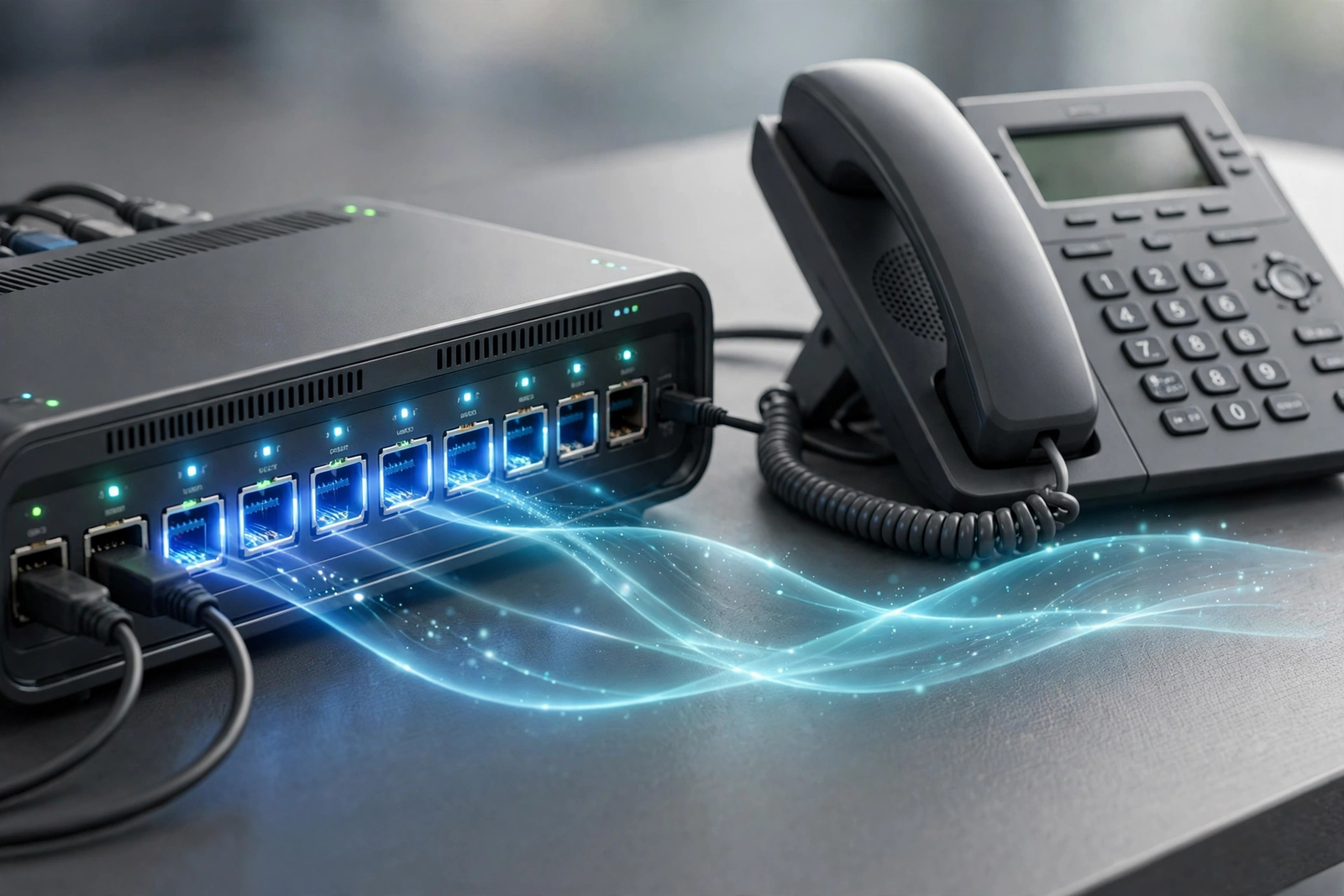
The single most important VoIP router setting for a business is quality of service, usually shortened to QoS. QoS tells your router to treat voice traffic as more urgent than other traffic, so when the connection is busy, voice packets go first and bulk traffic such as downloads and backups waits. Without QoS, your router treats a phone call and a software update as equally important, and the call loses whenever the network gets busy. With QoS configured, the call keeps its steady stream of packets even while other traffic is heavy, which is exactly what prevents choppy audio.
Setting up QoS varies by router, but the pattern is consistent. You log into your router’s admin pages, find the QoS or traffic prioritisation section, and create a rule that gives high priority to your VoIP traffic. Some routers let you prioritise by device, in which case you prioritise the desk phones or the voice adapter. Others let you prioritise by service or port, in which case your VoIP provider can tell you which ports or traffic types to prioritise; if you are unsure, ask your provider, because using the wrong ports is a common reason QoS appears not to work.
Two related router settings are worth checking at the same time. First, make sure your router’s firmware is up to date, because outdated firmware can cause instability that shows up as call problems, and manufacturers regularly fix performance issues in updates. Second, check whether your router has SIP ALG enabled. SIP ALG is a feature that tries to help voice traffic pass through the router, but in practice it often interferes with modern VoIP services and causes one-way audio, failed registrations, or calls that drop. Many VoIP providers recommend disabling SIP ALG, so if you are seeing strange call behaviour, disabling it is a sensible early test, and your provider can confirm whether it applies to your service. If you are also reviewing your wider office network, our guide to securing your business Wi-Fi network covers the router settings that protect the network while you tune it for voice.
VoIP Bandwidth Settings: Prioritising Voice Traffic on Your Network
VoIP bandwidth settings are about reserving enough capacity for voice and making sure nothing else eats it. The key concept is headroom: your office should not be running its internet connection at full capacity during normal work, because voice calls need a steady slice of capacity at all times, not whatever is left over. A useful rule is to plan for your peak number of simultaneous calls plus your normal office traffic, and then keep a margin above that, rather than sizing the connection for average use and hoping peak moments sort themselves out. Bandwidth needs per call vary by provider and codec, so treat any per-call figure you see as a typical planning range and confirm the right allowance with your VoIP provider before sizing a connection.
In practice, this means two things. First, if your connection is regularly saturated, no router setting will fully fix call quality, because there is simply not enough capacity to go around; in that case the fix is a faster plan or moving heavy traffic, such as scheduled cloud backups, to off-peak hours. Second, if your connection has reasonable capacity but calls still break up, QoS and traffic management are the fix, because the problem is priority rather than total capacity. Many offices have both problems at once: a connection that is tight at peak and no QoS to protect voice within it. Fixing priority first is cheaper and faster, and it tells you whether a faster plan is still needed afterwards.
Wired Connections and Business VoIP Phone Quality at the Desk
Wherever possible, desk phones should connect by Ethernet cable rather than Wi-Fi, because a wired connection removes an entire category of call quality problems. Wi-Fi is shared, variable, and affected by distance, walls, interference from neighbouring networks, and the number of devices on the same access point. A wired connection is none of those things: it delivers a stable, dedicated path from the phone to the switch, and it is far less likely to drop packets. If your office has choppy calls on Wi-Fi desk phones or softphones on laptops, moving the worst-affected desks to wired connections is often the fastest single improvement you can make.
That said, many offices cannot wire every desk, and softphones on laptops are inherently mobile. In that case, the goal is to make the Wi-Fi as good as it can be for voice: place access points so that phone users have a strong signal, avoid putting phones on a crowded 2.4 GHz network shared with dozens of other devices, and keep the number of devices per access point reasonable. If a particular desk has chronic call problems while the rest of the office is fine, check the signal at that desk specifically, because a single weak spot, such as a desk behind a metal cabinet or far from the nearest access point, can explain a problem that looks like a network-wide fault. If your office is also weighing a backup connection for resilience, our guide to choosing a business internet backup connection covers how a second connection protects voice and other systems during an outage.
VoIP Internet Settings for Remote and Hybrid Business Teams
Remote and hybrid teams add a complication to VoIP call quality, because you no longer control the internet connection at every location where calls are made. A home worker’s call quality depends on their home internet, their home Wi-Fi, and what else is happening in their house at the time, such as family members streaming video. You cannot apply office router settings to a home network you do not manage, but you can still improve things substantially with guidance, a few sensible defaults, and the right expectations.
The most useful guidance for remote staff is simple and concrete: use a wired connection for calls where possible, keep the work device close to the router or access point, and avoid running large downloads or video streams on the same connection during calls. A short written guide covering these points, plus how to restart the router and how to check whether the problem affects all calls or just one contact, will resolve many remote call complaints without IT involvement. For staff who make calls all day, a dedicated work network or a separate access point at home is worth considering, and some businesses provide a small allowance or equipment for this. Our guide to business internet for remote teams covers the wider setup for distributed staff.
Common VoIP Call Quality Problems and Their Internet Settings Fixes

When a call problem appears, work through the symptoms in order rather than changing several settings at once. The table below matches the most common symptoms to their most likely causes and the setting to check first, so you can diagnose the problem methodically and avoid fixing something that was never broken.
| Problem | Likely cause | Check first |
|---|---|---|
| Choppy audio on all calls at busy times | Congestion and no voice priority | QoS settings and bandwidth headroom |
| Choppy audio on one desk only | Weak Wi-Fi or a faulty cable | Move the phone to a wired connection or a stronger signal |
| Calls drop after a few minutes | Router or firewall timeout | SIP ALG, firewall rules, and router firmware |
| One side cannot hear the other | Firewall or SIP ALG interference | Disable SIP ALG and check firewall rules with your provider |
| Delay or talk-over on calls | High latency or jitter | Connection quality, QoS, and whether traffic is saturating the link |
| Echo on calls | Handset, headset, or audio feedback | Swap the handset or headset and check volume and placement |
Choosing a Business Internet Plan for VoIP Call Quality
If your settings are correct and calls still suffer, the connection itself may be the limiting factor. A plan with enough upload capacity and headroom for peak use is a prerequisite for reliable VoIP, and this is where Fiber connections earn their keep: symmetrical speeds mean upload capacity matches download capacity, so the direction that matters most for voice is not the bottleneck. For a small office with a handful of simultaneous calls, a mid-tier Fiber plan usually provides ample headroom, while a larger office with many concurrent calls, video meetings, and cloud traffic will want a faster tier. The right tier depends on your peak simultaneous calls and your other traffic, so size for the peak, not the average.
AT&T Business Fiber list prices checked 1 November 2026 are $60 per month for 300 Mbps, $90 per month for 500 Mbps, and $130 per month for 1 Gig, each for 12 months, with speeds up to the stated tier. For most small offices, the 300 Mbps tier provides comfortable headroom for voice alongside normal office work, while the 500 Mbps and 1 Gig tiers suit offices with heavier simultaneous use. Taxes and fees may apply, and pricing and availability vary by location, so confirm the details for your address before deciding. Our comparison of AT&T Business Fiber 300 vs 500 vs 1 Gig breaks down which tier fits which office size.
Disclaimer: This article contains affiliate links to AT&T Business services. We may earn a commission if you purchase through them, at no extra cost to you. Ortelcom.com is an independent publisher and is not affiliated with or endorsed by AT&T. Pricing, speeds, and availability are not guaranteed, were checked 1 November 2026, and vary by address and promotions — please confirm all details before ordering. AT&T and all related marks are trademarks of their respective owners.
VoIP Call Quality Checklist: Internet Settings to Review Every Quarter
VoIP settings are not a one-time fix, because offices change: new staff arrive, new devices join the network, software updates alter traffic patterns, and a connection that was ample last year can become tight. A short quarterly review keeps call quality from drifting. Start by asking staff whether calls have been clear, and check your provider’s call quality reports for patterns. Then verify that QoS is still enabled and still prioritising voice, because router replacements and firmware updates can silently reset settings, and a setting that was correct six months ago may no longer be in place.
Next, review what else is using your connection. Check whether scheduled backups or cloud syncs have moved into business hours, whether guest Wi-Fi usage has grown, and whether new video-heavy tools have been adopted without anyone considering their bandwidth. Each of these can quietly erode the headroom voice depends on. Also confirm that phones are still on wired connections where they were planned to be, since desk moves and reorganisations often leave phones on Wi-Fi by accident. A quarterly walk around the office with this checklist in hand takes under an hour and prevents the slow decline that ends in a week of complaints.
VoIP Call Quality Internet Settings: Frequently Asked Questions
Why do my VoIP calls sound choppy on a fast business internet connection?
Choppy VoIP calls on a fast connection are usually a priority problem, not a speed problem. Voice packets need to arrive steadily, and if your router treats voice traffic the same as downloads, backups, and video streams, voice packets queue behind bulk traffic and arrive late, which sounds like choppy audio. Enabling QoS and prioritising voice traffic on your router is the most common fix, and moving phones to wired connections and moving heavy uploads to off-peak hours also help. Test during busy periods, because a connection that is fine when quiet and poor when busy is almost always congestion rather than a fault.
What VoIP router settings business offices should change first?
Start with quality of service: enable QoS and give voice traffic high priority, using the ports or traffic types your VoIP provider recommends. Then check whether SIP ALG is enabled and disable it if your provider advises, since it often interferes with modern VoIP services. Finally, update your router firmware and confirm that the router is not overloaded by too many devices or connections. Change one setting at a time and test after each change, so you know which setting made the difference.
How much VoIP bandwidth do simultaneous business calls need?
Bandwidth needs per call vary by provider and codec, so any per-call figure should be treated as a typical planning range rather than an exact requirement, and you should confirm the right allowance with your VoIP provider. The practical approach is to plan for your peak number of simultaneous calls, add your normal office traffic, and keep a margin above that total, rather than sizing for average use. If your connection is regularly saturated at peak, a faster plan or moving heavy traffic off-peak will do more for call quality than any router setting.
Do Wi-Fi VoIP phones have worse business VoIP phone quality than wired phones?
Generally yes, because Wi-Fi is shared and variable, affected by distance, walls, interference, and the number of devices on the same access point, while a wired connection gives each phone a stable, dedicated path. That does not mean Wi-Fi phones cannot work well: with good access point placement, a strong signal, and a network that is not overcrowded, Wi-Fi calls can sound fine. But when a desk has chronic call problems while wired desks are fine, the wireless connection at that desk is the first thing to investigate.
Can VoIP internet settings fix calls that drop during an internet outage?
Router settings alone cannot fix calls during a full internet outage, because there is no connection for the settings to manage. What fixes that problem is a backup connection: a second way online that takes over when the primary connection fails, so phones keep working. If your office depends on phones throughout the day, a backup connection is worth considering alongside the settings in this guide, and it should be tested with real calls before you rely on it.
Final Word on VoIP Call Quality for Your Business
Clear VoIP calls come down to three things: a connection with enough headroom, router settings that give voice traffic priority, and a network that does not force phones to compete with bulk traffic and crowded Wi-Fi. Get those three right, and most choppy call problems disappear, because voice traffic finally gets the steady, protected path it needs. The fixes in this guide are deliberately ordered from the highest impact to the most situational, so start with QoS and wired connections, then work through bandwidth planning and the troubleshooting table for whatever remains.
If your office is still fighting choppy calls on a connection that is tight at peak or has no backup, it may be time to look at a faster, more resilient plan. You can check AT&T Business Fiber plans and availability for your office and confirm which speeds are available at your address. Pricing, speeds, and availability vary by address and promotion, so confirm all details on your quote before ordering, and test your call quality after any change so you know the fix worked.

