
The short answer: you can secure a small-business Wi-Fi network in under an hour with nine steps — strong unique passwords for the admin interface and the Wi-Fi itself, WPA3 or WPA2 encryption (never an open network or WEP), a separate guest network, new network names, WPS disabled after pairing, automatic firmware updates, AT&T ActiveArmor, regular reviews of connected devices, and a rotated guest password. None of these requires IT staff or special equipment; all of them are settings in the gateway you already own. Most small-business Wi-Fi intrusions succeed not through sophisticated hacking but through defaults nobody changed — the factory password still on the router, the open guest network with no password, the WPS button left armed for years.
Why this matters more for a business than a home: your Wi-Fi carries card transactions, client records, employee credentials, and often the keys to your cloud accounts. A compromised home network is a privacy disaster; a compromised business network is a liability event — with customer data, potential breach-notification obligations, and payment-processor consequences in the mix. The nine steps below are ordered so each builds on the last, and the whole set is checkable in a single sitting. Pair this guide with a solid connection underneath — see our AT&T Business Fiber overview — because security settings only protect a network worth protecting.
Secure your business on a fast, reliable fiber connection
AT&T Business Fiber with ActiveArmor security — plans from $60/mo list.
What attackers target when business Wi-Fi security is weak
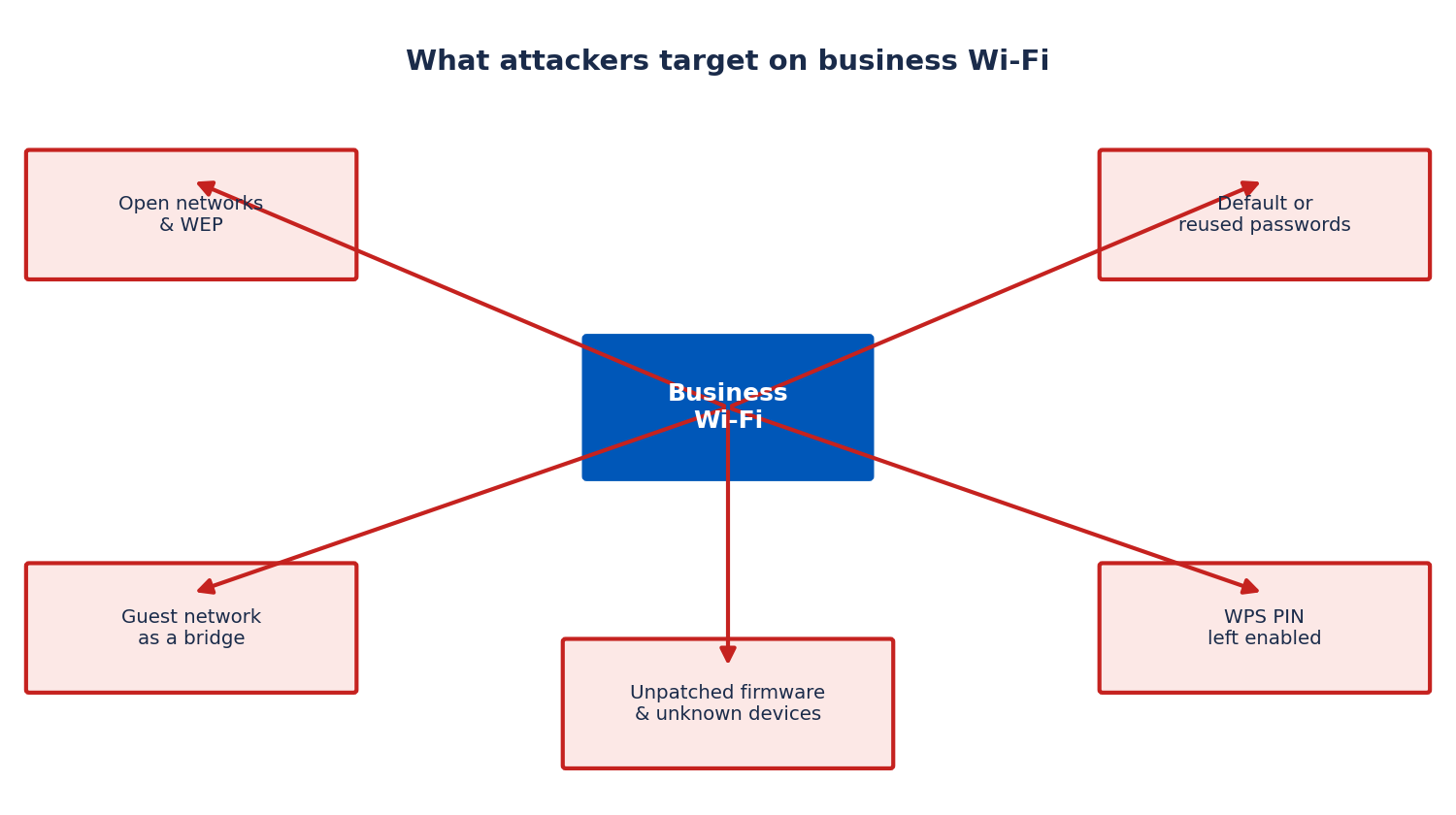
It helps to think like the other side for a minute — not because you will face nation-state hackers, but because the actual threats to small-business Wi-Fi are mundane, automated, and opportunistic. Understanding what attackers target tells you which of the nine steps matter most.
Open and weakly encrypted networks. An open Wi-Fi network (no password) broadcasts everything in the clear — anyone nearby with free software can read unencrypted traffic as it flies past. WEP encryption, the ancient standard some old devices still offer, is worse than useless: it can be cracked in minutes with tools a teenager can download. Attackers wardriving through a commercial district specifically look for open networks and WEP because they are free entry. WPA3 is the current standard; WPA2 with a strong password remains solid. Anything weaker is an invitation.
Default and reused passwords. The factory admin password on a gateway, the Wi-Fi password that is also the owner’s birthday, the same password on the Wi-Fi and the email account — these are the credentials attackers try first, because they work depressingly often. Default passwords are published in manuals anyone can download; reused passwords mean one breach anywhere becomes a breach of your network. And a weak Wi-Fi password falls to offline guessing attacks: an attacker captures the handshake once, then guesses passwords at computer speed from home.
The guest network as a bridge. A guest network without isolation is a side door into the business network. If guests can see business devices — the register, the printer, the file share — then anyone who was ever given the guest password (a former employee, a vendor, someone who photographed the password card in the waiting room) has a foothold. Proper guest isolation plus a rotated password closes this.
WPS left enabled. Wi-Fi Protected Setup’s PIN method has a well-known brute-force weakness: the PIN can be ground through in hours. The push-button method used for pairing extenders is fine — the risk is leaving WPS armed indefinitely afterward, giving an attacker unlimited time to work the PIN. Pair what you need to pair, then turn WPS off.
Unpatched firmware and unknown devices. Gateway firmware flaws get discovered and fixed regularly; a gateway that never updates is a sitting target for automated exploit scans. And every unknown device on the network is a question mark — an employee’s compromised phone, a “smart” gadget someone plugged in, or an intruder’s laptop. If you cannot name every device on your business Wi-Fi, you do not fully control your business Wi-Fi.
The good news: every one of these has a direct countermeasure in the nine steps below. Attackers go for the easy targets; these steps make you not one.
9 steps to secure business Wi-Fi
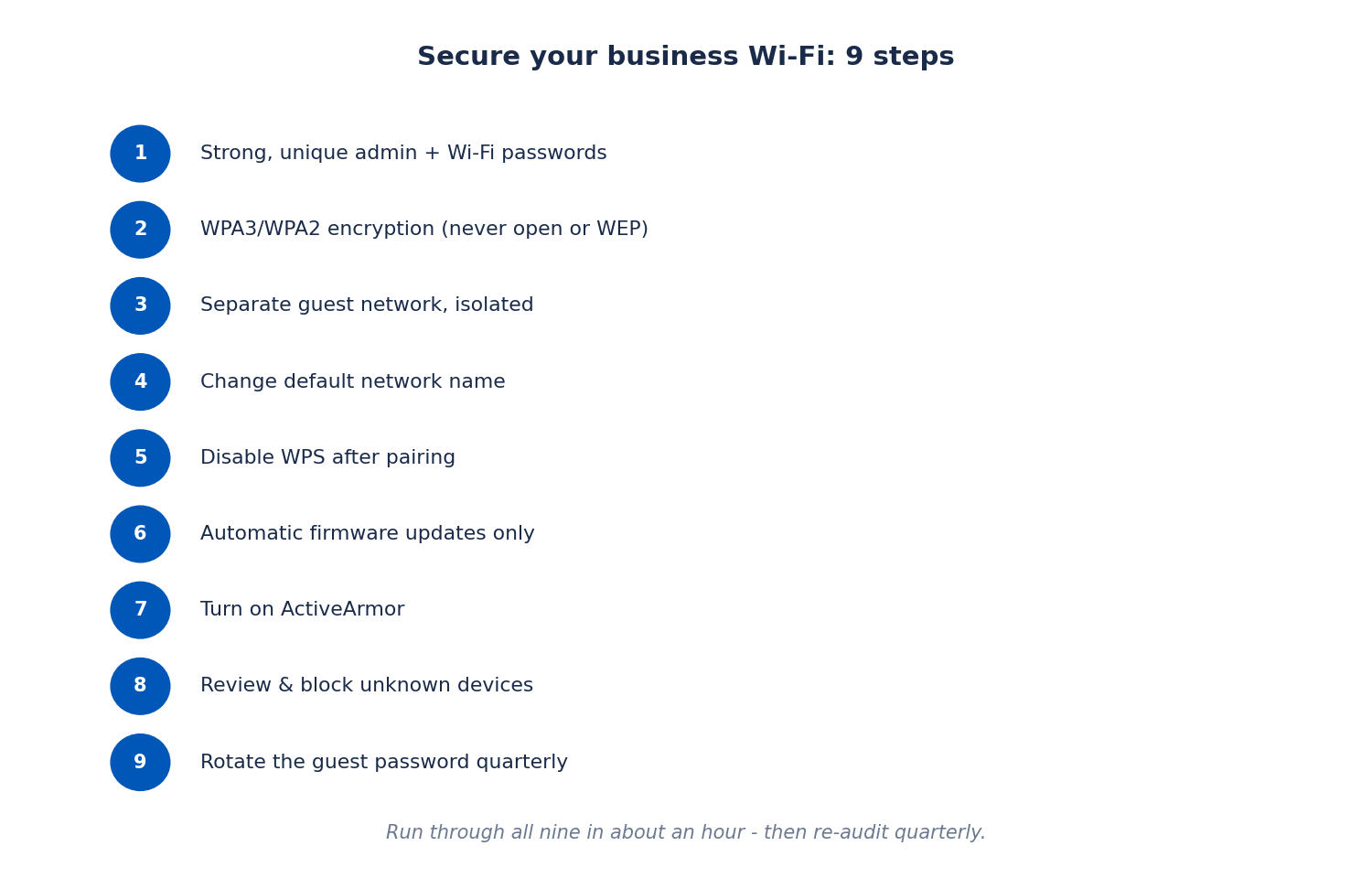
Work through these in order. Steps 1–4 are the foundation (passwords, encryption, names); steps 5–6 close common holes (WPS, firmware); steps 7–9 are ongoing hygiene (ActiveArmor, device reviews, rotation). Budget about an hour, most of it waiting for reboots.
Step 1: Set strong, unique passwords to secure business Wi-Fi
Two passwords matter here, and they must be different from each other. First, the gateway’s admin password — the one that guards the settings interface. If it is still the factory default (often printed on the gateway sticker or in the manual), change it immediately; defaults are public knowledge. Make it long (16+ characters), unique to the gateway, and stored in the business password manager — not on a sticky note on the gateway.
Second, the Wi-Fi password itself. It should be long, random, and unique to this network — a passphrase of five or six random words is both strong and typable for staff. Never reuse the Wi-Fi password for anything else, and never use a password that appears in your business name, address, or phone number (attackers try those first). When staff leave, change the Wi-Fi password — a former employee with the password is an authorized user you cannot revoke any other way. Yes, rejoining every device is annoying; do it anyway, and keep the new password in the password manager so rejoining is copy-paste.
Step 2: Use WPA3 or WPA2 encryption to protect your business network — never open networks or WEP
In the gateway’s Wi-Fi security settings, select WPA3 if all your devices support it, or WPA2/WPA3 transitional mode if you have a mix of older and newer devices. Straight WPA2 (AES) remains acceptable where WPA3 is not offered. What is never acceptable: an open network (no password) for anything business-related, and WEP, which is cryptographically broken and crackable in minutes. If the gateway offers a choice between WPA2-TKIP and WPA2-AES, choose AES — TKIP is the weaker legacy option.
Check both bands and the guest network — encryption is set per-network, and it is easy to lock down the main network while leaving the guest network open. Every network the gateway broadcasts should require a password and use WPA2 or better. If you find a device that only supports WEP (some truly ancient hardware), that device needs replacing, not a downgrade of your network security.
Step 3: Set up a separate guest Wi-Fi network for visitors
Customers, vendors, contractors, and job candidates get the guest network — never the business network. The guest network should have its own name, its own strong password, and client isolation enabled (the setting that prevents guest devices from seeing each other or your business devices). On AT&T fiber gateways this is typically configured through the Smart Home Manager app or the gateway’s web interface; on the 5G Gateway it lives in the web admin portal under Network, then Wi-Fi, then Guest Wi-Fi.
The guest network is also where bandwidth courtesy lives: if the gateway lets you limit guest bandwidth, do it, so a visitor’s video call cannot starve a card transaction. And rotate the guest password on a schedule (step 9) — the password you gave the delivery driver in March should not still work in October. For the full walkthrough of guest setup, including business uses like waiting areas, the principles here pair with proper guest-network configuration.
Step 4: Change the default network name and router password to secure business Wi-Fi
The default SSID (network name) — often something containing the gateway model or the ISP’s name — advertises exactly what hardware you run, which tells an attacker which exploits to try. Change it to something neutral that does not identify your business, your address, or your hardware. Avoid cute names that identify the business too (“JoesPizza_WiFi” tells everyone in range whose network it is); a neutral name like “OfficeNet-5G” is fine. While you are at it, if you have not already changed the admin password in step 1, do it now — this is your last reminder.
One setting to leave alone unless you have a reason: SSID broadcast. Hiding the network name (disabling broadcast) does not meaningfully improve security — the name is still discoverable with basic tools — and it makes legitimate connections flakier. A hidden SSID with a weak password is far less secure than a visible SSID with a strong one. Spend the effort on the password.
Step 5: Turn off WPS after pairing to protect your business network
WPS (Wi-Fi Protected Setup) is the convenience feature you used — or will use — to pair extenders and some printers at the push of a button. The push-button method is reasonably safe during the brief pairing window. The danger is the PIN method sitting armed forever: its short numeric PIN is vulnerable to brute-force attacks that can grind through it in hours, handing the attacker your Wi-Fi password without ever guessing it.
The rule: use WPS when you are actively pairing a device, then disable it in the gateway’s Wi-Fi settings immediately after. If the gateway lets you disable the PIN method while keeping push-button available, that is an acceptable middle ground — but fully off when not in use is simplest and safest. Add “is WPS off?” to your periodic security review so it does not get left on after the next time someone pairs a device.
Disclaimer: This article contains affiliate links to AT&T Business services. We may earn a commission if you purchase through them, at no extra cost to you. Ortelcom.com is an independent publisher and is not affiliated with or endorsed by AT&T. Pricing, speeds, and availability are not guaranteed, were checked in October 2026, and vary by address and promotions — please confirm all details before ordering. AT&T and all related marks are trademarks of their respective owners.
Step 6: Keep firmware automatic to protect your business network — never flash it manually
Gateway firmware updates patch security flaws, and AT&T gateways update automatically — let them. Check occasionally that automatic updates are enabled (in the gateway’s settings or the Smart Home Manager app) and do not postpone a pending update; exploit code for known flaws circulates quickly. What you should never do is flash firmware manually from a downloaded file or a third-party site: unofficial firmware is a classic malware vector, and a compromised gateway sees every byte your business sends and receives. Automatic updates from the manufacturer are the only safe channel.
If the gateway ever behaves strangely after an update — devices cannot connect, speeds collapse — reboot it once before assuming the worst; updates occasionally need a clean restart to settle. Persistent problems after an update are a support call, not a DIY firmware project.
Step 7: Turn on ActiveArmor for business Wi-Fi security
AT&T ActiveArmor is the built-in security layer available on AT&T internet service, and it is worth switching on rather than assuming it is on. Depending on the gateway and service, ActiveArmor can include features like blocking malicious websites, alerting on suspicious activity, and helping manage which devices join the network. Open the Smart Home Manager app (for fiber gateways) or the gateway’s web portal and confirm the security features are enabled — not just installed.
Think of ActiveArmor as a complement to the steps above, not a substitute. It does not replace strong passwords or encryption; it adds a monitoring and blocking layer on top of a well-configured network. For more detail on what the feature set includes and how to manage it, see our AT&T ActiveArmor for business guide.
Step 8: Review connected devices and block unknown ones to secure business Wi-Fi
Once a quarter — tie it to the guest-password rotation — open the connected-devices list (Smart Home Manager for fiber gateways: it shows devices, lets you rename them, and lets you block them) and audit it. Rename devices as they join (“Front register,” “Maria’s laptop,” “Kitchen printer”) so the list stays readable; an inventory of “Unknown-Android-7f3a” entries is unauditable. Anything you cannot identify gets blocked first and investigated second — a blocked legitimate device will complain quickly, while an intruder’s device will simply vanish.
Pay special attention after staff turnover: the former employee’s phone may still auto-join from the parking lot, and their laptop may still have the password saved. Changing the Wi-Fi password on departure (step 1) handles this cleanly; the device review catches the cases where the password change was forgotten. Also look for device types that should not be there — a gaming console or a personal smart speaker on the business network is a policy conversation, not just a security note.
Step 9: Rotate the guest Wi-Fi password on a schedule
The guest password has the largest circulation of any credential in the business — customers, vendors, interview candidates, the delivery driver — which means it has the shortest safe lifetime. Rotate it quarterly at minimum: generate a new strong password, update the gateway, and refresh whatever you use to share it (the printed card in the waiting room, the QR code at the counter). Quarterly rotation bounds the exposure from every password shared in the last three months.
Make rotation easy on yourself: keep the current guest password in the password manager, keep a template for the printed card so reprinting takes two minutes, and consider a QR code — guests scan instead of typing, which means you can use a long random password without inflicting it on anyone’s thumbs. Tie the rotation to something calendared (the first Monday of each quarter) so it actually happens.
Business Wi-Fi security checklist
Use this table as your periodic audit — run through it quarterly, alongside the guest-password rotation and device review. Anything marked “no” is your to-do list:
| Check | Target state | How to verify |
|---|---|---|
| Admin password | Changed from default; long and unique; in password manager | Log in to the gateway admin interface with it |
| Wi-Fi password | Long, random, unique; changed after staff departures | Password manager entry; join date of newest device |
| Encryption | WPA3, or WPA2-AES minimum, on every broadcast network | Gateway Wi-Fi security settings per network |
| Network names | Defaults changed; nothing identifying business or hardware | Phone’s Wi-Fi scan |
| Guest network | Separate name/password; isolation on; bandwidth limited | Guest settings in admin portal; test that guests cannot see business devices |
| WPS | Disabled (or PIN off) when not actively pairing | Gateway Wi-Fi/WPS settings |
| Firmware | Automatic updates enabled; no pending update ignored | Gateway settings or Smart Home Manager app |
| ActiveArmor | Enabled and confirmed working | Smart Home Manager app / web portal security section |
| Connected devices | Every device identified and named; unknowns blocked | Device list in app or portal |
| Guest password age | Rotated within the last quarter | Password manager history; printed card date |
Print this checklist — or save it where whoever handles the network will actually see it — and initial each line with the date. A security routine that lives only in someone’s head dies with their vacation. If the audit surfaces bigger questions about what connection your business should be on in the first place, our business internet buying checklist covers sizing, reliability, and provider questions.
Check AT&T Business Fiber availability for your address — a secure network starts with a reliable connection underneath it.
Secure business Wi-Fi network: frequently asked questions
What is the most important step to secure business Wi-Fi?
Changing default passwords and enabling WPA2/WPA3 encryption with a strong, unique Wi-Fi password. The majority of small-business Wi-Fi compromises exploit defaults and weak passwords — not exotic hacking. Those two steps eliminate the attack paths that automated tools sweep for.
Is WPA2 enough to protect my business network, or do I need WPA3?
WPA2 with AES and a strong password remains solid protection for a small business. WPA3 is the newer standard with stronger protections (especially against offline password guessing), so use it — or WPA2/WPA3 transitional mode — if your gateway and devices support it. What is never enough: WEP or an open network.
How does a password improve guest Wi-Fi security for my business?
Yes — every network your gateway broadcasts should require a password with WPA2 or better, including guest. A passwordless guest network exposes visitor traffic to eavesdropping and gives anyone in range free, anonymous access adjacent to your business. Enable client isolation on the guest network and rotate its password quarterly.
How often should I rotate passwords to secure business Wi-Fi?
Immediately whenever someone with the password leaves the business, and review it at least annually otherwise. The guest password should rotate quarterly because of its wide circulation. Store both in a business password manager so rotation and rejoining devices stay painless.
Does hiding my Wi-Fi network name improve business Wi-Fi security?
No, not meaningfully. Disabling SSID broadcast does not hide the network from anyone with basic scanning tools, and it makes legitimate connections less reliable. A visible network with WPA2/WPA3 and a strong password is far more secure than a hidden network with a weak one. Spend the effort on the password.
How do I protect my business network from an unknown connected device?
Block it first, then investigate. A blocked legitimate device will prompt a quick complaint from its owner; an intruder’s device simply disappears. Then change the Wi-Fi password (in case it was shared or guessed), review how it may have joined, and re-audit the full device list.

