
Yes, you can switch business internet provider without downtime, but only if you overlap the old and new services instead of cancelling first. The single most important rule in any business internet switch is this: order, install, and test the new connection while the old one is still running, and only cancel the old service after the new one has passed every check your business depends on. Businesses that lose connectivity during a switch almost always lose it for the same avoidable reason — they cancelled the old service before the new one was proven.
This guide walks through a practical business internet migration that keeps your phones, card payments, email, and cloud tools online throughout. It is written for small businesses moving to a faster or more reliable connection, with AT&T Business Fiber as the example destination service because its symmetrical speeds, lack of data caps, and absence of an annual contract make it a common upgrade target. Pricing and availability below were checked October 2026 and vary by address, so confirm details for your location before ordering.
Switch Business Internet Provider Without Downtime
Check AT&T Business Fiber availability for your address and compare symmetrical fiber plans before you cancel anything.
How to Switch Business Internet Provider Without Downtime Using Overlap
The overlap method is simple in concept and disciplined in execution. For a period of days or weeks, your business runs two internet connections at the same time: the old provider you are leaving and the new provider you are moving to. Staff continue working on the old connection while you install, configure, and test the new one. Only when the new connection handles real work — wired computers, Wi-Fi, card readers, printers, and remote access — do you move users over, and only after that do you cancel the old service.
Overlap costs a little extra because you pay for two services for a short time. Compare that cost with the cost of even one day offline: missed card payments, unanswered customer messages, staff unable to work, and appointments that cannot be booked. For most small businesses, a few weeks of overlap is the cheapest insurance available. If your current contract has an early-termination fee, the overlap period also gives you time to confirm the exact cancellation date and fee before you act, rather than discovering it after you have already cut the cord.
Overlap also protects you against the most common surprise in a business internet migration: the new service works in a speed test but fails on a real business task. A speed test does not prove that your point-of-sale system, your security cameras, your VPN, or your cloud phone system all work on the new network. Testing each of those tasks while the old connection is still available means a failed test is an inconvenience, not an outage. You can fix the problem, retest, and only then commit.
Business Internet Switch Without Downtime: Audit Your Current Setup First
Before you order anything, document what your current connection actually does. This audit is guidance based on common small-business setups, not a vendor specification, and it prevents the classic migration mistake of forgetting a device or service that depended on the old network. Walk the premises and list every device that touches the internet: desktop computers, laptops, tablets, phones, printers, scanners, card readers, point-of-sale terminals, security cameras, door systems, thermostats, and any smart equipment. Note which devices use Wi-Fi and which use Ethernet cables, and note any device that only works on the 2.4GHz Wi-Fi band, since many printers and card readers fall into that category.
Next, document the network settings that other systems depend on. If your business uses a static IP address for remote access, a VPN, a security camera system, or a hosted service that whitelists your address, write down the current address and how it is used. A change of provider almost always changes your public IP address unless you arrange otherwise, so every system that references the old address needs updating. Similarly, note your current Wi-Fi network names and passwords, your router admin password, and any port-forwarding or firewall rules. You do not need to understand every setting in depth, but having the list means you can re-create them on the new network instead of rediscovering them under pressure.
Finally, gather your contract facts. Find your current provider agreement, note the contract end date, the notice period required for cancellation, and any early-termination fee. Check whether your current equipment is rented and must be returned, and whether any bundled services — phone lines, email hosting, or a website — are tied to the internet account. Businesses sometimes discover too late that cancelling internet also cancels an email mailbox or a phone number they still need. If any service is bundled, plan its move separately before you cancel. For a fuller pre-order checklist, work through a business internet buying checklist and the guide to how to choose business internet.
Business Internet Migration: Order and Install the New Service While the Old One Runs
Order the new service as early as your timeline allows, and do not set a cancellation date for the old service yet. Installation timelines vary by address and building, and promising a cutover date before the new service is installed is how downtime happens. Confirm qualification for your address first, name a single on-site contact for the installation visit, and make sure someone who can answer questions about router placement and device locations will be present. If your building requires landlord permission for new cabling or equipment, get that permission in writing before the installation date — building access is one of the most common causes of installation delays.
When the technician arrives, plan the new equipment location with the same care you would give any business system. The gateway or router should sit where it can serve both wired devices and Wi-Fi coverage, with power nearby. If you are moving to AT&T Business Fiber at 1 GIG or above, note that the built-in 5G backup included at no extra cost needs an uninterruptible power supply (UPS) to keep working during a power outage — without one, the backup dies with the power. Test the new connection before the technician leaves: a wired speed test, a Wi-Fi test in the busiest area, and a quick check that a printer and a card reader can reach the network. Keep the old connection running throughout; the technician’s visit should not disturb it.
AT&T Business Fiber list pricing checked October 2026 is shown below. Prices with an eligible wireless plan are lower, and availability varies by address, so confirm plan details before ordering.
| AT&T Business Fiber Plan | List Price | With Eligible Wireless |
|---|---|---|
| 300 Mbps | $60 per month | $40 per month |
| 500 Mbps | $100 per month | $60 per month |
| 1 GIG | $140 per month | $90 per month |
| 2 GIG | $185 per month | $135 per month |
| 5 GIG | $285 per month | $235 per month |
Fiber speeds are symmetrical, meaning upload speeds match download speeds, which matters for businesses that upload large files, back up to the cloud, run video calls, or stream security camera footage off-site. There are no data caps and no annual contract on AT&T Business Fiber, which simplifies the decision if your business is still weighing providers. If you are unsure how much speed your business actually needs, the guide to how much internet speed a business needs walks through headcount, devices, and usage, and the AT&T Business Fiber pricing guide explains the tiers in more detail.
Change Business ISP Without Downtime: Test Every Business Task on the New Connection
A speed test alone is not a migration test. Run through each business task on the new connection, one at a time, while the old connection remains available as a fallback. Start with wired devices, since a wired test isolates the service itself from Wi-Fi coverage questions. Then test Wi-Fi near the gateway and again at the farthest point staff actually work. Test a card payment end to end, print from a workstation to each printer, send and receive email, join a video call, open your cloud accounting or booking system, and connect remotely through your VPN if you use one. If any task fails, you still have the old connection for business hours while you fix it.
Pay special attention to the devices most likely to cause trouble. Printers, point-of-sale terminals, and card readers are frequently 2.4GHz-only, and they may need to join the 2.4GHz band explicitly rather than a combined network name. Security cameras and door systems may reference the old public IP address or a specific port rule. A cloud phone system may need its own settings updated. For each failure, fix one variable at a time — band, password, IP setting, or firewall rule — and retest that single task before moving on. Keep a written list of what passed and what still needs work; a migration that relies on memory is a migration that forgets something.
This testing phase is also the right time to set up your safety net. If your new fiber plan includes built-in 5G backup, confirm it is active and understand its limits, including the UPS requirement noted above. If your business cannot tolerate any outage, consider keeping a second path, such as an Internet Air line as a backup, as described in the Internet Air backup and failover guide. Test the failover deliberately: disconnect the primary path briefly outside business hours and confirm the backup takes over, then restore the primary and confirm recovery. A backup you have never tested is a hope, not a plan.
Overlap Internet Providers: How Long Should Both Services Run Together
As guidance, plan for at least one full business week of overlap after installation, and longer if your business has many devices, multiple locations, or systems that depend on a static IP address. A week gives you time to test during real business conditions — a busy Monday, a card-payment rush, a video-call-heavy day — rather than only during a quiet installation visit. Businesses with simpler setups may need less time, but there is no penalty for a longer overlap beyond the extra month of the old bill, and there is a large penalty for cancelling early. Do not let a salesperson or a calendar date pressure you into cancelling before testing is complete.
Business Internet Switch Without Downtime: Re-Point Routers, Static IPs, VPN, Email and DNS
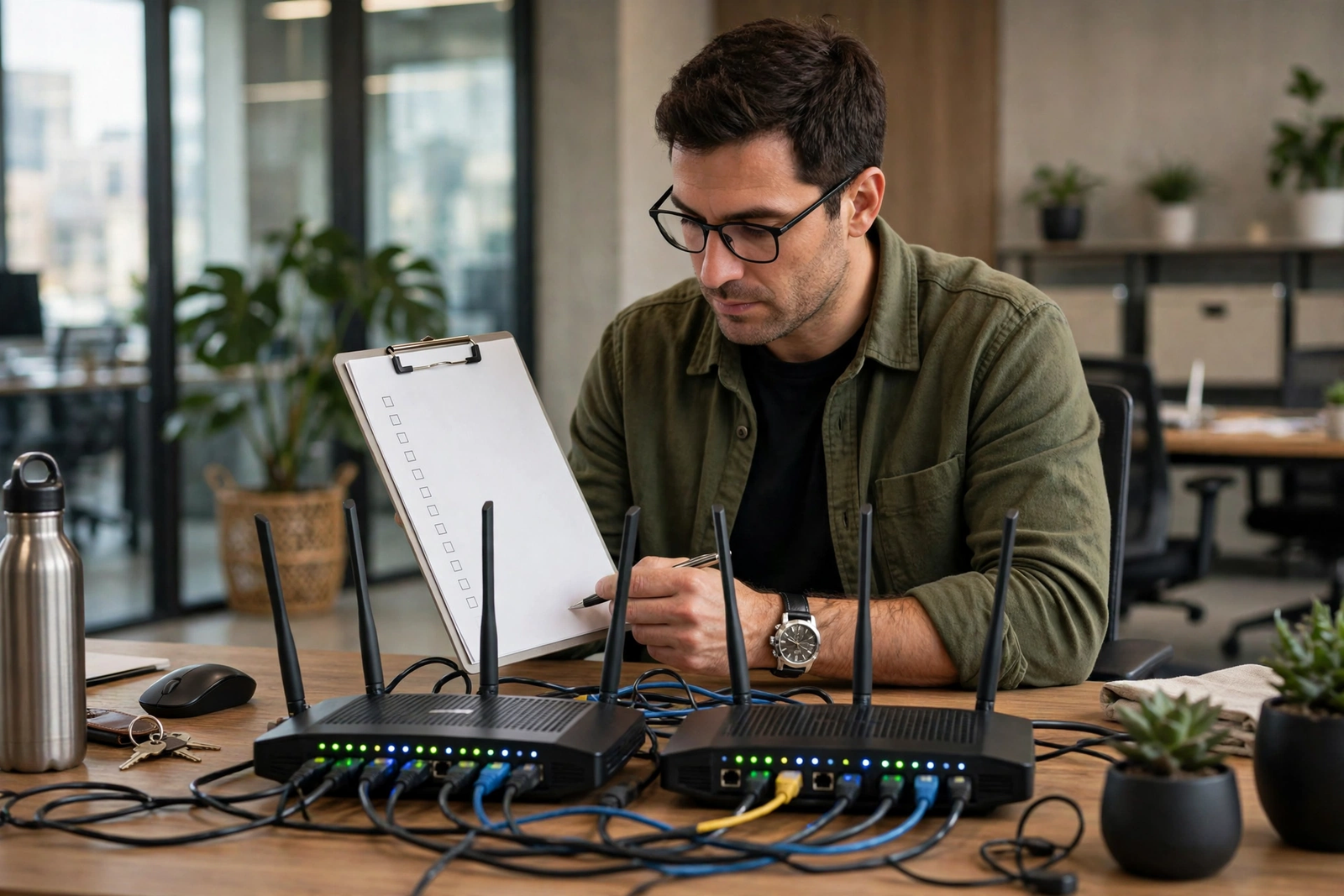
Re-pointing is the technical heart of the migration, and it deserves a written checklist rather than improvisation. Update every system that references your old public IP address: VPN configurations, remote-access tools, camera systems, firewall rules, and any vendor or customer system that whitelists your address. Update DNS records if your business hosts email, a website, or a remote service on a domain tied to the old connection, and allow time for DNS changes to propagate — this is one reason to make DNS changes early in the overlap period rather than on cutover day. Update email settings only if your email hosting is tied to the old provider; many businesses use independent email hosting, in which case email needs no change beyond confirming it works on the new network.
On the local network, recreate your Wi-Fi names and passwords on the new gateway or keep the new names and update every device deliberately — either approach works, but mixing them causes confusion. If you keep the same Wi-Fi name and password, many devices will reconnect automatically, which is convenient but can hide a device that silently stays on the old network. If you use new names, update devices room by room and confirm each one. Reconnect printers, point-of-sale terminals, and card readers individually, and confirm each one completes a real transaction or print job, not just that it shows as connected. The guide to connecting printers, POS and card readers to business Wi-Fi covers the 2.4GHz and placement details that most often trip up this step.
Disclaimer: This article contains affiliate links to AT&T Business services. We may earn a commission if you purchase through them, at no extra cost to you. Ortelcom.com is an independent publisher and is not affiliated with or endorsed by AT&T. Pricing, speeds, and availability are not guaranteed, were checked in October 2026, and vary by address and promotions — please confirm all details before ordering. AT&T and all related marks are trademarks of their respective owners.
Business Internet Migration Cutover: Schedule the Switch Outside Business Hours
Even with a tested new connection, schedule the actual cutover — the moment staff move from the old network to the new one — outside business hours. Evenings or weekends give you a quiet window to move devices, update settings, and fix surprises without customers waiting. Announce the window to staff in advance, tell them exactly what will change (a new Wi-Fi name, a new password, or nothing at all if names are unchanged), and have a rollback plan ready: if something fails, staff switch back to the old network, which is still active, and business continues the next morning. Rollback is only possible because you did not cancel first, which is the entire point of the overlap method.
During the cutover window, move devices in groups rather than all at once: first the wired workstations, then Wi-Fi devices, then printers and payment terminals, then cameras and other smart equipment. Test each group before moving the next. Keep a phone with mobile data available so you can look up settings or contact support even if the office network is mid-change. When every group passes, run one final round of real tasks — a card payment, a print job, an email send, a video call — and only then declare the cutover complete. If a problem appears that you cannot fix in the window, roll back to the old network and try again another evening. A delayed cutover is a minor inconvenience; a broken Monday morning is not.
| Business Internet Migration Phase | Cutover Checklist Task | Done When |
|---|---|---|
| Before ordering | Audit devices, IP settings, contracts, bundled services | Written list complete; cancellation terms known |
| Order and install | Confirm qualification, on-site contact, building permission | New service installed; old service untouched |
| Test on new service | Wired, Wi-Fi, payments, printers, VPN, email, cameras | Every business task passes on the new connection |
| Re-point systems | Static IP references, DNS, VPN, firewall rules updated | Each system verified on the new address |
| Cutover window | Move devices in groups outside business hours | All groups pass real-task tests |
| Settle-in week | Monitor daily; keep old service active | One full business week with no issues |
| Cancel old service | Confirm end date, return rented equipment, keep proof | Written cancellation confirmation received |

Switch Business Internet Provider: Contract and Early-Termination Checks Before Cancelling
Never cancel the old service on a guess about your contract. Call or check your account for the contract end date, the notice period, and the early-termination fee, and get the cancellation terms in writing if you can. Some providers charge a fee that falls as the contract nears its end; in that case, timing your cancellation for the contract end may save money, and the overlap period can be extended to match. Others require written notice a set number of days in advance, so a cancellation requested today may not take effect until next month — factor that into your overlap budget rather than discovering it later.
Also confirm what happens to rented equipment and bundled services. Return rented modems, routers, and set-top equipment by the provider’s method and keep the return receipt, since unreturned equipment fees are a common post-cancellation surprise. If your phone service, email, or website hosting is bundled with the old internet account, move those services first or confirm they will survive cancellation. If a phone number or email domain is tied to the old account, do not cancel until you have confirmed its new home. This contract check is guidance for planning, not legal advice, and if your agreement is complex, confirm the terms with the provider directly before acting.
If your current provider offers a retention deal when you call to cancel, compare it honestly with the new service rather than accepting it under pressure. A lower price on a slow or unreliable connection is not a saving if it costs you sales or staff time. Compare symmetrical versus asymmetrical speeds, data caps, contract terms, and backup options, not just the monthly figure. Comparing a wired primary connection against a wireless option is a useful exercise, including when a wireless line makes more sense as a backup than as a replacement.
Business Internet Switch Without Downtime: Rollback and Failover Planning
A rollback plan is a short written note that answers one question: if the new connection fails during cutover, how do staff get back online in minutes? The answer, during overlap, is straightforward: switch devices back to the old network name or reconnect the old router, and business continues. Write down the old Wi-Fi name and password, the old router’s location, and who is authorized to make the switch, and keep that note where the person on site during cutover can find it. Test the rollback once, outside business hours, by switching a single device back and forth, so the procedure is proven rather than theoretical.
Failover planning looks beyond cutover day. Once the old service is cancelled, your business has one primary connection again, and the question becomes what happens if that connection fails. A fiber plan at 1 GIG or above with built-in 5G backup covers many outages automatically, provided the UPS requirement is met. Businesses with higher stakes — a busy restaurant, a medical office, a shop that cannot take card payments offline — may want a second independent path, such as a wireless backup line, and a router that can switch between paths automatically. Whatever you choose, test failover quarterly by briefly taking the primary path down outside business hours and confirming the backup works, then restoring the primary. An untested backup is the most common reason a “redundant” setup still goes down.
After cutover, keep monitoring for a full settle-in week before cancelling the old service. Watch for intermittent problems that a single evening of testing misses: a camera that drops overnight, a printer that loses its connection after a reboot, a VPN that works from one location but not another. Keep a simple log of any issue, the device involved, and the fix, and share it with staff so the same problem is not solved twice. Only when the settle-in week passes cleanly should you cancel, and when you do, keep the written cancellation confirmation and equipment return receipts until the final bill confirms no further charges.
Business Internet Migration Questions About Switching Providers Without Downtime
Can I Switch Business Internet Provider Without Downtime on a Tight Budget
Yes, and overlap is still the cheapest reliable method. The extra cost is usually one additional month of your old service, and often less if you time the cancellation to your contract end. Compare that with the revenue and staff time lost to even a single day offline. If budget is very tight, shorten the overlap to the minimum testing period your business needs, but do not skip it entirely — cancelling first to save one month’s bill is the most expensive saving in this guide.
How Long Does a Business Internet Migration Usually Take
Do not accept a guaranteed timeline from anyone, because qualification, building access, and installation scheduling vary by address. As guidance, allow several weeks from order to cancellation: time for installation, a testing period, a cutover window, and a settle-in week. Businesses in buildings that need landlord permission or new cabling should allow more time. The safest schedule is one where no date is fixed until the new service is installed and tested.
Does Changing Business ISP Change My Business IP Address
In most cases, yes, unless you arrange a specific addressing plan with the new provider. That is why the re-pointing step matters: any VPN, camera system, firewall rule, or vendor system that references your old address must be updated and tested on the new address. Make these changes during the overlap period, when the old address is still available as a reference, rather than discovering them after cancellation.
Should I Keep My Old Business Internet Provider as a Backup
Keeping the old provider permanently as a backup is an option for businesses where downtime is very expensive, but it is not the only option. A wireless backup line or a built-in 5G backup on a fiber plan may provide similar protection at lower cost. Compare the monthly cost of keeping the old service against the cost of a dedicated backup path, and test whichever backup you choose. What matters is not which provider you keep, but that a tested second path exists after cutover.
What If My New Business Internet Connection Fails After I Cancel the Old One
Contact the new provider’s support with your test results in hand — wired test results, LED or gateway status, and the specific tasks that fail. Because you completed a settle-in week before cancelling, a post-cancellation failure is more likely a service fault than a migration error, and your test log helps support diagnose it faster. If failures persist, your backup path, if you have one, keeps the business running while the fault is fixed. This is why the settle-in week and the backup decision matter more than any single installation step.
Business Internet Migration: Final Checklist for Your Team Without Downtime
Print or share this summary with everyone involved in the move. Audit devices and settings, confirm contract and cancellation terms, order and install the new service while the old one runs, test every real business task on the new connection, re-point IP references and DNS during overlap, cut over outside business hours in groups with a rollback plan ready, monitor for a full settle-in week, and only then cancel the old service and return its equipment. Each step is simple on its own; together, they are the difference between a switch nobody notices and a switch everybody remembers.
If you are ready to start, check fiber availability for your address and confirm the plan that fits your speed needs before you set any cancellation date. A careful migration rewards patience at every stage, and the business that overlaps its services is the business that never has to explain to customers why it went dark. Check AT&T Business Fiber availability and plans to begin the overlap method with a connection you can test before you commit to cancelling anything.

