
The short answer: For the strongest AT&T Internet Air signal, place your 5G Gateway elevated on a shelf or table — never the floor — near a window on an exterior wall, ideally on the side of the building facing the nearest cell tower. Keep it away from metal objects, thick concrete walls, and large appliances, then use the gateway’s 4G/5G LED lights (green is strong, blue is fair, red is weak) to compare two or three candidate spots and keep the winner. Good 5G gateway placement is the single biggest lever on your speeds and stability.
Internet Air for Business is fixed wireless internet: instead of a cable or fiber line into your building, the 5G Gateway receives its connection over the air from the AT&T cellular network and shares it as your office Wi-Fi, with typical speeds around 225 Mbps. Because the connection arrives through the air, where the gateway sits inside your building matters enormously — the same gateway can deliver a strong, stable connection from a window-side shelf and a sluggish, dropout-prone one from an interior closet. This guide covers the ideal gateway position for an office, a simple testing workflow using the LED signal lights, the most common placement mistakes, and how to handle tricky layouts like warehouses and multi-room offices. Everything below was checked in October 2026. For the service basics, see our overview of AT&T Internet Air for Business.
Get Internet Air for Business at Your Office
Internet Air for Business lists at $65/mo (Standard) or $105/mo (Premium) — $60/$100 with AutoPay and paperless billing, or $40/$80 with an eligible AT&T business wireless plan. Confirm availability for your address before ordering.
Why 5G Gateway Placement Decides Your Internet Air Signal Strength
With wired internet, the quality of your connection is mostly decided outside your building — the line either delivers your provisioned speed or it does not. Fixed wireless flips that: the “line” is a radio signal traveling from a cell tower to your gateway, and everything between the tower and the gateway either helps or hurts. Walls, metal, appliances, and even the floor itself absorb or reflect that signal. AT&T’s own setup guidance and independent fixed wireless guides agree on the same conclusion: moving a gateway a few feet — from an interior hallway to a window-side shelf — can be the difference between a green LED (strong signal) and a red one (weak signal).
That difference shows up in real business outcomes, not just bars on a light. A strong-signal gateway holds steadier speeds during video calls, handles more simultaneous devices without stuttering, and recovers faster from brief congestion. A weak-signal gateway is the one that drops a Zoom call at 2 p.m. or makes cloud apps feel laggy for no obvious reason. The good news is that placement is free to fix and takes minutes to test — there is no equipment to buy and no settings to learn. It is also worth understanding where fixed wireless fits overall: our fiber vs fixed wireless for business comparison explains when placement-optimized Air is plenty and when a wired connection is the safer bet.
One constraint to keep in mind throughout: Internet Air for Business is tied to your qualified business address. The gateway must stay at that address — placement means choosing the best spot inside your location, not taking the gateway to a different building to hunt for a better tower. Everything in this guide assumes the gateway stays put at the qualified address.
The Best Gateway Position for an Office: Near a Window
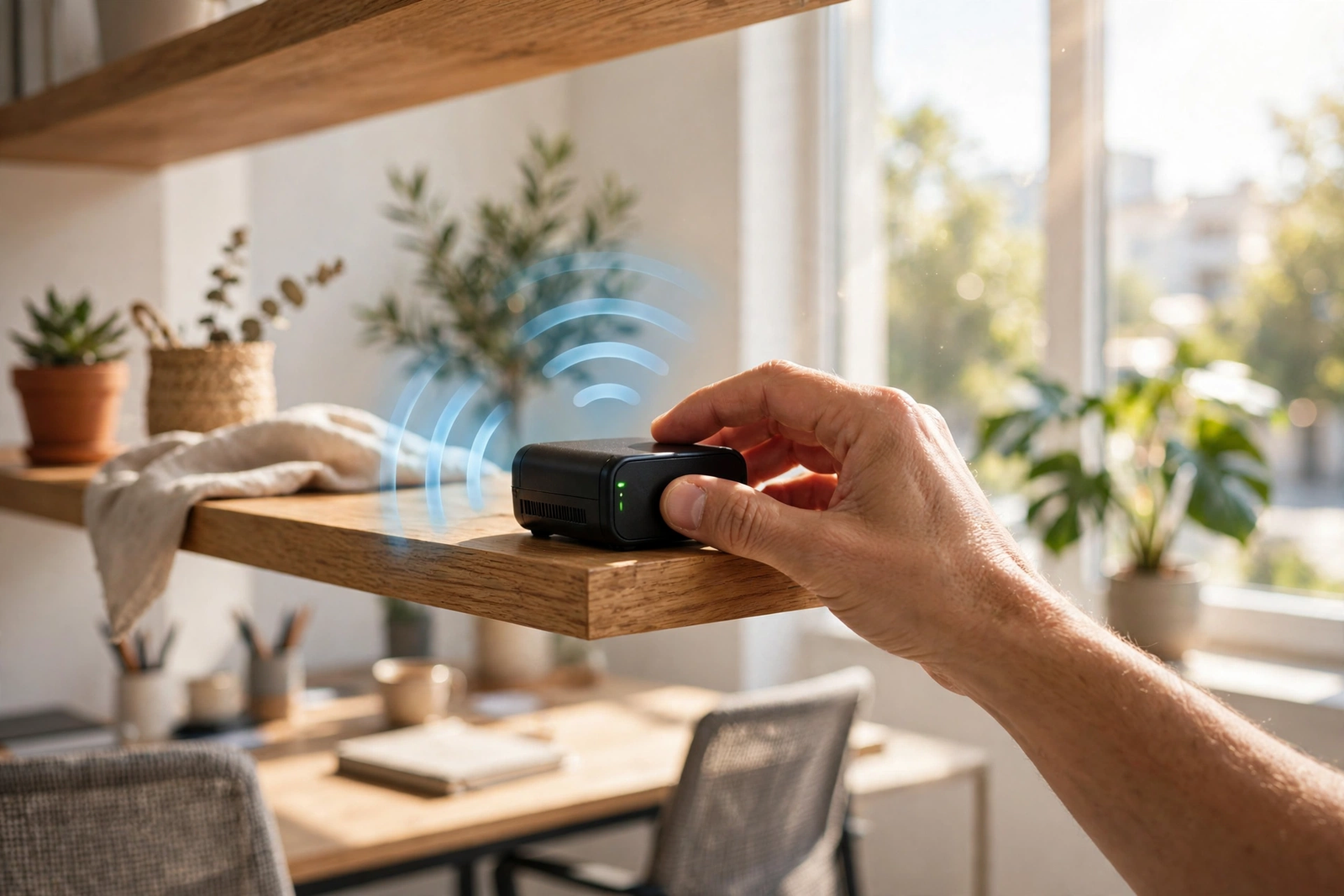
The ideal 5G gateway placement follows four rules that work together. Get all four right and you have given the gateway the cleanest possible path to the tower; miss two or more and you are leaving speed on the table.
Elevate the Gateway: Shelf Beats Floor for 5G Gateway Placement
Radio signals weaken as they pass through obstacles, and a gateway sitting on the floor has the maximum number of obstacles between it and the tower: desks, chairs, filing cabinets, people, and the floor structure itself. Raising the gateway to shelf or table height — roughly three to six feet — clears most of that clutter in one move. A bookshelf, a credenza, a wall-mounted shelf, or the top of a storage cabinet all work. What does not work is the floor behind a desk, the bottom shelf of a metal cabinet, or inside a closed credenza. Elevation is the cheapest signal upgrade available: it costs nothing and takes ten seconds.
Put the Gateway Near a Window on an Exterior Wall
Windows are the gateway’s friend because glass attenuates cellular signals far less than drywall, brick, or concrete. An exterior wall puts the minimum amount of building between the gateway and the tower. Combine the two — a shelf near a window on an exterior wall — and you have the textbook best spot. If you can, choose the side of the building that faces the nearest tower; you usually cannot see the tower, but the window that gives you the strongest LED reading is telling you where it is. In a single-story office or retail space, a front-window shelf is often the winner. In a multi-story building, an upper floor near a window generally beats the ground floor, since the signal has less building to penetrate.
Keep Your 5G Gateway Placement Away From Metal and Appliances
Metal is the enemy of radio signals — it reflects and blocks them. Keep the gateway away from large metal objects: filing cabinets, metal shelving, server racks, steel doors, and metal window frames or security bars directly in front of it. Thick concrete walls are nearly as bad, which is why interior rooms, basements, and stairwells make poor gateway homes. Large appliances deserve the same caution: refrigerators, microwaves, HVAC units, commercial ovens, and even big copiers can all degrade the signal, and several of them also generate electrical interference. A good rule of thumb is at least a few feet of clearance from anything large and metal, and never sandwiched between two metal objects.
Give the Gateway Room to Breathe: Ventilation for Reliable 5G Gateway Placement
This one is about reliability rather than signal, but it belongs in any placement guide. The gateway is a small computer with radios that generate heat, and it needs airflow around its vents. Do not enclose it in a sealed cabinet, bury it under paperwork, or wedge it into a tight space between equipment. Overheating causes exactly the kind of intermittent slowdowns and reboots that get misdiagnosed as signal problems. An open shelf near a window solves signal and ventilation in one move.
Read the LEDs to Judge Your 5G Gateway Placement
You do not need a signal-meter app or any special tools to compare placement spots — the gateway has a built-in meter in the form of its 4G/5G LED lights. These LEDs report the strength of the cellular signal the gateway is receiving, which is exactly what placement affects. Learn this simple scale and you can test any spot in minutes.
Green, Blue, Red: What the LEDs Say About Internet Air Signal Strength
Solid green on the 4G/5G LEDs means a strong signal — this is the target, and a spot that holds solid green is a spot worth keeping. Solid blue means a fair signal: perfectly usable, and in many locations the best you will get, but worth comparing against one more candidate spot to see if green is available. Solid red means a weak signal — the gateway will still try to work, but expect slower speeds and less stability, so a red spot should be treated as a candidate to beat, not a home. Solid gray means no signal at all, which usually indicates the gateway is buried too deep inside the building. A blinking red LED is a different animal: it signals a SIM error, not a placement problem, and needs a power cycle or a call to AT&T Business support rather than another spot.
Two practical notes on reading the lights. First, give the gateway a full few minutes at each new spot before you judge — it needs time to measure the signal honestly, and checking after 30 seconds will mislead you. Second, the Wi-Fi LED is a separate indicator: green or blue there means your in-office Wi-Fi is broadcasting fine, which is a different question from how strong the cellular signal is. A gateway can show a green Wi-Fi LED and a red 4G/5G LED at the same time — great office Wi-Fi carrying a weak internet connection. For the complete reference, see our guide to AT&T gateway LED light meanings.
Testing Workflow: Compare Candidate Spots for Internet Air Signal Strength
Do not settle for the first spot that works. The testing workflow below takes about 20 minutes and routinely finds a meaningfully better position than the obvious one. All you need is the gateway, its power supply, and your phone’s timer.
Step 1: Pick Two or Three Candidate Spots for Your 5G Gateway Placement
Walk your space and identify two or three spots that follow the placement rules: elevated, near a window on an exterior wall, away from metal and appliances. Good candidates in a typical small office: a bookshelf near the front window, a credenza near a side window in the main work area, and a shelf in an upstairs or street-facing room. Note each spot on your phone. Avoid the temptation to include a “convenient but terrible” spot like the server closet — testing it wastes time you already know the answer to.
Step 2: Test Each Spot for Five Minutes and Note Internet Air Signal Strength
Place the gateway at the first candidate spot, plug it in, and start a five-minute timer. When the timer ends, record the 4G/5G LED color. If you want to be thorough, run a quick speed test from your phone while standing near the gateway and note the download number too — the LED tells you signal strength, and the speed test tells you what that strength translates into. Then move to the next spot and repeat. Keep the gateway powered on during moves if the cable reaches, or power-cycle and allow the full boot time at each new spot; either way, do not judge a spot until the gateway has had several uninterrupted minutes there.
Step 3: Keep the Winning Gateway Position for Your Office
Compare your notes: the spot with the strongest LED (green beats blue beats red) and the best speed test wins. If two spots tie on the LED, prefer the one that is more central to where people actually work — the gateway’s cellular signal and its Wi-Fi coverage both matter, and a window-side spot at one far end of a long office can leave the other end with weak Wi-Fi. Once you have a winner, leave the gateway there for a full day before you declare victory; signal can vary with weather and network load, and a spot that is green at 9 a.m. should still be green at 3 p.m. If it is not, the runner-up spot may be more consistent.
Disclaimer: This article contains affiliate links to AT&T Business services. We may earn a commission if you purchase through them, at no extra cost to you. Ortelcom.com is an independent publisher and is not affiliated with or endorsed by AT&T. Pricing, speeds, and availability are not guaranteed, were checked in October 2026, and vary by address and promotions — please confirm all details before ordering. AT&T and all related marks are trademarks of their respective owners.
Fixed Wireless Signal Tips for Tricky Office Layouts

Not every business operates out of a tidy single-room office. Here is how the placement principles adapt to layouts that fight back.
Long, narrow offices and retail floors. The tension here is between the best cellular spot (a window at one end) and the best Wi-Fi coverage (the middle). Start by optimizing for the cellular signal — a weak 4G/5G LED caps everything — and solve the Wi-Fi side separately. If the far end of the space has weak Wi-Fi after placement, an official AT&T Internet Air for Business Wi-Fi Extender pairs with the gateway over WPS and rebroadcasts the same network name, which is cleaner than a third-party repeater with a second network name. Extenders work best within about 30 feet of the gateway according to AT&T’s quick-start guide.
Warehouses and workshops. Metal is everywhere: racking, roll-up doors, machinery, metal roofing. Your realistic goal is the least-metal path to the outside — often a small office or mezzanine near an exterior wall rather than the shop floor itself. Do not put the gateway on top of a metal cabinet or next to the electrical panel. If the office area is far from where devices need Wi-Fi, plan on an extender or wired Ethernet runs from the gateway’s LAN ports back to the work areas.
Multi-room offices and suites. Interior offices surrounded by other suites are the hardest case, because every direction has more building in the way. Prioritize any exterior-wall window, even if it is in a less convenient room — a gateway in a window-side storage room with an extender serving the work area beats a gateway in the central bullpen showing a red LED. This is also the layout where testing three spots instead of two pays off most.
Businesses with teams in the field. If part of your team works remotely or from job sites, remember the gateway itself stays at the qualified address — but your remote workers still need solid home-office internet. Our guide to business internet for remote teams covers options for the people who are not in the office, and our best 5G business internet comparison can help if you are weighing Air against other fixed wireless choices.
Common 5G Gateway Placement Mistakes and How to Fix Them
After helping small businesses with fixed wireless setups, the same placement errors come up again and again. Check your gateway against this table — if any row describes your setup, the fix takes minutes.
| Placement mistake | Why it hurts Internet Air signal strength | The fix |
|---|---|---|
| Gateway on the floor behind a desk | Maximum obstacles between the gateway and the tower; signal absorbed by furniture and the floor structure | Move it to a shelf or tabletop 3–6 feet high |
| Gateway inside a metal filing cabinet or server rack | Metal enclosure blocks and reflects the cellular signal | Relocate to an open shelf; never enclose the gateway in metal |
| Gateway in an interior closet or bathroom | Multiple walls — often concrete — between the gateway and the outside | Move to a room with an exterior-wall window |
| Gateway next to the microwave or refrigerator | Large appliances block signal and can add electrical interference | Keep several feet of clearance from big appliances |
| Gateway in the basement | Below-grade placement means the signal must penetrate the foundation and ground | Move to the ground floor or higher, near a window |
| Gateway sandwiched between equipment in a tight cabinet | Blocked signal plus trapped heat, which causes reboots and slowdowns | Give it an open shelf with clear airflow on all sides |
| Gateway placed once and never re-tested | The first convenient spot is rarely the best-signal spot | Run the 20-minute testing workflow and compare two or three positions |
| Gateway moved to a second location | Service is tied to the qualified business address; it may not work elsewhere | Keep the gateway at the qualified address — always |
Two Real-World Gateway Position Examples for Offices
Abstract rules stick better with concrete pictures. Here are two common small-business layouts and where the gateway should go in each.
Example 1: a 1,200-square-foot professional office. The space has a reception area with a big front window, three interior offices, and a back break room. The instinct is to put the gateway in the central hallway “so the Wi-Fi reaches everywhere.” The better play: a bookshelf in the reception area near the front window, elevated about four feet. The LED test shows solid green there versus solid blue in the hallway — and the Wi-Fi easily covers 1,200 square feet from the front of the space. Total effort: moving the gateway six feet and waiting five minutes.
Example 2: a retail storefront with a stockroom. The sales floor has glass frontage — an ideal signal spot — but the owner put the gateway in the back stockroom “out of sight,” surrounded by metal shelving, showing a red LED and getting complaints about the card reader lagging. The fix: a high shelf on the sales floor near the front window, tucked above a display where customers never notice it. LED goes from red to green, and the card reader — now also closer to the gateway — stops lagging. Out of sight is nice; out of signal is expensive.
Notice the pattern in both examples: the winning spot was the one that prioritized the cellular signal first and let Wi-Fi coverage follow. That priority order is the single most useful mental model in this guide. And if you are still choosing a provider, our best 5G business internet comparison puts Air’s placement flexibility in context against the alternatives.
AT&T 5G Gateway Placement FAQs
Can I Put My 5G Gateway in a Closet or Server Room?
You can, but you should not expect good results. Closets and server rooms are usually interior spaces with extra walls between the gateway and the tower, and server rooms add racks of signal-blocking metal plus heat. If the gateway must live somewhere discreet, choose a ventilated shelf in a room with an exterior window instead — a high shelf in a storage room near a window beats a server rack every time. Remember that the Wi-Fi LED being green does not mean the cellular signal is strong; check the 4G/5G LEDs specifically.
How Far Can the Gateway Be From Devices and Still Hold Internet Air Signal Strength?
Two distances matter, and they are different. The distance to the cell tower is fixed by your address — you cannot change it, which is why placement inside the building matters. The distance to your devices is the Wi-Fi range, which is typically fine across a small office of 1,000–2,000 square feet from a well-placed gateway. If devices at the far end struggle while the gateway shows a green LED, that is a Wi-Fi coverage problem, not a signal problem — solve it with an extender or a wired connection, not by moving the gateway away from its good signal spot.
Can I Move My Gateway to a Different Office After Internet Air Installation?
No. Internet Air for Business is fixed wireless service tied to the qualified business address on your account, and the gateway must stay at that address. Taking it to a second office, a job site, or home violates the service terms and it may not connect there anyway, since the new location has not been qualified for service. If your business relocates, contact AT&T about updating the service address rather than just carrying the gateway over. Confirm the specifics with an AT&T Business rep if your situation is unusual.
What If Every Spot Shows a Red Light for My Fixed Wireless Signal?
First, make sure you tested properly: elevated spots near windows on exterior walls, several minutes of settling time at each, upper floors if you have them. If every candidate still shows solid red, your location may simply have marginal AT&T cellular coverage indoors — the honest answer is that fixed wireless may not be the right technology for that address. Before giving up, contact AT&T Business support: they can check for known coverage issues or tower work in your area. And compare your options in our fiber vs fixed wireless for business guide — a wired connection does not care about indoor signal at all.
Will a Wi-Fi Extender Help With Internet Air Signal Strength?
An extender helps with Wi-Fi coverage, not with the cellular signal — and the distinction matters. If your gateway shows a green or blue LED but devices far away have weak Wi-Fi, an official AT&T Internet Air for Business Wi-Fi Extender is the right fix: it pairs over WPS, shares the gateway’s network name, and AT&T’s guide recommends placing it within about 30 feet of the gateway. But if the gateway itself shows a red LED, an extender cannot help, because the internet connection feeding it is already weak. Fix the gateway’s position first; extend second.
Placement is the highest-leverage 20 minutes you will spend on your business internet. Elevate the gateway, put it near a window on an exterior wall, keep it clear of metal and appliances, and let the LED lights referee between candidate spots. Do that, and your Internet Air connection will be as strong as your address allows. To get started, check Internet Air availability for your business address — plans list at $65/mo Standard or $105/mo Premium, with discounts for AutoPay and bundled wireless.

