
When AT&T Business Internet slows to a crawl in the middle of a workday, everything stalls: card readers hesitate, video calls freeze, and cloud apps time out. The good news is that most small-business slowdowns come from inside your own network — Wi-Fi coverage gaps, an overloaded gateway, a bandwidth hog, or an overheating device — and not from the fiber line itself. Work through this 10-step business internet troubleshooting process, starting with a wired speed test, and you will know within about 30 minutes whether you can fix slow business internet yourself or you need AT&T support.
This guide focuses on AT&T Business Fiber installations (BGW320 and the newer All-Fi Hub gateways), because that is the connection most US small businesses on this site use. The steps are ordered from fastest and most likely to succeed to the slower diagnostics — follow them in order and skip none. Pricing and plan details below were checked in October 2026; availability varies by address, so confirm before ordering.
Slow Business Internet? Make Sure Your Fiber Plan Fits Your Team
Sometimes the slow business internet fix is simply more speed: AT&T Business Fiber runs $60-$285/month for 300 Mbps to 5 GIG (checked Oct 2026), so you may be on a tier your team has outgrown.
Before You Start: Quick Slow Business Internet Triage
Before touching any settings, answer three questions that will save you time during the rest of this internet troubleshooting for business:
- Is it one device or everything? If a single laptop is slow while the point-of-sale terminal and everyone else hum along, the problem is almost certainly that device — its Wi-Fi adapter, a stuck VPN client, or a background backup — not your AT&T connection. If every device is slow, keep going with this guide.
- Is it wired, Wi-Fi, or both? Anything plugged into the gateway with an Ethernet cable that is still slow points at the connection or the gateway itself. Slow Wi-Fi while wired devices fly points at coverage, placement, or band settings — a very common slow business internet scenario in offices with the gateway tucked in a back closet.
- When did it start? A sudden overnight change (fine Friday, awful Monday) suggests an outage, a failed firmware push, or new interference. A gradual decline over months usually means you have added devices or staff and outgrown the plan — check our guide on how much internet speed your business actually needs if that sounds familiar.
Grab a laptop with an Ethernet port (or a USB Ethernet adapter), the Smart Home Manager app logged into your account, and a way to note results. Each step below takes five minutes or less, and you will write down numbers as you go — they matter when you reach Step 10.
Fix Slow Business Internet: Start With a Wired Speed Test (Step 1)
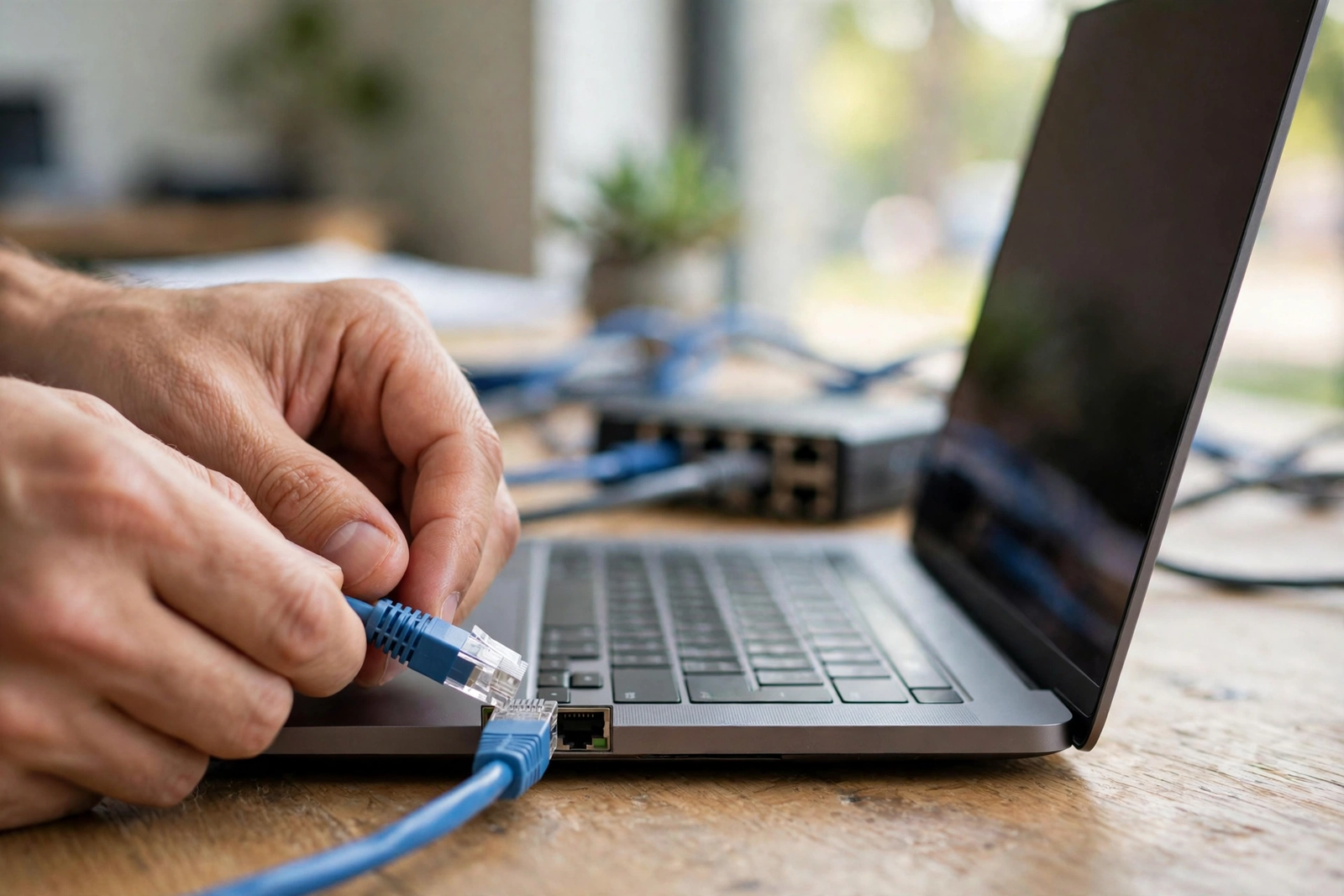
The single most important rule of slow business internet troubleshooting is: test wired first. A wired Ethernet test bypasses Wi-Fi entirely, so it separates “the internet coming into the building is slow” from “the Wi-Fi inside the building is slow.” Those are two different problems with two different fixes, and guessing wrong wastes an afternoon.
Here is the procedure for a meaningful wired test:
- Plug one computer directly into a LAN port on the AT&T gateway with a short Ethernet cable.
- Close the VPN client, pause cloud backups (OneDrive, Dropbox, Google Drive sync), and close video meetings — any of these can consume the whole upstream during a test.
- Disconnect or power off other heavy devices if you can, so one hungry machine does not skew the result.
- Run the test two or three times and write down the download, upload, and latency numbers each time.
Now compare against your plan tier. AT&T Business Fiber tiers are symmetrical in most cases, so on a 300 Mbps plan you should see roughly 280-320 Mbps both directions on a wired test; on 1 GIG, expect 900+ Mbps wired. If your wired numbers are close to the tier, your connection is healthy and the slowdown lives in your Wi-Fi or devices — jump ahead to Step 7. If wired is far below the tier (say 90 Mbps on a 500 Mbps plan), continue to Step 2: the fix is probably upstream of your Wi-Fi.
You can also run the gateway speed test inside the Smart Home Manager app. That test measures speed from AT&T’s network to your gateway, which excludes even your own cabling — a useful cross-check. If the gateway test is full speed but your wired computer test is slow, suspect the Ethernet cable, the computer’s network adapter, or a misbehaving switch between them.
Step 2: Reboot the Gateway for a Quick Slow Business Internet Fix
Yes, “turn it off and on again” — because gateways are small computers, and small computers develop stuck processes, memory leaks, and stale routing entries. A clean reboot clears all of that in about three to five minutes and resolves a surprising share of slow business internet complaints, especially ones that crept in gradually over weeks.
You have two ways to reboot:
- Smart Home Manager app: open the app, go to your gateway, and choose the restart/reboot option. This is the gentler method and the one AT&T’s own troubleshooting flow recommends first.
- Power cycle: unplug the gateway’s power cord, wait a full 10 seconds (count it — a two-second blip does not fully discharge it), then plug it back in and give it up to five minutes to reconnect.
Schedule the reboot for a low-traffic moment — early morning, lunch, or after close — because everything on the network drops during the restart, including card readers and VoIP phones. After the gateway comes back online (solid white light on a BGW320), re-run your wired speed test. Improved? You are done — and make a note to reboot the gateway every few weeks as preventive maintenance, or if slowdowns keep returning, it may be time to talk to support about a replacement unit.
Step 3: Read the Gateway LEDs — Visual Internet Troubleshooting for Business
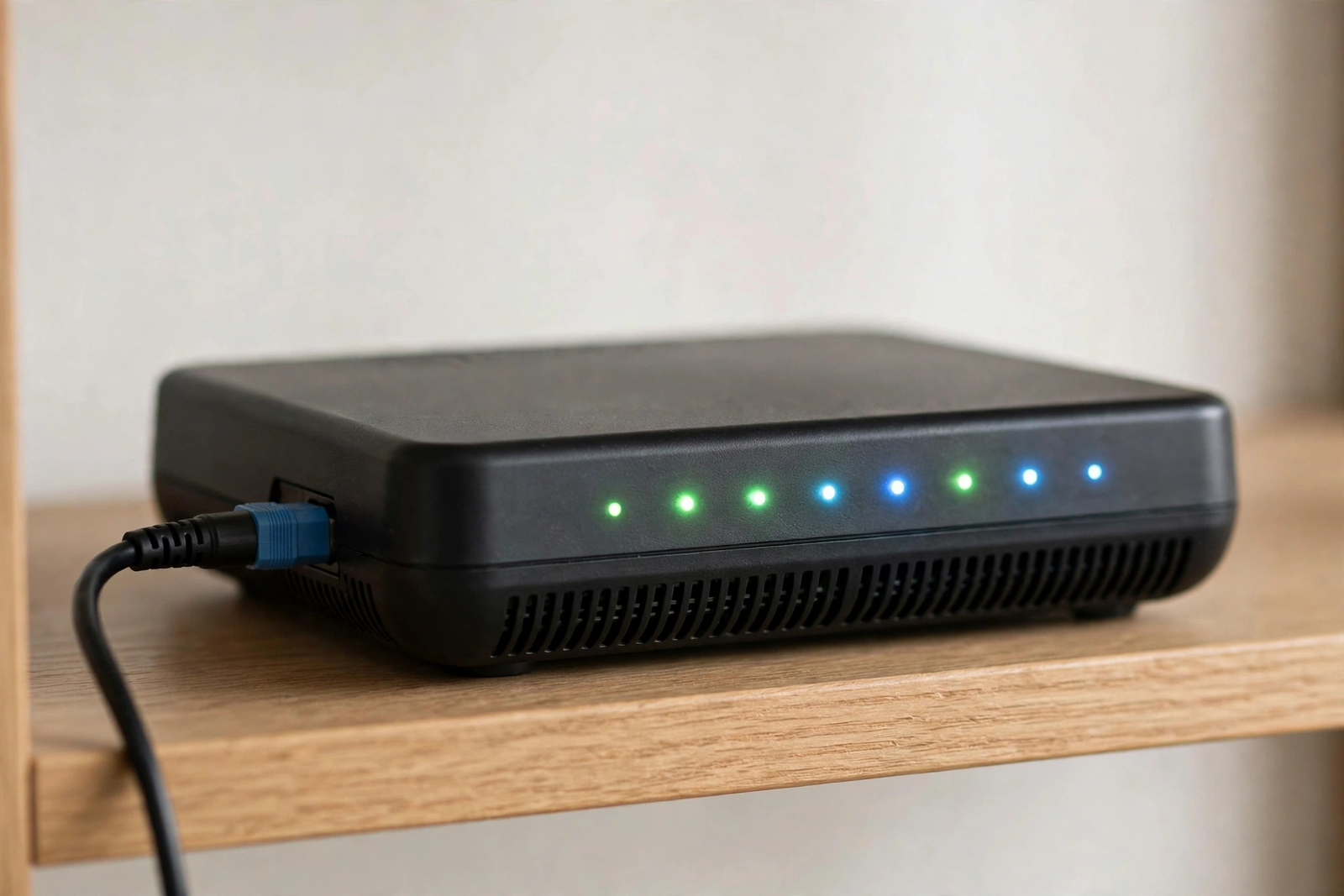
Your AT&T gateway’s lights are a diagnostic display hiding in plain sight. On the most common current fiber gateway, the BGW320, AT&T documents the following meanings (checked against the official guide):
| LED status | Meaning | What it tells you about slow internet |
|---|---|---|
| Solid white | Online and working | Connection is up; your slowdown is Wi-Fi, devices, or congestion — keep troubleshooting below. |
| Blinking white (fast) | Starting up | Normal right after a reboot; wait up to 5 minutes. |
| Solid red with WPS light off | Overheating | Move the gateway to a flat, open, ventilated surface — heat throttles performance. |
| Solid red with WPS light solid red | Hardware issue | Reboot once; if it persists, the unit likely needs replacement — call support. |
| Blinking red (fast) | Network service issue | Problem may be on AT&T’s side — check for outages (Step 4), then call support. |
| Blinking red (slow) | No broadband | Check that cables are firmly seated; then press and hold the red reset button for 10 seconds. |
| Solid amber | Powered on, starting up | Wait a few minutes. |
| Blinking amber (slow) | Receiving an update | Do not unplug it — let the update finish. |
| Blinking blue (fast) | Outage — trying to enter backup mode | The fiber path is down; the gateway is attempting cellular backup. |
| Solid blue | Internet backup mode (cellular) | You are running on cellular backup, which is slower than fiber. This explains the slowdown — check for a fiber outage. |
That last row is the big one for this guide: if your fiber gateway shows solid blue, you are not on fiber at all — you are on the cellular backup connection, and slower speeds are expected until the fiber path is restored. Do not waste time optimizing Wi-Fi while the blue light is on; check for an outage instead.
Note: newer fiber installs may ship the All-Fi Hub (BGW720) instead of the BGW320. Its meanings differ — solid white is online, solid red means overheating or a hardware issue, fast-pulsing red means a network service issue, and solid blue is also backup mode. Never mix the two tables; check which model name is printed on your gateway before interpreting the lights.
Step 4: Check for an AT&T Outage Before More Slow Business Internet Troubleshooting
Before you rearrange your office or buy new equipment, rule out the simplest external cause: an AT&T outage or degraded service in your area. Individual troubleshooting cannot fix a neighborhood fiber cut, and knowing about an outage early saves you from chasing a problem that is not yours.
- Smart Home Manager app: the app surfaces known outages for your address, often before the website does.
- myAT&T account: sign in and check the service status section for your business line.
- The gateway itself: fast-blinking blue or fast-blinking red on the BGW320 is the hardware telling you the network side has a problem.
If an outage is confirmed, there is nothing to fix on your end — monitor the estimated restoration time, and if you have the built-in 5G backup on a 1 Gig or faster fiber plan, verify the gateway actually failed over (solid blue) so at least card readers and phones stay online. Keep in mind the backup dies in a power outage unless the gateway is on a UPS, so pair failover with battery backup if uptime is critical. If no outage is reported but your wired speeds are still far below tier after a reboot, continue — the fault is likely local.
Step 5: Gateway Placement and Heat Check to Fix Slow Business Internet
Where the gateway sits affects both its radio performance and its temperature, and heat is the silent killer of gateway performance: an overheating BGW320 shows solid red and throttles. Give your gateway a physical once-over:
- Ventilation: it should sit on a flat, open surface with airflow on all sides — not buried in a cabinet, not stacked under a printer, not wrapped in cables. If the case feels hot to the touch or you see solid red with the WPS light off, move it somewhere ventilated and let it cool.
- Elevation and centrality: gateways belong up high and central — on a shelf or mounted, never on the floor behind a desk. Wi-Fi radiates outward and slightly downward, so a gateway at floor level in a back office starves the front of the store.
- Distance from interference: keep it away from microwaves, large metal shelving, thick concrete walls, and big appliances. Each of these absorbs or reflects Wi-Fi signal, creating the dead zones that read as “slow business internet” to everyone sitting in them.
- Cables: while you are there, reseat the fiber cable (the thin one from the wall jack/ONT) and the power cord. A partially seated fiber connector causes intermittent slowdowns that look exactly like congestion.
Placement fixes are free and permanent. If your gateway has been baking inside an enclosed media cabinet since installation day, relocating it alone can double real-world Wi-Fi speeds at the far end of the space.
Disclaimer: This article contains affiliate links to AT&T Business services. We may earn a commission if you purchase through them, at no extra cost to you. Ortelcom.com is an independent publisher and is not affiliated with or endorsed by AT&T. Pricing, speeds, and availability are not guaranteed, were checked in October 2026, and vary by address and promotions — please confirm all details before ordering. AT&T and all related marks are trademarks of their respective owners.
Step 6: One-Device Test to Find the Bandwidth Hog Behind Slow Business Internet
Most small-business networks have a bandwidth hog — one device silently eating the connection. The usual suspects: a workstation running a cloud backup at full throttle, a security camera system uploading 4K footage to the cloud all day, a smart TV streaming in the break room, or an employee’s personal device syncing a photo library. Finding it is straightforward:
- Open Smart Home Manager and look at the connected-devices list. It shows what is on the network and, on many gateways, recent usage per device.
- Run your wired speed test with only the test laptop connected (unplug or power off the obvious suspects). Then reconnect devices one group at a time, re-running the test after each group.
- When speeds crater after reconnecting a particular device or group, you have found your hog.
Fixes depend on what the hog is. Cloud backups and camera uploads can usually be scheduled for overnight hours or rate-limited in their settings. Guest devices and break-room streaming belong on a separate guest network so they cannot crowd out business traffic — and business devices should never sit on the guest network where they might be deprioritized. If the hog is legitimate business growth (more staff, more cameras, more cloud), that is a capacity signal: compare your actual usage against your tier and consider whether the next plan up pays for itself in recovered productivity. Our business internet buying checklist walks through how to size that decision.
Step 7: When Business Wi-Fi Is Slow but the Connection Is Fine
This is the most common outcome of Steps 1-6: your wired test shows full speed, but Wi-Fi at the register, in the back office, or out on the sales floor is miserable. That is not a slow connection — it is a coverage problem, and it needs a coverage fix, not a faster plan.
Diagnose it like this:
- Test at three distances: run a speed test on your phone or laptop standing next to the gateway, halfway across the space, and at the problem spot. Full speed nearby that collapses with distance is the textbook signature of weak coverage.
- Check the band: the 5 GHz band is faster but shorter-range; 2.4 GHz reaches farther but is slower and more congested. If devices at the far end cling to a weak 5 GHz signal, forcing them to 2.4 GHz (or letting the gateway’s band steering do its job) often stabilizes them.
- Walk the dead zones: Smart Home Manager can help you map weak spots as you walk the premises. Note where signal drops — behind the walk-in cooler, through the concrete stairwell, past the metal stockroom shelving.
- Count the walls: every wall between the gateway and the device costs speed. In long or L-shaped spaces, a single gateway in one corner cannot cover the far end no matter the plan tier.
Coverage fixes, in order of cost: relocate the gateway more centrally (free, see Step 5); add an AT&T-compatible Wi-Fi extender or mesh node to cover the dead zone; wire stationary devices (registers, printers, desktop PCs) with Ethernet so they stop competing for airtime. Only after coverage is solid does upgrading the plan tier make sense — paying for 2 GIG to fix a dead corner is like buying a faster car to fix a flat tire.
Step 8: Confirm Firmware Is Current — Easy Fiber Internet Slow Fix
Gateway firmware controls everything from Wi-Fi scheduling to how the box negotiates with AT&T’s network, and a gateway stuck on old firmware can underperform in subtle ways. The good news: AT&T pushes firmware updates to business gateways automatically — you do not download, install, or flash anything yourself, and you should never try. Manually flashing third-party or mismatched firmware can brick the gateway and void your support.
What you can do is confirm the gateway is actually receiving its updates:
- A slow-blinking amber light on the BGW320 means an update is in progress — do not unplug it, and do not judge speeds until it finishes and returns to solid white.
- If slowdowns began right after an update window, a fresh reboot (Step 2) usually settles the new firmware in.
- If you suspect the gateway has not updated in a very long time and reboots do not help, that is a support conversation (Step 10) — AT&T can verify the firmware version on their end and push it if needed.
Think of firmware as “confirmed current by default, escalate if something looks wrong” — one checkbox in your internet troubleshooting for business, not a project.
Step 9: Bypass Test — Wire Straight Into the Gateway for Business Internet Troubleshooting
If you have made it this far, it is time for the definitive test: eliminate everything between your computer and AT&T. Unplug any switches, secondary routers, long cable runs, or powerline adapters, and connect your test laptop directly to the gateway with a short, known-good Ethernet cable — then re-run the wired speed test.
- Full speed on the bypass test, slow through your normal setup: the problem is your in-between gear — a failing switch, a bad cable run, a double-NAT second router, or a powerline adapter that was never fast to begin with. Replace or reconfigure that gear; the AT&T side is fine.
- Still slow on the bypass test: you have now proven the slowdown exists between the gateway and AT&T’s network (or in the gateway itself). Nothing in your office can fix that — proceed to Step 10 with confidence.
This test is the single most persuasive piece of evidence you can bring to a support call. “Direct-wired to the gateway, three tests, 87 Mbps down on a 500 Mbps plan” gets you past the script and to a technician far faster than “the internet feels slow.” Which brings us to the final step.
Step 10: Call Support With Test Results in Hand (AT&T Internet Slow Troubleshooting)
Support calls go well when you arrive organized and badly when you arrive vague. Before dialing, assemble your evidence packet:
- Your wired speed test results (download, upload, latency), with dates and times — at least three runs.
- The Smart Home Manager gateway speed test result for comparison.
- Your LED observations (especially solid blue for backup mode, or any red state).
- What you already tried: reboot, outage check, placement, bypass test — in order.
- Your account details and the gateway model name printed on the unit.
State the facts in the first minute: “Direct-wired to the BGW320, I’m getting 87 down / 90 up on a 500 Mbps plan, gateway test shows the same, LEDs are solid white, rebooted twice, no outage listed.” That sentence tells the agent exactly where to look. Ask them to check the line from their side, verify your provisioning matches your plan tier (wrong provisioning after a plan change is a real and fixable cause), and confirm the gateway’s firmware is current. If they determine the gateway is failing, they can arrange a replacement — which beats buying your own and guessing.
If the technician finds the line healthy and correctly provisioned, ask what else they can see: error counts on the fiber path, congestion at certain hours, or an under-provisioned profile are all things only AT&T can check. And if your usage has simply grown past the tier, that is a legitimate outcome too — upgrading is a business decision, not a defeat. Compare current AT&T Business Fiber tiers and pricing here when you are ready.
When to Escalate: Slow Business Internet Fix Decision Table
Use this table to decide your next move after each test:
| What you found | What it likely means | Your next move |
|---|---|---|
| Wired test at full tier speed | Connection healthy; Wi-Fi or device issue | Work on coverage (Step 7) — do not call support about the line. |
| Wired test slow, gateway test full speed | Your cabling, switch, or computer | Swap cables, bypass switches, try another computer (Step 9). |
| Both tests slow, solid blue LED | Running on cellular backup | Check for a fiber outage; wait for restoration or confirm failover. |
| Both tests slow, solid white LED | Local fault or provisioning issue | Reboot, bypass test, then call support with results (Steps 2, 9, 10). |
| Slow only at certain hours | Congestion or scheduled uploads/backups | Find the hog (Step 6); reschedule backups overnight. |
| Solid red LED (overheating) | Thermal throttling | Relocate to ventilated surface (Step 5); replace if it recurs. |
| One device slow, rest fine | Device-level issue | Check that device’s Wi-Fi adapter, VPN, and background apps — not a network problem. |
Preventing the Next Slow Business Internet Episode
Fixing the current slowdown is half the job; the other half is making sure it does not return next month. Build these habits:
- Reboot the gateway on a schedule — monthly is plenty for most small offices, ideally before opening.
- Keep business traffic separate — a dedicated guest network keeps customer and break-room devices from crowding out registers and workstations, and AT&T ActiveArmor for Business adds a security layer on top of that separation.
- Schedule heavy uploads overnight — cloud backups, camera footage syncs, and large software updates should run after hours.
- Re-test quarterly — run the wired test every few months and after any plan change, so you catch provisioning mistakes or gradual congestion early.
- Know your real needs — if headcount, cameras, or cloud usage keep growing, revisit AT&T Business Fiber plan options before slowdowns become the complaint of the month.
Slow Business Internet FAQs: AT&T Internet Troubleshooting Answers
Fiber Internet Slow Fix: Why Do Speeds Drop at Certain Times of Day?
Time-of-day slowdowns almost always mean congestion or scheduled load, not a broken line. Check for cloud backups, security camera uploads, or software updates scheduled during business hours, and look at who is streaming in the break room. Move heavy transfers to overnight hours. If the slowdown is severe and matches no internal cause, run wired tests at the good and bad times and bring both sets of numbers to support.
Should I Run My Business Internet Troubleshooting on Wi-Fi or Wired?
Wired, always, for diagnosis. Wi-Fi results mix the health of your connection with the health of your coverage, so a Wi-Fi-only test cannot tell you which one is broken. Use wired tests to judge the connection, then use Wi-Fi tests at different distances to judge coverage.
What Does a Solid Blue Light Mean When Troubleshooting Slow Business Internet?
On AT&T fiber gateways (BGW320 and the newer All-Fi Hub), solid blue means the gateway is in internet backup mode — running on the cellular backup connection instead of fiber. Backup is slower than fiber by design. Check for a fiber outage and wait for restoration rather than troubleshooting your Wi-Fi.
How Do I Tell Whether Slow Speeds Come From AT&T’s Network or My Business Wi-Fi?
The wired test is the dividing line. Full speed wired plus slow Wi-Fi means your business Wi-Fi (coverage, placement, bands) is the problem. Slow wired speeds — especially confirmed by the Smart Home Manager gateway test — mean the problem is the connection or the gateway, and AT&T support is the right call.
Is Rebooting the Gateway a Safe Slow Business Internet Fix During Business Hours?
It is safe for the equipment but disruptive to the business: everything drops for three to five minutes, including card readers and VoIP phones. Reboot before opening, at lunch, or after close whenever possible, and warn staff first.
Is a Faster Plan the Right Slow Business Internet Fix?
Only if the connection itself is healthy and still insufficient. First prove with wired tests that you are actually getting your tier’s speed, fix any coverage or congestion issues, and measure real usage. If the pipe is full and clean and the team still waits, then yes — step up a tier. Our speed-needs guide helps you pick the right one.
Slow business internet feels like a crisis, but it is usually a solvable one: test wired, reboot, read the lights, check for outages, fix placement, hunt the hog, fix coverage, and call support with evidence. Work the steps in order and you will either fix it yourself or hand AT&T exactly what they need to fix it for you. Check current AT&T Business Fiber plans and availability for your address here — pricing checked October 2026.

