
Walk into a modern office and the network is doing far more than connecting laptops. Cameras watch the entrance, sensors monitor temperature and air quality, door readers control who can enter, thermostats adjust themselves, and printers, payment terminals, and displays all talk to the internet. None of these devices is particularly demanding on its own, but together they form a constant, always-on load on the office connection, and when that load is not planned for, the result is familiar: video calls stutter, cloud apps lag, and staff blame the internet for a problem that is really about unplanned device traffic.
The short answer is that smart office devices bandwidth planning is about totals and timing, not about any single gadget. Cameras tend to dominate because video is continuous, access control and sensors are usually light but must be reliable, and the real risk comes from adding devices one by one without ever adding up what they need together. In this guide, we explain what cameras, sensors, and access control actually ask of your network, how to estimate the total load in planning terms, how to keep device traffic from crowding out staff work, and when a faster fiber connection is the sensible answer. No exact per-device requirement is claimed here, because real figures vary by device and settings, so always confirm with your vendor.
Planning a Smart Office? Check AT&T Business Fiber
See if fast, reliable AT&T Business Fiber is available at your office and which speed fits your devices and your team.
Why Smart Office Devices Bandwidth Planning Matters Now
Smart office devices bandwidth planning matters now because offices no longer add devices in one big project with a network review attached. They add them gradually: a camera here, a door reader there, a sensor system after a refurbishment, a new display in reception. Each addition feels small, and each one works fine on its own, so nobody revisits the connection. Then one day the office crosses an invisible line, and the symptoms appear all at once: cameras drop frames, door readers respond slowly, video calls break up, and cloud apps feel sluggish, even though nothing obviously changed that week.
Planning does not mean buying the biggest connection available just in case. It means counting devices, understanding which ones stream continuously and which ones send small bursts, separating device traffic from staff traffic where possible, and leaving headroom for growth. An office that does this once, and revisits the count whenever it adds a system, avoids the cycle of mystery slowness and rushed upgrades. It also makes vendor conversations easier, because you can ask each vendor what their device needs in your configuration, rather than accepting a generic figure that may not match how you actually use it.
Office Cameras Sensors Bandwidth: What Actually Uses Your Network
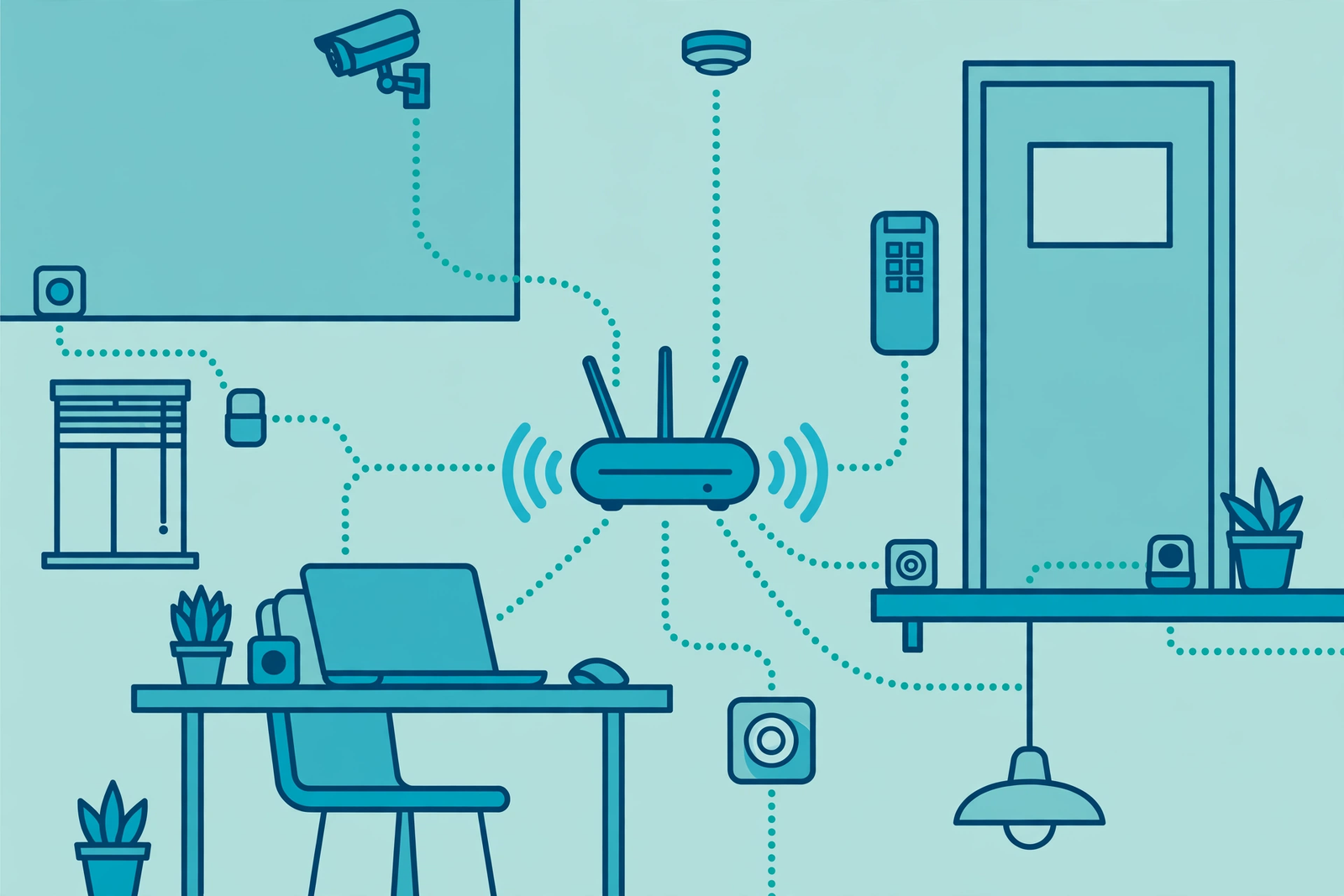
Office cameras sensors bandwidth is dominated by cameras, and it helps to understand why. A security camera does not send an occasional message; it sends a continuous stream of video, often to cloud storage or a recording system, for as long as it is switched on. The heavier the video quality, the more frames per second, and the more cameras running at once, the greater the load, and that load is mostly upload traffic. A single camera may be manageable, but eight or twelve cameras, all streaming at once, add up to a substantial and constant demand that the office connection must carry alongside everything else.
Sensors, by contrast, are usually light in bandwidth terms but important in reliability terms. Temperature, humidity, air quality, occupancy, and leak sensors typically send small readings at intervals, so their total data is modest. What they need is a stable connection and a network that does not drop them when it gets busy. The same is true of many access control components: a door reader sending a credential check is a tiny burst of data, but it must succeed quickly, every time, or staff end up waiting at doors. Judging sensors and access devices purely by bandwidth misses the point; for these systems, consistency matters at least as much as capacity.
Other smart office devices sit somewhere in between. Smart thermostats and lighting controls send small, occasional updates. Displays and digital signage may stream content continuously, depending on how they are set up. Voice assistants, smart speakers, and connected appliances add modest, intermittent traffic. Printers and payment terminals are not usually thought of as smart office devices, but they share the same network, and our guide to connecting printers, payment terminals, and card readers to business Wi-Fi explains why giving fixed equipment a wired connection keeps wireless capacity free for everything else. The lesson across all of these is the same: add up the whole office, not just the headline device.
Smart Office Devices Network Basics for Non-Technical Managers
A smart office devices network does not need to be mysterious, and a non-technical manager only needs a few concepts to make good decisions. Download speed is the capacity for bringing data into the office, such as loading web pages and receiving video calls. Upload speed is the capacity for sending data out, such as joining video calls, saving files to the cloud, and streaming camera footage to storage. Latency is the delay before data starts moving, which affects how responsive door readers, voice calls, and cloud apps feel. Capacity is the total size of the pipe, while congestion is what happens when too much tries to use it at once.
Two more ideas complete the picture. The first is wired versus wireless: a wired connection is generally more stable and predictable, which is why cameras, access panels, and other fixed devices usually belong on cables where possible, while wireless is best reserved for devices that genuinely move. The second is separation: putting smart devices on their own network segment, separate from staff laptops and guest Wi-Fi, means a busy guest network or a device problem cannot easily crowd out staff work, and a compromised device cannot easily reach staff systems. You do not need to configure this yourself, but you should ask whoever manages your network whether device traffic is separated, because it is one of the most effective protections available.
Access Control Bandwidth Business Systems Explained
Access control bandwidth business systems are often misunderstood, because people assume a door system must be heavy if it is important. In practice, the network load of a typical access control system is usually light. A reader checking a badge, a panel reporting a door event, and a controller syncing with a cloud platform each involve small bursts of data. What these systems demand is reliability and low delay: a credential check that takes several seconds feels broken, even if the data involved is tiny, and a system that cannot reach its platform during a network problem may fall back to cached credentials or fail open or closed depending on its design, which is a question to ask the vendor before installation.
Placement matters for access control too. A reader at a busy entrance needs a strong, stable connection at exactly that spot, which may be a corridor or lobby where Wi-Fi coverage is weaker than at desks. Wired connections for fixed panels and controllers remove that uncertainty. Power matters as well: a network outage and a power outage are different problems, and access systems should be discussed with the vendor in terms of what happens during each. A bandwidth plan that keeps the network fast but ignores power and failover leaves the office exposed in exactly the situations where access control matters most, so treat power and backup as part of the same conversation.
Disclaimer: This article contains affiliate links to AT&T Business services. We may earn a commission if you purchase through them, at no extra cost to you. Ortelcom.com is an independent publisher and is not affiliated with or endorsed by AT&T. Pricing, speeds, and availability are not guaranteed, were checked 1 November 2026, and vary by address and promotions — please confirm all details before ordering. AT&T and all related marks are trademarks of their respective owners.
Planning Smart Office Bandwidth for Cameras, Sensors and Doors
Planning smart office bandwidth for cameras, sensors, and doors starts with a simple inventory, and it is worth doing on paper before buying anything. List every device, where it sits, whether it is wired or wireless, whether it streams continuously or sends occasional bursts, and whether it talks to a cloud platform or only to a local system. This inventory is the foundation for every later decision, because it turns a vague sense of “lots of devices” into a concrete list that a vendor or network manager can work with. Revisit it whenever a new system is added, so the office never again drifts into overload unnoticed.
Next, ask each vendor for planning estimates in your configuration, and treat those figures as estimates, not guarantees, since real usage varies by device and settings — confirm with your vendor. A camera vendor should be able to give a planning range for your chosen quality and frame rate, and explain how motion-based recording, local storage, or lower overnight quality changes the load. A sensor vendor should explain reporting intervals and what happens if the network is briefly unavailable. An access vendor should explain sync frequency and offline behavior. If a vendor cannot give even a planning estimate, that is useful information in itself, and it suggests budgeting extra headroom rather than assuming the device uses nothing.
| Device group | Traffic pattern | Planning approach |
|---|---|---|
| Security cameras | Continuous video, mostly upload | Budget the largest share here; ask vendor for a planning range per camera at your settings |
| Access control readers and panels | Small, frequent bursts | Prioritize reliability and low delay over raw capacity; wire fixed panels |
| Environmental and occupancy sensors | Small readings at intervals | Light load, but ensure stable connectivity and coverage where sensors sit |
| Smart thermostats and lighting | Occasional small updates | Light load; group with other low-traffic devices on a separate segment |
| Displays and digital signage | Continuous or scheduled content | Check whether content streams live or is cached locally; cache where possible |
| Staff laptops, calls, and cloud apps | Variable, peak-heavy | Protect this traffic first; size the connection for peak staff use plus device load |
IoT Office Bandwidth: When Small Devices Add Up
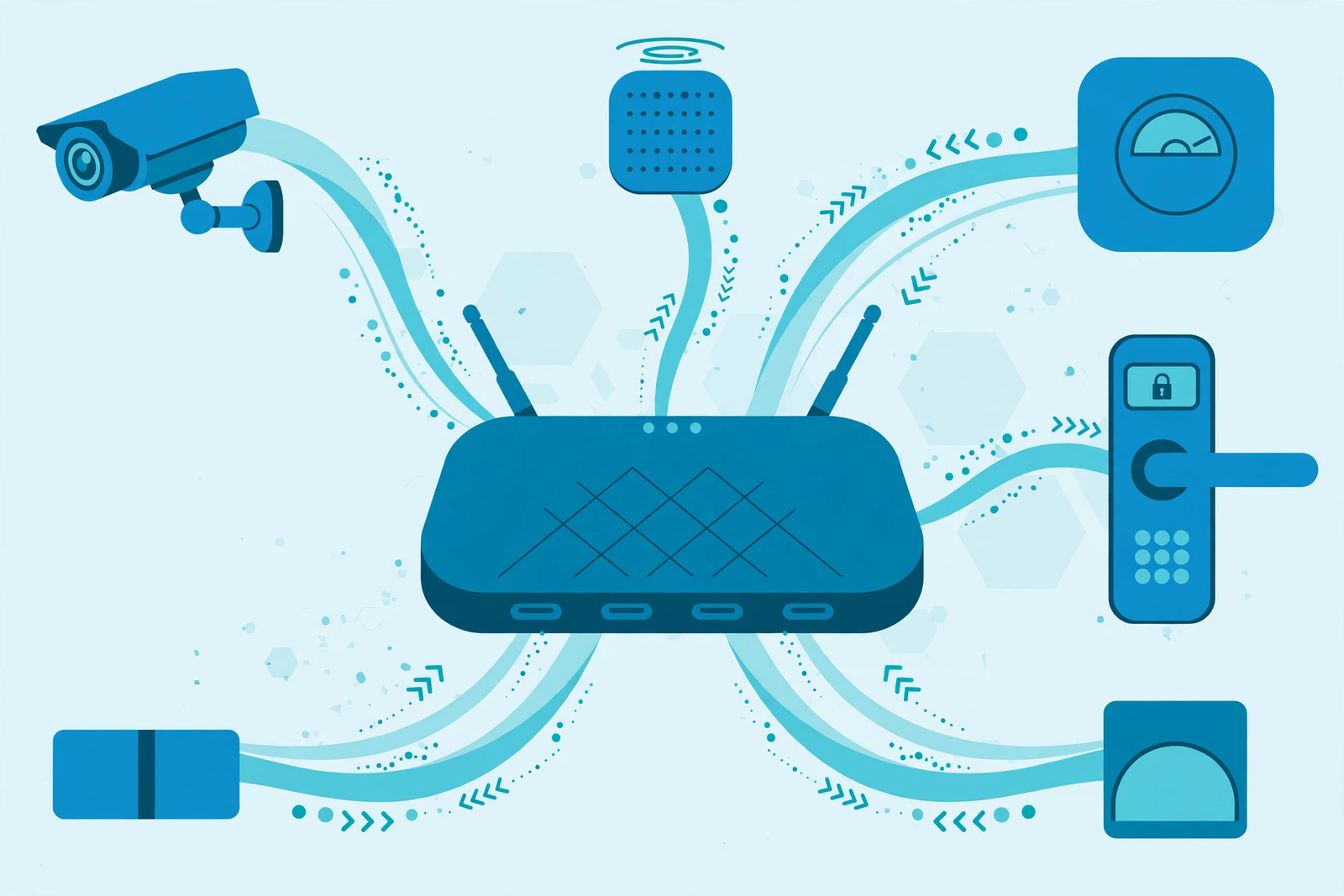
IoT office bandwidth is a story of accumulation. The term covers the huge family of small connected things in an office: sensors, thermostats, lighting controllers, locks, leak detectors, air quality monitors, and countless single-purpose gadgets. Each one, on its own, uses very little bandwidth. A temperature sensor sending a reading every few minutes is almost invisible on a network graph. But an office can easily accumulate fifty or a hundred such devices, and at that scale, the combined chatter, the management traffic, the firmware updates, and the cloud syncing become a real, permanent load that deserves a place in the plan.
Device count also affects Wi-Fi in a way that raw bandwidth figures do not capture. Every device on a wireless network, however quiet, takes a share of management attention from the access point: it associates, it checks in, it roams, it updates. A single access point designed for a handful of laptops can struggle when asked to host dozens of small devices alongside staff, even if none of those devices streams video. This is why device-heavy offices often need to think about access point capacity and device limits, not just internet speed. Wiring fixed devices, where possible, is the simplest way to relieve that pressure, because every device moved to a cable is one fewer device competing for airtime.
Wired or Wireless for Your Smart Office Network?
The wired or wireless question for smart office devices bandwidth has a practical answer: wire what does not move, and reserve wireless for what does. Cameras mounted on walls, access panels by doors, fixed sensors, thermostats, and displays all have a fixed location, so a cable gives them a stable, predictable connection that does not compete for Wi-Fi airtime and does not depend on signal strength through walls. Wireless is the right choice for mobile devices, temporary setups, and places where running a cable is genuinely impractical, but it should be a deliberate choice, not the default for everything.
That said, a wireless-first office is not automatically a bad office, provided the wireless design is intentional. Business-grade access points, sensible placement, separate networks for devices, staff, and guests, and a realistic device count per access point can support a large smart office wirelessly. The mistake is to assume a single home-style router can do the same job. If your office is adding smart devices to an existing wireless network, ask for a quick review of access point coverage and capacity before the next batch of devices goes in, rather than after staff start reporting problems. A review is cheap; a month of unreliable cameras and door readers is not.
Security and Reliability for Smart Office Devices on Your Network
Security and reliability for smart office devices deserve attention alongside bandwidth, because a device network is only as strong as its weakest gadget. Smart devices are computers, and like any computer, they can have vulnerabilities, default passwords, and outdated software. The most important protections are unglamorous: change default passwords, keep firmware updated, put devices on their own network segment away from staff systems and sensitive data, and remove devices that are no longer used. These steps do not require deep technical skill, but they do require someone to own them, and in many small offices nobody does, which is how old, forgotten devices linger on the network for years.
Reliability is the twin concern. A smart office that depends on the network for doors, cameras, and environmental controls needs a plan for when the network fails, not just when it is slow. Ask what each system does offline: do doors still open with cached credentials, do cameras keep recording locally, do sensors store readings and sync later? And ask what happens during a power outage, since a network plan alone does not keep devices running without power. A backup connection is part of this picture, and our guide to business internet backup connections explains how a second path online keeps critical systems working when the primary connection fails. For offices where cameras and access control must keep working through an outage, that resilience is a core requirement, not a luxury.
Smart Office Bandwidth Mistakes That Slow Everyone Down
Smart office devices bandwidth mistakes tend to repeat across offices, and most of them are easy to avoid once named. The first is adding devices without ever counting the total, so the network drifts into overload one gadget at a time. The second is putting everything on Wi-Fi, including fixed cameras and panels that should be wired, which congests the wireless network for staff as well as devices. The third is ignoring upload capacity: offices shop for download speed, then wonder why camera streams and cloud saves struggle, because those are upload-heavy tasks that a download-focused plan does not prioritize.
The fourth mistake is forgetting peak load. A network tested on a quiet evening will always look fine, so testing must happen at the busiest time, with cameras streaming, doors in use, calls running, and cloud apps open. The fifth mistake is treating vendor figures as exact promises rather than planning estimates, and then building a plan with no headroom. Real usage varies by device and settings, so a plan built exactly to a vendor estimate, with nothing spare, will break the first time a setting changes or a device is added. Build in margin, and confirm figures with your vendor for your exact setup before committing.
The sixth mistake is letting the device network grow without an owner. Devices are added by different people for different reasons — facilities adds sensors, security adds cameras, IT adds displays — and nobody holds the whole list. Assigning one person, even informally, to own the inventory, approve additions, and review the network when a new system arrives prevents most of these mistakes at once. It also makes cost discussions clearer, because the office can see what it is running, what it costs to support, and whether the current connection still fits. Our guide to how much business internet costs in 2026 is a useful companion when that conversation turns to budget and tiers.
Smart Office Devices Bandwidth: Frequently Asked Questions
How much smart office bandwidth do security cameras use?
Security cameras are usually the largest smart office bandwidth users because they stream video continuously, mostly as upload traffic. The actual load varies widely by camera, quality, frame rate, and settings, so no single figure applies to every office. Treat vendor figures as planning estimates, confirm them with your vendor for your exact configuration, and budget cameras as the largest share of device traffic, with headroom for adding more cameras later.
Do smart office sensors use much bandwidth?
Most sensors use very little bandwidth, sending small readings at intervals, so their total data is modest. What sensors need is stable, reliable connectivity, especially in the spots where they are installed, which may be basements, storerooms, or other areas with weak Wi-Fi. Check coverage where sensors sit, wire fixed sensors where possible, and keep them on a separate device network so staff traffic cannot crowd them out.
Does access control bandwidth affect my office internet?
Access control itself usually adds only light, bursty traffic, so a single reader will not slow your office internet. The wider access system can add more if it includes video intercoms, photo syncing, or cloud-hosted management, and the critical requirement is reliability and low delay rather than raw capacity. Wire fixed panels, confirm offline behavior with your vendor, and keep access traffic on a separate network segment from staff and guests.
Should smart office devices be on Wi-Fi or wired connections?
Wire fixed devices such as cameras, access panels, and fixed sensors where possible, and reserve Wi-Fi for mobile and temporary devices. Wired connections are more stable, do not compete for wireless airtime, and are easier to troubleshoot. If wireless is necessary, use business-grade access points, plan coverage for the exact spots where devices sit, and keep device, staff, and guest traffic separated.
What internet speed do I need for a smart office?
There is no single answer, because it depends on camera count and settings, device numbers, staff size, and peak usage. Add a planning estimate for devices to peak staff usage, then add headroom for growth. Pricing checked 1 November 2026 for AT&T Business Fiber list plans is $60 per month for 300, $100 for 500, $140 for 1 GIG, $185 for 2 GIG, and $285 for 5 GIG, plus taxes and fees, with lower prices when bundled with an eligible wireless plan at $40, $60, $90, $135, and $235 respectively. Confirm pricing, speeds, and availability for your address before ordering.
Final Word on Smart Office Devices Bandwidth for Your Business
Smart office devices bandwidth is not a mystery to be feared, but it is a total to be planned. Cameras dominate the load, sensors and access control demand reliability more than raw capacity, and the real risk is accumulation: device after device, each small on its own, quietly filling a connection that was sized for people alone. An inventory, vendor planning estimates, wired connections for fixed devices, separated networks, and headroom for growth turn that risk into a routine. The offices that struggle are rarely the ones with the most devices; they are the ones that never added the devices up.
If your inventory shows that devices plus peak staff use are pressing against your current connection, a fiber tier sized for that total is worth considering. You can check AT&T Business Fiber plans and availability for your office and compare the tiers against your planning total, keeping in mind upload capacity and reliability as well as headline speed. Our main guide to AT&T Business Fiber covers the plans in more depth. Confirm pricing, speeds, and availability for your address before ordering, and revisit your device inventory whenever a new system arrives, so the network keeps pace with the office it serves.

