
Handing your main Wi-Fi password to every customer, vendor, and contractor who walks through the door is one of the quietest security risks a small business can take. Anyone on your main network can potentially see shared printers, point-of-sale devices, and other business systems — and every password you share is a password you cannot easily take back. The fix is a separate guest Wi-Fi network: on AT&T Business Fiber gateways you can set up guest WiFi for business in minutes through the Smart Home Manager app (My Wi-Fi > Guest Wi-Fi), giving visitors their own network name and password that is isolated from your main business network. On the AT&T 5G Gateway for Internet Air, the same guest Wi-Fi controls live in the gateway’s web admin portal under Network > Wi-Fi > Guest Wi-Fi.
This guide walks through both setup paths step by step, explains the settings that actually matter (network name, password, isolation, broadcast options), and covers the business practices that keep guest access convenient without putting your operation at risk. Pricing and plan details below were checked in October 2026; availability varies by address.
Hosting Guests? Make Sure Your Fiber Plan Has Headroom
A busy guest network shares your pipe, so growing foot traffic is a good reason to size up: AT&T Business Fiber runs $60-$285/month for 300 Mbps to 5 GIG (checked Oct 2026).
Why Your Business Needs a Separate Guest Network
A business guest network is a second Wi-Fi network broadcast by your gateway that is isolated from your main network. Guests get internet access; they do not get a path to your registers, office computers, printers, cameras, or file shares. That isolation is the whole point, and it protects you in several concrete ways:
- Security: a compromised or malware-infected visitor phone on your main network can probe every other device on it. Isolation contains that risk to the guest segment.
- Performance: a waiting room full of video-streaming phones can saturate shared airtime. A separate guest network lets you keep business devices on the clean main network — and on some setups, keep guest traffic from crowding out registers and workstations.
- Control: when a vendor’s visit ends or you suspect the password leaked, you rotate one guest password without touching a single business device. Try doing that with a shared main password across 20 devices and a card reader.
- Professionalism: a network named for your business with a password you can share freely looks intentional. Shouting your main network password across the counter does not.
The common objections do not hold up. “It is too technical” — the setup below takes about ten minutes. “Guests barely use it” — waiting areas, contractors on multi-day jobs, delivery drivers, and vendors all use it more than you think. “My password is fine” — until a former visitor still has it six months later. If your business has foot traffic of any kind, a separate guest network is baseline hygiene, not a luxury.
Set Up Guest WiFi Business Network on AT&T Fiber Gateways
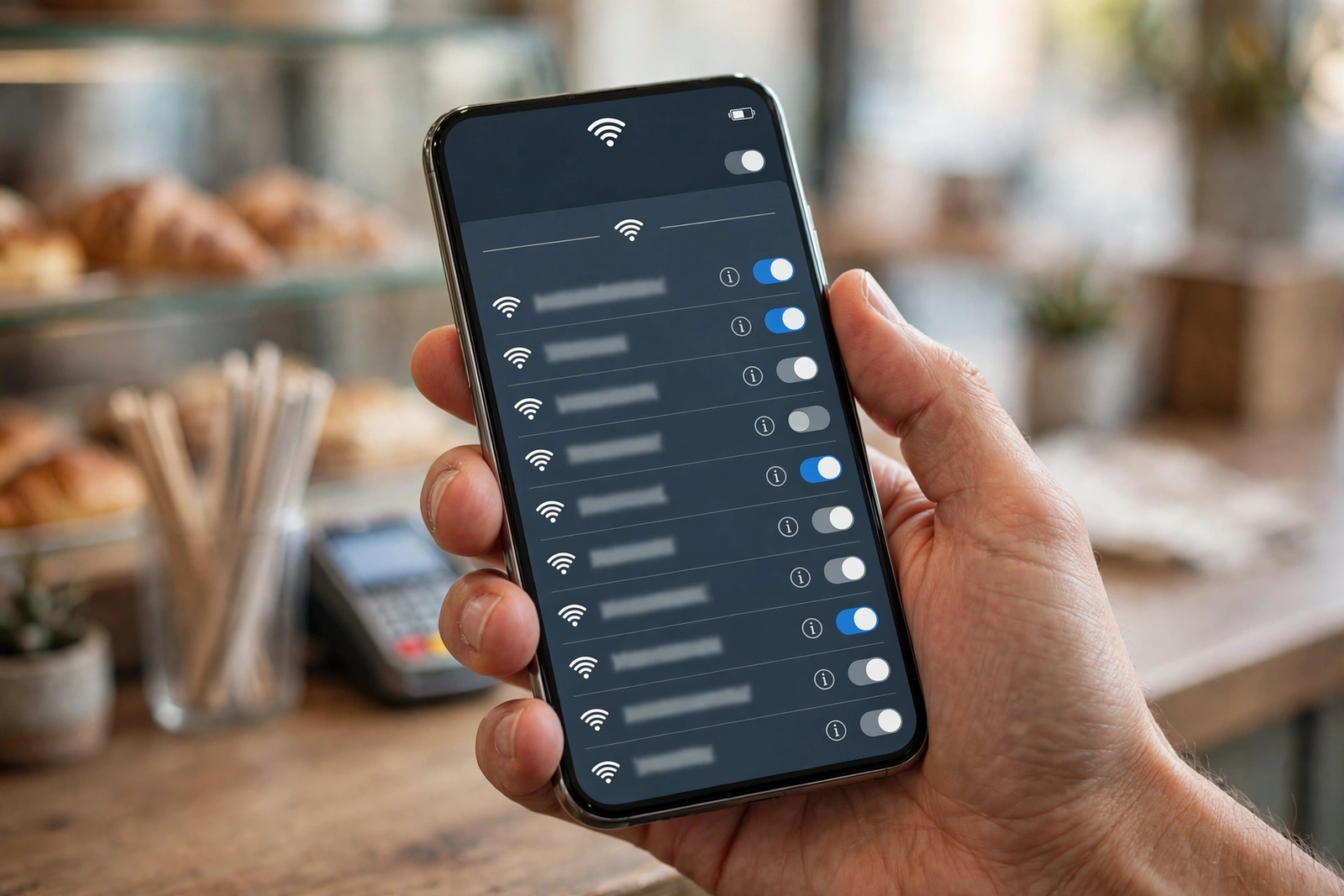
On AT&T Business Fiber installations (BGW320 and the newer All-Fi Hub gateways), guest Wi-Fi is managed through the Smart Home Manager app — the same app you use for speed tests, reboots, and device management. The path is: open Smart Home Manager, go to My Wi-Fi, then select Guest Wi-Fi. Here is the full process:
- Step 1 — Open Smart Home Manager and sign in. Use the AT&T account tied to your business internet service. If you have not set the app up yet, do that first — it is also how you will rotate the guest password later.
- Step 2 — Go to My Wi-Fi, then Guest Wi-Fi. You will see the guest network toggle and its current settings (or a setup prompt if it has never been enabled).
- Step 3 — Turn the guest network on. Enable the Guest Wi-Fi switch. The gateway will start broadcasting the guest network alongside your main one.
- Step 4 — Set the guest network name (SSID). Give it a clear, professional name. Your business name plus “Guest” works well (for example, “Maple Dental Guest”). Avoid anything that identifies it as unsecured or internal, and do not reuse your main network’s name.
- Step 5 — Set a strong guest password. Use a long, random passphrase — not your business name, phone number, or “guest123.” You will share this password freely, so make it something you can rotate without sentimentality. Write it down where staff can find it.
- Step 6 — Confirm isolation is on. The AT&T guest network is designed to be isolated from your main network — guests get internet access but cannot reach your business devices. Verify the guest profile shows it as a separate, isolated network before you announce it.
- Step 7 — Connect a test device. Join the guest network from a phone, confirm you get internet, and confirm you cannot see business resources (try opening your printer’s admin page or a shared drive — you should not reach them).
That last verification step is the one most businesses skip, and it is the one that proves the setup actually protects you. If the test device can reach business systems, do not share the password until you have rechecked the settings or spoken with support. For the broader context of what the fiber service includes, see our AT&T Business Fiber overview.
Set Up Guest WiFi Business Network on the AT&T 5G Gateway
If your business runs on AT&T Internet Air for Business, your hardware is the 5G Gateway — and the guest Wi-Fi path is different. On the 5G Gateway, guest networking is configured through the gateway’s web admin portal, not primarily through the Smart Home Manager app (the app’s guest-network controls can be limited on Internet Air setups, so treat the web portal as the primary path). Our Internet Air for Business overview covers the service itself; here is the guest setup:
- Step 1 — Open the web admin portal. From a device connected to the gateway, open a browser and go to the gateway’s admin address (check the sticker on the gateway or your setup guide for the exact address), then sign in with the admin credentials.
- Step 2 — Navigate to Network > Wi-Fi > Guest Wi-Fi. This section holds every guest-network control the gateway offers.
- Step 3 — Flip the Guest Wi-Fi switch on. The on/off toggle enables the guest network. Leave it off until you are ready to configure the rest — no point broadcasting an unconfigured network.
- Step 4 — Set the guest SSID. Enter the network name visitors will see. As with fiber, use your business name plus “Guest” so it is recognizable and professional.
- Step 5 — Decide on the broadcast toggle. Broadcasting the SSID makes the network visible in everyone’s Wi-Fi list — convenient for a waiting room, where discoverability is the point. Turning broadcast off hides it, which adds a small obscurity benefit for a contractor-only network but annoys legitimate users who then need the exact name typed in. For customer-facing guest Wi-Fi, leave broadcast on.
- Step 6 — Configure security and WPA encryption. Choose the strongest security mode the gateway offers (WPA2 or WPA3 — never an open/unencrypted guest network, which exposes visitor traffic to anyone nearby). The portal exposes the security setting and WPA encryption options separately; set both to their strongest available values.
- Step 7 — Set the guest password. Same rules as fiber: long, random, unrelated to your business identity, and recorded where staff can find it.
- Step 8 — Save, then test from a visitor’s perspective. Join with a phone, confirm internet works, and confirm business devices and resources are not reachable from the guest side.
One honest caveat: the exact labels in the web portal can vary slightly between the gateway models AT&T documents (the NCM1120D2 and the newer BGW830), so if a label reads differently on your unit, match by function — on/off, network name, broadcast, security, encryption, password — rather than by exact wording. Which model ships with a new order was not verified at the time of writing, so describe what you see and confirm with an AT&T Business rep if anything looks unfamiliar.
Disclaimer: This article contains affiliate links to AT&T Business services. We may earn a commission if you purchase through them, at no extra cost to you. Ortelcom.com is an independent publisher and is not affiliated with or endorsed by AT&T. Pricing, speeds, and availability are not guaranteed, were checked in October 2026, and vary by address and promotions — please confirm all details before ordering. AT&T and all related marks are trademarks of their respective owners.
Business Guest Network Settings: Guest vs Main Network Compared
It helps to see the two networks side by side. Here is how to think about each setting and who each network serves:
| Setting | Main business network | Guest network |
|---|---|---|
| Who uses it | Staff devices, registers, printers, cameras, office PCs | Customers, vendors, contractors, visitors |
| Network name (SSID) | Internal name; does not need to be pretty | Business name + “Guest”; professional and recognizable |
| Password sharing | Never shared outside staff; changed when staff leave | Shared freely; rotated on a schedule (see below) |
| Isolation | Full access to business resources | Isolated — internet only, no business devices visible |
| Security | Strongest available (WPA2/WPA3), long unique password | Strongest available (WPA2/WPA3) — never an open network |
| SSID broadcast | Broadcast on (or hidden for obscurity, your call) | Broadcast on for customer-facing; hidden only for private contractor use |
| Business devices allowed? | Yes — this is their home | No — keep every business device off the guest network |
The last row is the rule businesses break most often: a staff laptop or a “temporary” register ends up on the guest network because someone did not want to look up the main password, and then it stays there — outside your device management, possibly deprioritized, and invisible to your security tools. Make it policy: business devices live on the main network, always. If a business device cannot reach the main network from where it sits, that is a coverage problem to fix, not a reason to park it on guest Wi-Fi.
WiFi for Customers: Business Uses That Justify Guest Wi-Fi

Guest Wi-Fi earns its keep in more situations than the obvious waiting room. Consider who passes through your business in a typical month:
- Waiting areas and lobbies: the classic case. Customers waiting for appointments, service, or food expect Wi-Fi the way they expect water — its absence is noticed and commented on. A named guest network with the password on a small sign turns a cost into a touch of hospitality.
- Vendors and delivery drivers: the copier technician, the beverage distributor, the courier waiting out a loading delay. They need internet for 20 minutes, not access to your LAN.
- Contractors on multi-day jobs: electricians, remodelers, IT consultants. They are on-site for days or weeks, and handing them the main password “temporarily” is how passwords leak permanently.
- Pop-ups and event partners: the weekend vendor in your space, the trainer running a workshop in your conference room. A guest network you can rotate afterward is the clean way to host them.
- Staff personal devices: this one is debated, but many small businesses put employee phones on the guest network deliberately — it keeps personal traffic (and personal device risk) off the business segment without a lecture about data usage.
For each use, the practice is the same: share the guest password freely, rotate it when the relationship ends or on your regular schedule, and never let convenience talk you into sharing the main password “just this once.” If you are still sizing your overall connectivity for this kind of foot traffic, our business internet buying checklist covers capacity planning alongside the other pre-purchase questions.
AT&T Guest WiFi Security Rules Every Business Should Follow
Setting up the network is ten minutes; running it safely is an ongoing habit. These are the rules that matter:
- Rotate the guest password periodically. Quarterly is a sensible default; rotate immediately after a contractor engagement ends or if you suspect the password has spread beyond its intended audience. Rotation is a 60-second job in Smart Home Manager or the web portal — the only cost is updating the sign at the counter.
- Keep business devices off the guest network. Worth repeating because it is the most violated rule: registers, printers, cameras, staff workstations, and anything that touches payment data stays on the main network. A device on the guest segment is outside your security posture.
- Never run an open (passwordless) guest network. It feels welcoming, but visitor traffic is trivially interceptable by anyone nearby, and you lose even the basic accountability a password provides. WPA2/WPA3 with a shared password is the minimum.
- Layer on ActiveArmor. Guest isolation handles the network boundary; AT&T ActiveArmor for Business adds threat monitoring on top. The two complement each other — neither replaces the other.
- Post the password, not the main network. A small printed sign (“Guest Wi-Fi: Maple Dental Guest / password”) at the counter or waiting area normalizes the guest network and removes any reason for staff to share the main password out of helpfulness.
- Review connected devices occasionally. Smart Home Manager shows what is on your networks. An unfamiliar device camping on the guest network for days is worth a password rotation.
Guest WiFi Business Setup Mistakes to Avoid
These are the errors that undo an otherwise good guest Wi-Fi business setup:
- Using the main password “because it is easier.” Every shortcut here is a future incident. The ten minutes of setup is the entire cost of doing it right.
- Setting it up once and never rotating. A guest password that never changes is eventually everybody’s password. Put rotation on the calendar.
- Naming the guest network confusingly. “NETGEAR-5G” or “xfinitywifi” lookalikes erode trust and invite misconnection. Name it for your business.
- Forgetting the broadcast decision. A hidden SSID for a customer waiting room just generates support questions at the counter. Match the broadcast setting to the audience: visible for customers, hidden only when the audience is a known list.
- Ignoring capacity. Twenty guests streaming video on a 300 Mbps plan alongside your POS and staff will be felt. If guest usage is real and growing, that is data for your next plan review — compare AT&T Business Fiber tiers here when the numbers justify it.
- Mixing up gateway paths. Fiber gateway? Use Smart Home Manager (My Wi-Fi > Guest Wi-Fi). 5G Gateway for Internet Air? Use the web admin portal (Network > Wi-Fi > Guest Wi-Fi). Using the wrong tool for your hardware is the most common reason “I can’t find the guest setting.”
Guest WiFi Business Setup: Frequently Asked Questions
Is an AT&T Guest WiFi Network Isolated From My Business Network?
Yes — that is the defining feature. The guest network is a separate, isolated segment: visitors get internet access but cannot see or reach devices on your main business network, such as registers, printers, office computers, or shared drives. Always verify isolation with a test device before sharing the password widely.
How Often Should I Change My Business Guest Network Password?
Quarterly rotation is a good default for most small businesses, plus immediate rotation whenever a contractor engagement ends, an employee with the password leaves, or you suspect the password has spread. Rotation takes about a minute in the app or web portal; the main chore is updating the printed sign.
Should Employees Use the Business Guest Network?
For personal phones, many businesses say yes — it keeps personal traffic off the business segment. For anything work-related (laptops, tablets used for business, registers), the answer is no: business devices belong on the main network where your security tools and device management can see them.
Will Guest WiFi for Customers Slow Down My Business Internet?
It can, because guests share your total bandwidth. In practice, casual browsing and email from a waiting room barely register; twenty guests streaming video during your busiest hour will. If guest usage is heavy and staff notice, consider a plan with more headroom or schedule a capacity review — the guest network did not create the shortage, it revealed it.
Can I Set Up Guest WiFi Business Access Without the Smart Home Manager App?
On fiber gateways, the Smart Home Manager app is the documented path (My Wi-Fi > Guest Wi-Fi). On the 5G Gateway for Internet Air, you set up guest WiFi through the gateway’s web admin portal instead (Network > Wi-Fi > Guest Wi-Fi) — the app’s guest controls can be limited there. Use the path that matches your hardware.
What Should I Name My Business Guest Network SSID?
Your business name plus “Guest” — clear, professional, and unmistakable in a crowded Wi-Fi list. Avoid cutesy names that confuse visitors, avoid anything resembling your main network’s name, and never include words like “free,” “open,” or “unsecured.”
A guest Wi-Fi network is one of the highest-return ten-minute projects in small-business IT: visitors get the connectivity they expect, your business systems stay isolated, and password rotation replaces password panic. Set it up on the right path for your hardware — Smart Home Manager for fiber gateways, the web admin portal for the 5G Gateway — verify the isolation with a test device, post the password, and put rotation on the calendar. And if guest traffic keeps growing alongside your team, check current AT&T Business Fiber plans and availability for your address — pricing checked October 2026.

