
To set up mobile hotspots for field and remote staff, give each worker a phone hotspot or dedicated hotspot device on a business wireless plan with enough hotspot data for their actual work, set a strong password, turn on data alerts, and keep work traffic separate from personal streaming. A hotspot turns a mobile connection into a Wi-Fi network that a laptop, tablet, or other device can use anywhere there is cellular coverage. For field technicians, sales staff, inspectors, and remote workers, that is often the difference between working on site and driving back to the office to file a report.
This guide covers business mobile hotspot setup from end to end: choosing between a phone hotspot and a dedicated device, matching hotspot allowances to field work, securing the connection, managing data, and checking coverage before you deploy. It uses AT&T Business Wireless 3.0 hotspot allowances as the reference, with pricing checked October 2026. Security and setup steps marked as guidance are best practice for small businesses, not vendor specifications, and any plan detail should be confirmed with an AT&T Business representative.
Mobile Hotspot for Field Staff: Get Your Team Connected Anywhere
Compare AT&T Business Wireless hotspot allowances and choose the tier that fits your field team’s data use.
Mobile Hotspot for Field Staff: How a Business Hotspot Works
A mobile hotspot shares a cellular data connection over Wi-Fi so other devices can get online. The most common version is a phone hotspot: the worker’s phone broadcasts a Wi-Fi network, and a laptop connects to it as it would to office Wi-Fi. The alternative is a dedicated hotspot device, a small portable unit whose only job is to provide that Wi-Fi network. Both approaches use the same kind of mobile data allowance, but they differ in battery life, convenience, security, and how much they interfere with the worker’s phone.
For field work, the hotspot is usually a tool for specific tasks: filing a job report from a customer’s driveway, uploading photos from an inspection, checking a parts inventory from a warehouse aisle, running a card payment at a market stall, or joining a video call from a site with no Wi-Fi. It is not, in most cases, a replacement for office internet. Hotspot allowances are finite, cellular speeds vary by location, and a worker tethering all day will drain a phone battery and consume data far faster than a worker who tethers for an hour of reports. Understanding that distinction is what keeps hotspot costs predictable.
Before deploying hotspots, decide which staff actually need one. Office staff who work from home with their own broadband do not need a hotspot allowance, while a technician who spends the day at customer sites does. A delivery driver who only needs navigation and messaging may need far less hotspot data than an inspector who uploads large photo sets. Assigning hotspot access by role, rather than giving every line the largest allowance by default, is the simplest cost control in this guide, and it also reduces the security surface: fewer active hotspots mean fewer networks to secure and monitor.
Business Mobile Hotspot Setup: Phone Hotspot Versus Dedicated Hotspot Device
A phone hotspot wins on convenience. There is no extra device to buy, charge, or carry, and most workers already know how to turn it on. The drawbacks are battery drain, since broadcasting Wi-Fi while using the phone is power-hungry, and the risk that the phone becomes unusable for calls if it is tied up serving a laptop. A phone hotspot also shares the phone’s data allowance and its performance with the phone’s own apps, so a large download on the laptop competes with the worker’s own phone use. For occasional, short hotspot sessions — an hour of email and reports, a single video call — a phone hotspot is usually sufficient.
A dedicated hotspot device wins on endurance and separation. It has its own battery, its own data allowance in many plan structures, and it does not interrupt the worker’s phone. A dedicated device can sit on a dashboard or in a toolkit, serve multiple devices at once, and keep working while the worker takes calls on their phone. The drawbacks are cost and management: another device to purchase, charge, update, and track, and another item that can be lost on a job site. For workers who tether for most of the day, who serve several devices, or who need a hotspot running while they are on calls, a dedicated device is usually the better choice despite the extra hardware.
As guidance, match the device to the work pattern rather than to a preference. Occasional tethering for reports and email points to a phone hotspot. All-day tethering, multi-device field kits, or work in vehicles points to a dedicated device. Workers who move between sites and need a hotspot in a vehicle may benefit from a device that can stay charged in the vehicle, while workers who only tether indoors at customer sites may prefer the simplicity of a phone. Whichever you choose, confirm the plan and device details with an AT&T Business representative before buying hardware, since device compatibility and plan structures vary.
Field Staff Hotspot: Match Hotspot Data to Real Field Work
AT&T Business Wireless 3.0 hotspot allowances checked October 2026 are 5GB per line on Standard, 100GB on Advanced, and 300GB on Premium, with plan prices of $30, $40, and $50 per line respectively on the basis of five or more lines with AutoPay and paperless billing. Line-count bands vary, so confirm the price for your actual line count. The gap between 5GB and 100GB is large, and it is the single most important number in this guide: a field worker on Standard who tethers a laptop regularly will exhaust 5GB quickly, while a worker on Premium has room for heavy daily use. Choosing the tier without estimating use is how hotspot bills become surprises.
Estimate use by task, not by guess. Email and text-based reports use relatively little data. Photo uploads, cloud document sync, and video calls use considerably more, and video streaming — whether for training or entertainment — uses the most. A worker who uploads dozens of site photos a day, joins video calls with the office, and syncs large job files needs a far larger allowance than a worker who files short text reports. Ask staff to describe a typical day in tasks, then map those tasks to a tier, and review actual usage after the first month. The first month’s usage report is the most honest estimator you will ever get, and it should drive any tier changes.
| Field Staff Hotspot Use Pattern | Hotspot Allowance Reference | Typical Fit |
|---|---|---|
| Occasional reports and email only | 5GB (Standard) | Light, infrequent tethering |
| Daily reports, photos, and cloud sync | 100GB (Advanced) | Regular field work with media uploads |
| All-day tethering, video calls, large files | 300GB (Premium) | Heavy daily field connectivity |
| Multiple devices or a field team sharing one hotspot | 100GB or 300GB | Shared use burns data faster |
| Video streaming or personal use on the hotspot | Not recommended on a work hotspot | Keep personal streaming off work data |
These are guidance mappings, not guarantees of how much data any specific task will use, since file sizes, video quality, and app behaviour vary. The business hotspot data guide explains allowances in more detail, and the AT&T Business Wireless pricing guide explains the tiers. If a worker’s usage is uncertain, start on the middle tier for a month, review the actual usage, and adjust — starting too low creates a mid-month data problem, while starting too high for one month costs little and gives you real data for the decision.
Remote Worker Hotspot: Set Up a Hotspot Step by Step
Setting up a hotspot is a short procedure, but doing it consistently across a team matters more than doing it once well. As guidance, the steps are: enable the hotspot on the phone or dedicated device, set a strong, unique password that is not shared with the office Wi-Fi password, give the network a clear name that identifies it as a business hotspot, connect the worker’s laptop or tablet, and confirm that the laptop can reach the tools the worker actually needs — email, job management, cloud storage, and any internal system. Test the full workflow, not just the connection: file a test report, upload a test photo, and join a test call if video calls are part of the job.
On a phone hotspot, watch for settings that can interrupt work. Some phones turn the hotspot off automatically after a period of inactivity, limit the number of connected devices, or restrict hotspot use when battery is low. Check those settings before deployment, and show the worker how to re-enable the hotspot and how to check that the laptop is connected to the right network rather than a neighbouring public Wi-Fi network. On a dedicated device, confirm the charging routine — a hotspot with a dead battery is not a hotspot — and confirm where the device lives when not in use, so it is charged and available at the start of each shift.
Document the setup for each worker: device type, hotspot network name, password location, data allowance tier, and who to contact if the hotspot fails. Store passwords securely, not on a note stuck to the device, and rotate them when a worker leaves the team or a device changes hands. A hotspot setup document that lives only in one person’s head is not a setup at all; it is a support call waiting to happen. Keep the document updated when tiers change, devices are replaced, or staff roles change.
Business Mobile Hotspot Setup: Secure the Hotspot Before First Use

Security for a field hotspot starts with the basics, and these steps are guidance for small businesses. Use a strong, unique password for the hotspot network, and use WPA2 or WPA3 security where the device offers it — never run an open hotspot with no password, since anyone nearby could join and use the business data allowance or intercept traffic. Keep the hotspot turned off when it is not in use, so it is not broadcasting in a parking lot or a customer’s home longer than necessary. Keep work traffic on the work hotspot and personal traffic off it: personal streaming, personal downloads, and family devices should not share a business hotspot, both for data and for security reasons.
Where your business uses a VPN, use it on the laptop when working over a hotspot, especially for access to internal systems, customer data, or financial tools. A VPN is not a substitute for a strong hotspot password, but it adds a layer of protection on a connection that travels over public airwaves. Keep device software updated, since hotspot devices and phones receive security updates that patch vulnerabilities, and remove former staff from hotspot access promptly when they leave. If a hotspot device is lost, change its password and report the loss through your business account process promptly, so the device cannot continue to use the business allowance.
AT&T Business Hotspot Data: Alerts, Limits, and Monthly Review
Data alerts are the cheapest way to prevent a mid-month surprise. As guidance, set an alert for each hotspot line at a threshold that leaves time to act — for example, an alert well before the allowance is exhausted, not at the moment it runs out — and make sure the alert reaches someone who can act on it, whether that is the worker, a manager, or both. Review usage weekly during the first month of deployment, then monthly once patterns are stable. A worker whose usage climbs steadily week by week may need a tier change, a workflow change, or a conversation about what is consuming data.
When usage is high, diagnose before upgrading. Check whether the cause is legitimate work — larger photo sets, more video calls, a new field application — or avoidable use, such as personal streaming, cloud backups running over the hotspot, or a laptop syncing large files automatically. Cloud backup and large sync tools are a common hidden consumer: a laptop set to back up whenever it connects will treat a hotspot like office Wi-Fi and consume data quickly. As guidance, configure laptops to pause large backups and syncs while on a hotspot, or to sync only on office Wi-Fi, and tell staff why. Upgrading a tier without fixing the cause simply buys a larger allowance for the same problem.
Disclaimer: This article contains affiliate links to AT&T Business services. We may earn a commission if you purchase through them, at no extra cost to you. Ortelcom.com is an independent publisher and is not affiliated with or endorsed by AT&T. Pricing, speeds, and availability are not guaranteed, were checked in October 2026, and vary by address and promotions — please confirm all details before ordering. AT&T and all related marks are trademarks of their respective owners.
Field Staff Hotspot Coverage: Check Coverage Before Deploying to a Site
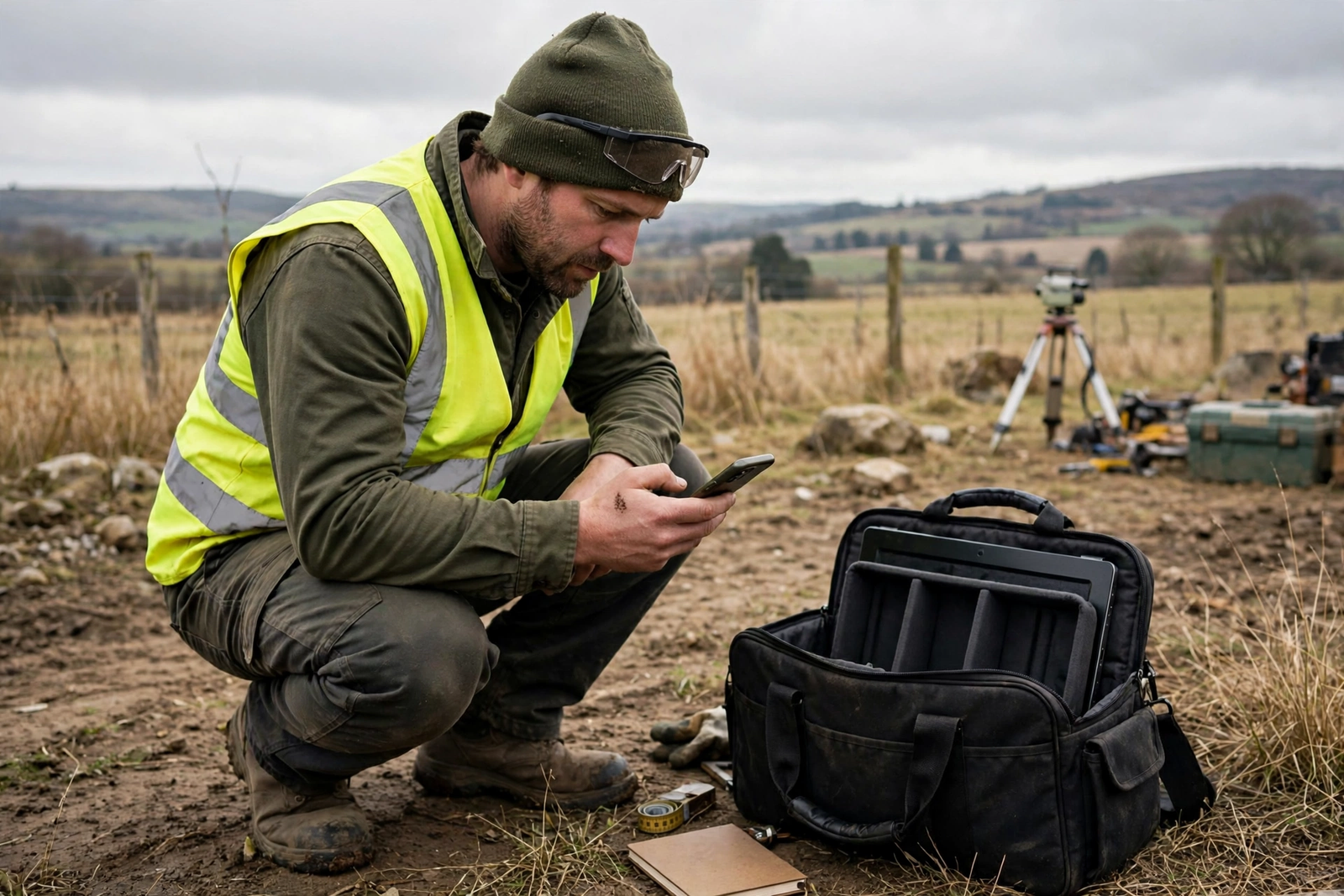
Coverage is the one hotspot factor you cannot fix with a better password or a larger allowance. Before deploying hotspots to a new work area, check coverage for that area. As guidance, test with the actual device a worker will use, at the actual site, during a normal workday, rather than relying on a coverage map alone. Maps are useful for planning, but buildings, terrain, and network load all affect real performance. A site that shows coverage on a map but sits inside a metal warehouse or a rural valley may perform poorly in practice, and discovering that during a live job is the worst time to learn it.
Test the tasks the worker will actually perform at the site: send a report, upload a photo, join a call, and open the job system. Note the result for each site, and keep a simple coverage log by work area so future deployments start from evidence rather than hope. If a regular work site has weak coverage, consider alternatives for that site: a different device placement, an external antenna where supported, scheduling uploads for when the worker returns to a stronger area, or a different connectivity option for that location. Do not promise a customer or a worker that a hotspot will work at a site until it has been tested there.
Coverage also varies by time of day and by network load. A site that works well in the morning may slow during a busy afternoon, and a site near a large event may degrade temporarily. Build that variability into expectations: tell field staff that hotspot speeds vary, that large uploads may take longer at busy times, and that they should confirm a critical upload completed rather than assuming it did. If a site is mission-critical and coverage is marginal, a backup plan — such as completing work offline and syncing later, or using a second connectivity path — is worth more than a larger data allowance.
Mobile Hotspot for Field Staff: Troubleshooting Common Hotspot Problems
When a hotspot fails, work through the simple causes first. Confirm the hotspot is turned on, the laptop is connected to the correct network name, the password is correct, and the device has battery and cellular signal. Restart the hotspot device or phone if the connection is stuck, and reconnect the laptop. Confirm the data allowance has not been exhausted, since a worker who has used the full allowance may see slow or blocked hotspot use depending on the plan. If the phone itself has signal but the laptop cannot connect, try forgetting the network on the laptop and reconnecting with the password re-entered carefully.
If the hotspot connects but work tools fail, isolate the problem: can the laptop reach any website, or only specific tools fail? If nothing loads, the problem is the hotspot connection or the data allowance. If general browsing works but a specific job system fails, the problem may be that system’s settings, a VPN requirement, or a firewall rule, and it should be reported with that detail. If video calls fail while email works, the problem may be bandwidth at that location, and the worker may need to move to a spot with stronger signal, reduce video quality, or switch to audio. Precise symptom reporting — what works, what fails, where, and when — is what turns a vague support call into a fixable problem.
Keep a troubleshooting note for the team with these steps, the data-alert thresholds, and the contact for plan or device issues. Field staff should not have to improvise connectivity support while standing at a customer site. A short, printed or phone-accessible note with the five checks above, plus the instruction to confirm critical uploads, will resolve most hotspot problems without a call to the office. For persistent problems at a specific site, log the site, the device, and the symptoms, and review the log monthly to spot patterns — a site that fails repeatedly needs a different plan, not repeated troubleshooting.
Remote Worker Hotspot: Policies That Keep Hotspot Costs Predictable
A short hotspot policy prevents most cost and security problems before they start. As guidance, a policy for a small business can fit on one page: who gets a hotspot and on which tier, what the hotspot may be used for, that personal streaming and family devices are not permitted on work hotspots, that the hotspot must be turned off when not in use, that passwords are not shared outside the team, and that lost devices must be reported promptly. Share the policy when a hotspot is issued, not after a problem appears, and review it when roles or tiers change.
Pair the policy with a monthly review routine. Each month, review per-line hotspot usage, compare it with the tier, and adjust tiers where usage is consistently above or below the allowance. Review the list of active hotspots against the current staff roster, and remove access for departed staff. Review any site-coverage notes for patterns. This routine takes less than an hour for a small team and keeps hotspot spending aligned with actual work. The business internet for remote teams guide covers the wider remote-work connectivity picture, including where a home or office connection fits alongside mobile hotspots, and the comparison of unlimited versus pooled data for business wireless helps explain how data structures differ across plan types.
Finally, consider how hotspots fit with the rest of the business network. A field team on hotspots, an office on fiber, and a backup wireless line for the office are parts of one connectivity plan, not three separate purchases. If the office internet is also under review, the AT&T fiber and wireless bundle guide explains how office and mobile services can be combined. Planning them together can simplify billing, clarify which service is the backup for which location, and prevent a situation where the office and the field team are on incompatible plans for no good reason.
Mobile Hotspot for Field Staff: Frequently Asked Questions
Can a Mobile Hotspot for Field Staff Replace Office Internet
For a fully mobile worker, a hotspot can be the primary connection, but for an office it is usually a complement, not a replacement. Hotspot allowances are finite, speeds vary by location, and a whole office sharing one hotspot will exhaust data and bandwidth quickly. Use hotspots for field and remote work, and use a wired or fixed wireless office connection for the office itself.
How Much AT&T Business Hotspot Data Does a Field Worker Need
It depends on tasks. Occasional reports and email may fit within 5GB, regular photo uploads and cloud sync point toward 100GB, and all-day tethering with video calls points toward 300GB. These are guidance mappings based on the Standard, Advanced, and Premium allowances. Review the first month’s actual usage and adjust the tier to match, rather than guessing permanently.
Is a Business Mobile Hotspot Setup Secure for Customer Data
A hotspot can be used securely with the right practices: a strong unique password, WPA2 or WPA3 security, the hotspot turned off when not in use, work traffic kept separate from personal use, and a VPN for sensitive systems where your business uses one. Never run an open hotspot, and never access sensitive customer or financial systems over an unsecured or shared public network without the protections your business normally requires.
Why Does My Field Staff Hotspot Work in One Place but Not Another
Coverage, building materials, terrain, and network load all affect cellular performance, so a hotspot that works well at one site may struggle at another. Test each regular work site with the actual device and tasks, keep a coverage log, and have a backup plan for weak sites, such as completing work offline and syncing later. Do not assume a coverage map guarantees performance at a specific building.
Should Field Staff Use Their Personal Phones as Business Hotspots
As guidance, a business line or dedicated device is cleaner than a personal phone for business hotspot work. A business line separates work data from personal data, simplifies billing and policy enforcement, and avoids mixing personal and business use on one device. If a personal phone must be used temporarily, set a clear boundary: a separate hotspot password, work use only, and a plan to move to a business line promptly.
Field Staff Hotspot: Final Setup Checklist for Your Team
Assign hotspots by role, choose a phone hotspot or a dedicated device by work pattern, match the tier to estimated task data, set a strong password and WPA security, turn the hotspot off when not in use, set data alerts, keep personal streaming off work data, test coverage at each regular site, test the full work task before deployment, and review usage monthly. Each step is small; together, they give field and remote staff connectivity they can rely on without turning hotspot data into an uncontrolled cost.
If you are ready to equip your team, compare the wireless tiers for your line count and confirm device and plan details with an AT&T Business representative before you deploy. A hotspot that is set up carefully is a tool your field staff will use every day without thinking about it, which is exactly how business connectivity should feel. Check AT&T Business Wireless hotspot plans for your field team and start with the tier that matches your team’s real field work.

