
Verdict: For delivery drivers, field service technicians, and installers who work away from the office, AT&T Business Wireless is the practical mobile foundation in 2026, because it puts a managed mobile line, hotspot data for tablets and laptops, and dispatch and proof-of-delivery apps on every team member’s phone, with pricing that starts at $30 per line for five or more lines on the Standard plan with AutoPay and paperless billing, checked October 2026. The right plan is not simply the cheapest line. It is the plan whose hotspot allowance, data priority, and line management fit how your team actually works in the field, how many photos and forms they upload each day, and how often they work outside strong coverage.
This guide explains wireless for field service teams in plain terms: what the three AT&T Business Wireless 3.0 plans include, how much hotspot data delivery and field service work really uses, how to size lines for drivers versus technicians versus supervisors, how to manage lines and bills without losing control, and what to check about coverage before you order. It is written for small-business owners and operations managers who need phones that keep working on the road, not for a technical audience. Coverage varies by area, so the coverage guidance here is about how to check your own service areas rather than a promise about any specific address or route.
Wireless for Delivery and Field Service Teams on AT&T Business
Compare mobile plans for drivers, technicians, and installers, and check availability for your team.
What wireless for field service teams actually needs on the road
A field service team does not use a phone the way an office team does. An office worker is usually near Wi-Fi, near a charger, and near help. A driver or technician is often alone, moving between stops, working from a van, a job site, a loading dock, or a customer’s driveway. The phone is the dispatch system, the map, the camera, the signature pad, the payment link, and the way back to the office when a job changes. When mobile service is weak, slow, or out of data, work does not just slow down. Jobs get missed, photos fail to upload, signatures are lost, and the office cannot tell where a technician is or what happened at the last stop.
That is why wireless for field service teams should be judged on four things first, before price. First, reliability across the areas your team actually serves, including suburbs, rural roads, warehouses, and buildings with thick walls. Second, enough data and hotspot capacity for the apps your team runs all day, not just for email. Third, simple management, so adding a new hire, replacing a lost phone, or changing a plan does not become a week of paperwork. Fourth, predictable monthly cost per line, so growth does not create billing surprises. Price matters, but a slightly cheaper line that runs out of hotspot data on the second week of the month will cost more in lost jobs than it saves.
AT&T Business Wireless plans for field service teams compared
AT&T Business Wireless 3.0 offers three plans, priced per line for accounts with five or more lines when AutoPay and paperless billing are used, checked October 2026. The Standard plan is $30 per line, the Advanced plan is $40 per line, and the Premium plan is $50 per line. Those figures are the AutoPay and paperless billing prices for five or more lines. Smaller accounts, lines without AutoPay, or lines without paperless billing may be priced differently, so confirm the exact per-line price for your line count before ordering. Do not assume a promotional figure you may have seen elsewhere is the standard price. The standard figures in this guide are the ones above.
The differences between the plans are not only price. They are mainly about data priority and hotspot allowance, and those two differences matter more in the field than a headline data label. All three plans are designed for business use, but Advanced and Premium add more hotspot data and stronger data treatment when the network is busy. For a team that uploads photos all day or tethers a tablet, that difference can decide whether an upload finishes at the job site or waits until the driver returns to the office.
| AT&T Business Wireless 3.0 plan | Price per line, 5 or more lines, AutoPay and paperless | Mobile hotspot data | Best fit for field service teams |
|---|---|---|---|
| Standard | $30 | 5GB | Light mobile use, calls, messages, navigation, occasional photo uploads from the phone itself |
| Advanced | $40 | 100GB | Regular tablet or laptop use, daily photo and form uploads, route and dispatch apps all day |
| Premium | $50 | 300GB | Heavy hotspot use, laptop-based diagnostics, video, large uploads, supervisors and lead technicians |
For a fuller comparison of plan details and current pricing context, see the guide to AT&T Business Wireless plans and the separate breakdown of AT&T Business Wireless pricing. Those pages help you cross-check the figures here against the plan structure before you choose. If your team is still deciding between mobile service and other types of business connectivity, the overview of best business internet for small business can help place wireless in the wider picture, with wireless as the mobile layer and office connectivity as a separate decision.
Mobile hotspot data for field service teams: how much is enough
Hotspot data is the most misunderstood part of wireless for field service teams. On-phone data and hotspot data are not the same thing. On-phone data is what the phone itself uses for its own apps. Hotspot data is what the phone shares with another device, such as a tablet or laptop, when that device connects through the phone. A technician can have plenty of on-phone data left and still hit a hotspot limit, because the tablet work is counted separately. That distinction explains many mid-month surprises.
As a practical guide, use these starting points and then adjust after a month of real use. Standard with 5GB of hotspot data fits a worker who rarely tethers and mainly works from the phone itself. Advanced with 100GB fits a worker who tethers a tablet most days for work orders, photos, and forms. Premium with 300GB fits a worker who tethers a laptop for extended work, uploads video regularly, or serves as a mobile hotspot for a small crew at a job site. If you are unsure, start the heaviest users on Advanced, watch the first bill cycle, and move only the workers who actually approach the limit. Moving a whole team to Premium on day one is rarely necessary, and it adds $10 per line per month for capacity many workers will not use.
Wireless for delivery teams: routes, dispatch, and proof of delivery
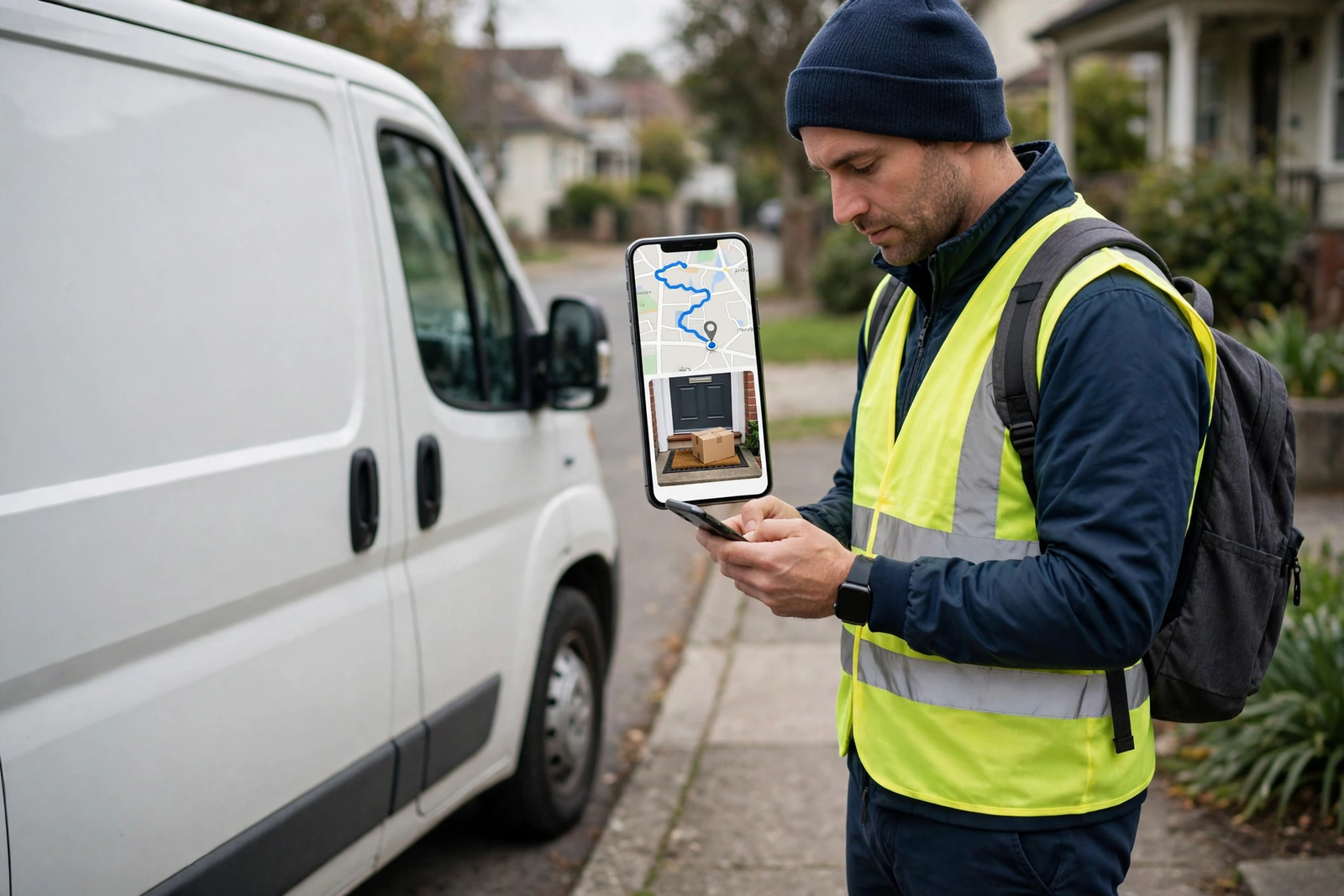
Delivery work lives or dies on timing and proof. A driver needs a route that updates when traffic changes, a dispatch message that arrives when a stop is added or cancelled, and a way to record that a delivery happened, who received it, and what condition it was in. Mobile wireless makes all three possible from the cab, without a return to the depot. When the connection drops, the driver either waits, guesses, or drives on without confirmation, and each of those choices creates a customer-service problem later.
Route and dispatch apps are the first priority for delivery teams. They use location data continuously, which means they need steady mobile coverage rather than bursts of high speed. A plan that works well in town but struggles on rural delivery roads will create gaps exactly where the driver needs guidance most. Before choosing, map your real delivery area, not just your office postcode area. List the towns, industrial estates, rural lanes, and apartment complexes your drivers serve every week, and check coverage for those areas using the carrier’s coverage tools and, where possible, a short trial with a real driver phone. A trial on one driver’s actual route tells you more than any coverage map alone.
Proof of delivery is the second priority. A photo of a parcel at a door, a signature on a phone screen, a barcode scan, and a time stamp together protect both the business and the customer. If photos fail to upload, drivers may keep them on the phone and upload later, but that delay creates a window where the office cannot confirm delivery and the customer cannot be told the truth. Teach drivers to confirm each upload before leaving the stop when the job requires it, and choose a plan with enough hotspot and on-phone capacity that they do not have to ration photos. For drivers who only use the phone itself, Standard may be enough. For drivers who also run a tablet for manifests and signatures, Advanced is the safer default.
Wireless for field service technicians and installers on site
Field service technicians and installers face a different mobile challenge from drivers. They stay longer at each job, they need reference material at the job, and they often need to talk to the office or a supplier while the customer is waiting. A technician who cannot open a wiring diagram, a parts manual, or a previous job history on site will either guess, call for help, or make a second visit. All three cost time and credibility. Mobile wireless that supports tablet and laptop use is therefore a productivity tool, not just a phone bill.
Installers have one extra need: the first-visit problem. The first time a technician visits a site, there is no local Wi-Fi to fall back on, no known signal spot, and no time to troubleshoot connectivity. The mobile line has to work on arrival. That means coverage checks should include the types of buildings installers enter, such as basements, warehouses, new-build sites, and offices with thick walls, not just outdoor road coverage. If a particular site type regularly causes problems, plan for it: arrive with diagrams downloaded where possible, keep a paper fallback for critical steps, and report the site so the next technician is warned.
Mobile team sizing: how many wireless lines and which plan per role

Sizing a mobile team is a simple exercise once roles are clear. Count lines by person and device need, not by headcount alone. A supervisor who also carries a tablet for site visits may need a different plan from a supervisor who only makes calls. A part-time driver may need a full line during peak season and a lighter arrangement off-season, so ask about flexibility before committing. The table below is a practical starting template. Adjust it to your actual roles, then review it after the first month.
| Mobile team role | Typical device setup | Suggested starting plan | Why this starting point fits |
|---|---|---|---|
| Delivery driver, phone only | Phone for navigation, scans, photos, signatures | Standard, $30 per line | Light hotspot need, steady on-phone use, lowest cost per driver |
| Delivery driver, phone plus tablet | Tablet for manifests and proof of delivery | Advanced, $40 per line | 100GB hotspot covers daily tablet use and photo uploads |
| Field service technician, phone plus tablet | Tablet for work orders, diagrams, photos | Advanced, $40 per line | Balanced hotspot and data treatment for all-day site work |
| Installer or lead technician, phone plus laptop | Laptop for diagnostics and large files | Premium, $50 per line | 300GB hotspot and stronger busy-period treatment for heavy use |
| Supervisor or dispatcher, mostly office and calls | Phone for calls, messages, approvals | Standard or Advanced, $30 to $40 per line | Choose Advanced only if the supervisor tethers regularly on site visits |
Use this cost example with its assumptions stated clearly. Assume a team of ten: four phone-only drivers on Standard, four technicians on Advanced, and two lead technicians on Premium, all at five or more lines with AutoPay and paperless billing. The monthly line cost would be four times $30 plus four times $40 plus two times $50, which is $120 plus $160 plus $100, or $380 per month for lines before taxes, fees, devices, and any add-ons. That example assumes all ten lines qualify for the five-or-more-lines AutoPay and paperless prices, and it excludes device payments, insurance, and accessories. Your actual total will differ if your line count, plan mix, or billing choices differ, so treat $380 as a sizing illustration, not a quote.
Disclaimer: This article contains affiliate links to AT&T Business services. We may earn a commission if you purchase through them, at no extra cost to you. Ortelcom.com is an independent publisher and is not affiliated with or endorsed by AT&T. Pricing, speeds, and availability are not guaranteed, were checked in October 2026, and vary by address and promotions — please confirm all details before ordering. AT&T and all related marks are trademarks of their respective owners.
Managing wireless lines, bills, and users for a mobile team
Once lines are live, management becomes the daily work. A small business does not need enterprise software to manage ten or twenty lines well, but it does need one owner, one list, and one monthly review. The owner, often the operations manager, should keep a simple register: worker name, phone number, plan, device, start date, and area served. Without that register, lines drift. Former workers keep lines, new workers share phones, and the bill slowly stops matching the team.
Monthly bill review should take fifteen minutes and answer four questions. Are all lines still assigned to current workers. Has any worker approached a hotspot or data limit. Has any worker’s role changed in a way that needs a plan change. Are there charges you do not recognise, such as device payments or add-ons that should have ended. If you cannot answer those questions from the bill and your register, the management process needs tightening before the team grows further. The guide to manage AT&T Business lines, bills, and users gives practical steps for this kind of routine, and it is worth reading before your first bill arrives.
Number porting is another management task that causes avoidable stress. If workers keep their existing numbers when they move to a business plan, or if the business moves numbers to AT&T, the process needs planning so no worker is unreachable during a working day. The guide to port business numbers to AT&T Wireless explains the preparation steps. As a general rule, do not port a whole team on the same morning, do not port during a peak delivery window, and keep the old service active until the new line is confirmed working with calls, messages, and data. A staggered port, a few lines at a time, is slower but far safer for a working field team.
Checking wireless coverage for your delivery and field service areas
Coverage is the one part of wireless for field service teams that cannot be decided from a price table. A plan is only useful where the network reaches your workers. Because coverage varies by area, building, and even street, this guide makes no promise about any specific address, route, or job site. Instead, use a practical check process for the areas your team actually serves.
First, list your service areas honestly. Include your busiest delivery zones, your furthest job sites, and any areas where drivers have previously reported problems. Include indoor locations too, such as warehouses, hospitals, schools, and large retail sites, because indoor coverage can differ from outdoor coverage nearby. Second, use the carrier’s coverage checker for those areas and note the result for each zone, not just for your office. Third, run a real-world test where it matters most: give a test line to a driver or technician who works the hardest route for a week and ask for a simple daily note on signal, failed uploads, and dead spots. That test is worth more than a week of reading coverage maps.
Limitations of mobile wireless for field teams to plan around
Wireless for field service teams has real limitations, and planning around them is better than discovering them on a busy day. First, mobile data is shared with other users in busy areas, so speeds and responsiveness can vary by time and place. A job that uploads instantly at 9 a.m. may take longer at 5 p.m. in a busy town centre. Second, hotspot allowances are finite. Even Premium with 300GB is not unlimited hotspot data, and a worker who streams video or backs up a whole laptop through a hotspot can consume it quickly. Third, battery life limits a phone’s usefulness as a hotspot. A phone that tethers all day will drain faster, so vehicle chargers and power banks are part of the setup, not accessories.
None of these limitations makes wireless unsuitable for field teams. They simply mean the plan, the device, the habits, and the coverage check all matter together. A good setup is a system: the right plan per role, a charged device, apps that work offline where possible, a clear upload habit, and a manager who reviews usage monthly. Businesses that treat wireless as a system, rather than as a monthly bill, get far more value from the same spend.
If you want a direct next step, compare the three plans against your role table, choose a starting plan for each role, and check coverage for your busiest areas before ordering. You can explore the current plan options through the AT&T Business Wireless options for mobile teams link, which is the same product link used in the callout box above. Confirm the per-line price for your exact line count, AutoPay and paperless choices, and any device costs before you commit, because those details decide your real monthly total.
Wireless for field service teams: frequently asked questions
What is the best wireless plan for field service teams with heavy hotspot use?
For heavy hotspot use, Premium at $50 per line for five or more lines with AutoPay and paperless billing is the natural starting point, because it includes 300GB of hotspot data, compared with 100GB on Advanced and 5GB on Standard, checked October 2026. Heavy here means regular laptop tethering, large uploads, or video work in the field. If hotspot use is regular but not heavy, Advanced at $40 per line is often enough. Start with the role, not the maximum plan, and move up only workers who actually approach their limit.
Can wireless for delivery teams replace office internet?
No, not as a general rule. Wireless is designed for mobile work: drivers, technicians, and installers away from the office. Office work, such as dispatch for a whole team, bulk photo uploads, cloud software for many users, and video calls, needs an office connection judged on office needs. Many businesses use both: wireless for the field and a separate office connection, such as fiber where available, as the home-base anchor. Keeping those decisions separate leads to better performance for both teams.
Should every field worker be on the same wireless plan?
Usually not. A mixed plan by role is often cheaper and better fitting than a single plan for everyone. Phone-only drivers may fit Standard, tablet-based technicians may fit Advanced, and laptop-based lead technicians may fit Premium. The saving comes from not paying Premium prices for workers who never use that hotspot capacity. Review usage after the first month and after any role change, and adjust individual lines rather than moving the whole team at once.
What happens when a field worker runs out of hotspot data?
Hotspot use beyond the allowance is handled under the plan terms, so confirm the exact treatment before ordering rather than assuming it. In practice, the safe approach is to avoid the problem: choose a plan with headroom for the role, teach the team what consumes hotspot data fastest, and review usage monthly so a worker approaching a limit can be moved up before it affects jobs. If a worker regularly hits the limit, that is a signal the role needs a higher plan, not a signal to ration essential uploads.
Wireless for delivery, field service, and mobile teams works best when it is sized by role, checked in the real service area, and reviewed monthly. Start with the plan that fits each job, keep the management register current, and let real usage, not guesswork, decide the next plan change. That approach keeps drivers moving, technicians equipped, and the office informed, without paying for capacity the team does not use.

