
Yes, you can offer guest Wi-Fi without risking your business network, as long as guests are kept on a separate network from your staff devices, business systems, and payment tools. The separation is the whole trick: when a visitor connects, they get internet access, but they cannot reach your office computers, shared files, printers, or card readers, because those live on a different network that the guest network cannot cross into. Done this way, guest Wi-Fi becomes a welcome convenience for customers and visitors rather than a security gamble.
In this guide, we explain how to set up safe guest Wi-Fi for your business step by step, in plain language. You will learn how guest network segmentation works, how to configure a guest network on a typical business gateway, what rules and limits to apply, how to handle the legal and practical questions owners usually ask, and how to keep the setup running well over time. Pricing for the connectivity mentioned here was checked 1 November 2026, and you should confirm all details on your quote before ordering, since pricing, speeds, and availability vary by address and promotion.
Offer Safe Guest Wi-Fi on AT&T Business Fiber
Check AT&T Business Fiber plans and availability for your office, with internet security included on Fiber plans.
How Safe Guest Wi-Fi Business Networks Keep Visitors Separate
A safe guest Wi-Fi business network works by creating two networks that share one internet connection but cannot see each other. Think of it like a building with a public waiting room and a locked office behind it: both are in the same building and both use the same front door to the outside world, but visitors in the waiting room cannot walk into the office, open its filing cabinets, or use its equipment. In network terms, the guest network is the waiting room, and your staff network is the locked office. A visitor’s phone or laptop gets internet access, and nothing else, while your staff computers, servers, shared drives, and payment devices stay on the private side.
This separation, often called network segmentation, is normally done in the gateway or router settings, where you enable a guest network alongside your main network. The guest network gets its own name and password, and the gateway is told not to allow traffic between the guest network and the main network, and not to allow guest devices to reach the gateway’s admin settings. Some gateways also offer a feature that stops guest devices from seeing each other, which adds another layer of protection for visitors themselves. You do not need to understand the technical details to use it; you need to confirm, after setup, that a device on the guest network really cannot reach a device on the staff network, which we cover in the testing section below.
Guest Wi-Fi Business Network Risks When Guests Share Your Main Network
When guests share your main business network, several risks appear at once, and most of them are quiet rather than dramatic. The first is direct access: a device on the same network can often discover shared folders, printers, and other devices, and in some cases reach systems that were never meant to be visible to visitors. The second is malware spread: an infected guest device can try to reach other devices on the same network, and a staff computer that is behind on updates is a softer target than it should be. The third is credential exposure: on an unencrypted or poorly configured shared network, login details and other sensitive traffic are easier to intercept than on a properly separated setup.
Setting Up a Separate Guest Network Business Wi-Fi Step by Step
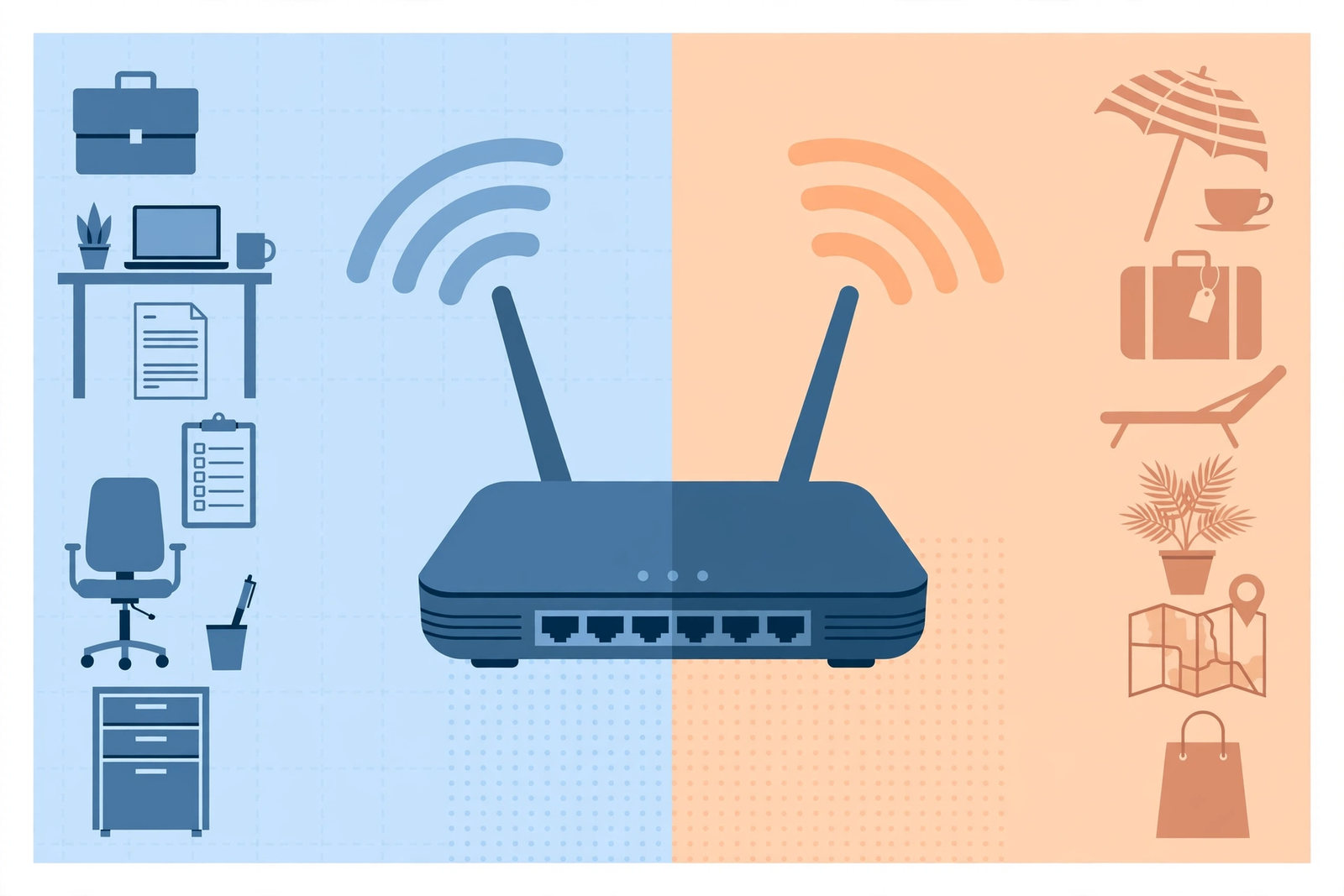
Setting up a separate guest network for your business is usually a short job, and it starts in your gateway settings. Log in to the gateway admin page using its administrator password, which should be a strong password you have changed from the default, and look for a guest network, guest Wi-Fi, or guest access option in the wireless settings. Enable the guest network, give it a clear name that visitors will recognise, such as your business name plus the word Guest, and set a password that is easy to share but different from your staff Wi-Fi password. Confirm that the setting preventing guest devices from accessing your local network, sometimes described as guest isolation or as blocking access to local resources, is turned on.
Finally, test before you announce it. Connect a phone or laptop to the guest network and confirm that it can reach the internet, then try to reach a staff computer, a shared folder, and a network printer from that guest device, and confirm that those attempts fail. Also confirm that a staff device can still reach everything it needs, so you have not accidentally locked your own team out. If any test gives an unexpected result, check the guest isolation setting first, since that is the most common cause, and ask your provider or IT support for help if the setting is unclear. Our step-by-step guide to set up guest Wi-Fi for business covers the setup screens in more detail if you want to work through them alongside this article.
Business Guest Wi-Fi Security Settings Worth Turning On
Beyond basic separation, a handful of business guest Wi-Fi security settings are worth turning on, and most of them take only a minute each. Client isolation, where it is available, prevents guest devices from seeing or communicating with each other, which protects visitors from each other as well as protecting your network. A guest network password, rather than a fully open network, is worth keeping even in a welcoming customer-facing business, because it lets you change access easily and discourages casual drive-by use from outside your premises. If your gateway supports a captive portal, a simple splash page where guests accept your terms before connecting, that page can carry a short acceptable-use note, which we discuss below.
Two settings deserve a deliberate decision rather than a default. The first is whether guest devices may use services on your local network at all, such as a customer-facing printer or a display screen; the default should be no, and any exception should be a specific, documented choice. The second is how long a guest device stays connected and whether the password rotates; for most businesses, a password that changes every few months, or whenever staff turnover makes the old one widely known, is a sensible balance between convenience and control. Our guide on how to secure your business Wi-Fi network explains these settings in the broader context of your whole office Wi-Fi, and it is a useful companion if you are reviewing both staff and guest networks together.
Guest Wi-Fi Network Segmentation for Shops, Offices, and Clinics
Different businesses use guest Wi-Fi differently, and the segmentation setup should match how your visitors actually behave. In a shop, cafe, or restaurant, guests are customers who expect quick, easy access while they wait or eat, and the priority is a simple password, clearly displayed, with a bandwidth limit so one customer’s video streaming does not slow down your card readers. In an office, guests are usually clients, interview candidates, or contractors attending meetings, and the priority is a professional experience, a password given by reception, and strict separation from internal systems and meeting-room equipment that should stay private. In a clinic or professional practice, guests may be patients or clients in a waiting room, and the priority is both separation and discretion, since the business handles sensitive information that must never be reachable from a waiting-room device.
Device types shape the setup as well. Point-of-sale terminals, card readers, and receipt printers should never sit on the guest network, and ideally should be on a wired connection or on the staff network with restricted access, since they handle payments. Our guide to connect POS, printers, and card readers to business Wi-Fi explains how to place those devices correctly, and it is worth reading alongside this article if payment devices are part of your network. Smart devices such as cameras, thermostats, and digital displays also deserve their own consideration: if your gateway supports an additional separate network for them, use it, rather than placing them on the guest network where visitors could reach them, or on the staff network where a weakness in a cheap device could reach your business systems.
Disclaimer: This article contains affiliate links to AT&T Business services. We may earn a commission if you purchase through them, at no extra cost to you. Ortelcom.com is an independent publisher and is not affiliated with or endorsed by AT&T. Pricing, speeds, and availability are not guaranteed, were checked 1 November 2026, and vary by address and promotions — please confirm all details before ordering. AT&T and all related marks are trademarks of their respective owners.
Safe Guest Wi-Fi Business Speed and Bandwidth Limits That Work
Guest Wi-Fi should feel fast to visitors without ever starving your business systems, and the way to guarantee that balance is to limit what the guest network can consume. Many business gateways let you set a maximum speed or a share of total bandwidth for the guest network, and turning that limit on is one of the most useful performance settings available. A reasonable starting point for most small businesses is to leave enough capacity for staff work, cloud tools, video calls, and card payments first, and to cap the guest network at a modest share of what remains, adjusting after you have watched a busy period. If guests complain that the connection feels slow, check whether the limit is too tight before removing it entirely, since a limit that is too generous defeats its own purpose.
Speed tiers matter here, because a guest limit only works well if the underlying connection has enough capacity for both sides. As a pricing reference checked 1 November 2026, AT&T Business Fiber list prices are $60 per month for 300 Mbps, $100 for 500 Mbps, $140 for 1 GIG, $185 for 2 GIG, and $285 for 5 GIG, plus taxes and fees, with lower prices when bundled with an eligible wireless plan at $40, $60, $90, $135, and $235 respectively. AT&T Business Fiber plans include ActiveArmor internet security, which is a useful baseline layer, though it does not replace the separation and settings in this guide. Confirm plan details and included features on your quote, since pricing, speeds, and availability vary by address and promotion, and choose a tier that leaves headroom for both staff and guests during your busiest hours, not just for an average day.
Guest Wi-Fi Small Business Terms, Signs, and Everyday Etiquette
A short, plain acceptable-use note protects your business and sets visitor expectations, and it does not need to read like a legal document. The note should say, in a sentence or two, that the network is provided for guests’ personal use, that illegal activity and activity that harms the network are not permitted, and that the business does not guarantee the security of guests’ own devices or the availability of the network at all times. Display it where guests connect, either on a small sign with the Wi-Fi password or on the captive portal page if your gateway offers one, and keep a copy on file. If your business is in a regulated sector or handles sensitive client data, ask a qualified adviser whether your note needs anything more specific, rather than copying another business’s terms verbatim.
Testing Guest Wi-Fi Business Network Separation Before You Open It

Testing is the step that turns a guest network setting into a verified fact, and it should happen before you invite guests to use the network, and again after any major gateway change. Start with a test device on the guest network and confirm the basics: it can load websites, it receives a sensible speed, and it stays connected as you move around the areas guests will use. Then test the separation itself: from the guest device, try to reach a staff computer by name or address, try to open a shared folder, try to print to a network printer, and try to open the gateway admin page. All of those attempts should fail. If any succeeds, the guest isolation setting is not working as intended, and guests should not be invited onto the network until it is fixed.
Fixing Common Guest Wi-Fi Business Network Problems
Most guest Wi-Fi problems have ordinary causes, and working through them in order saves a support call. If guests cannot connect at all, check that the guest network is enabled, that the password on the sign matches the password in the gateway, and that the gateway has not reached a device limit. If guests connect but get no internet, check that the main connection is working for staff devices first, since a guest problem that affects staff too is a connection problem, not a guest problem, and then check the guest network settings for an error. If guests connect but the connection feels very slow, check the bandwidth limit, check how many devices are connected, and check whether staff systems are also slow, which would point to the underlying connection rather than the guest setup.
If a guest can reach something they should not, treat it as a priority, not a curiosity. Temporarily disable the guest network or change its password until the isolation setting can be checked, and review the gateway settings for the guest isolation or local-access option, since that is the usual cause. If a staff device cannot reach a printer or shared folder after a guest network change, check whether the device was accidentally moved to the guest network, which is a common mistake when a device is reconnected, and move it back to the staff network. If problems persist after these checks, contact your provider or IT support with a clear description of what you tested and what happened, since that detail shortens the troubleshooting considerably.
Guest Wi-Fi Small Business Maintenance Routine for Lasting Safety
A guest network that is set up well but never revisited slowly becomes a guest network that is set up poorly, so build a short maintenance routine around it. Monthly, glance at the gateway to confirm the guest network is still enabled and separated, and note any unusual device counts or complaints from visitors. Quarterly, run the separation test described above, check for gateway firmware updates, review whether the guest password should rotate, and confirm that payment devices and smart devices are still on their correct networks. Yearly, review the whole setup against this guide, check whether your internet plan still fits your visitor numbers and staff needs, and update your signs, cards, and staff script to match any changes.
| Guest Wi-Fi maintenance task | How often | What to confirm |
|---|---|---|
| Guest network enabled and separated | Monthly | Guest isolation on; guests cannot reach staff devices |
| Gateway firmware check | Quarterly | Firmware current; settings unchanged after update |
| Separation test from a guest device | Quarterly | Shared folders, printers, and admin page unreachable |
| Guest password rotation review | Quarterly | Password still private to guests; rotate if widely shared |
| Signs, cards, and staff script review | Yearly | Network name and password current; staff know the script |
Keep the routine attached to an existing habit, such as a monthly office check or a quarterly review, rather than inventing a separate security meeting that will be skipped. Assign one named person to own the guest network, even in a very small business, so the password, the test log, and the gateway notes have a home. If that person leaves, the handover should include the gateway admin password location, the guest and staff network details, and the date of the last test. A guest network maintained this way stays safe without becoming a burden, and visitors keep getting the convenient, welcoming access that made you offer it in the first place.
Safe Guest Wi-Fi Business Network: Frequently Asked Questions
Is safe guest Wi-Fi for a business network really separate from staff Wi-Fi?
Yes, when it is set up correctly, safe guest Wi-Fi runs as a separate network that shares your internet connection but cannot reach your staff network. The gateway blocks traffic between the guest network and your staff devices, shared files, printers, and payment tools, and guest devices should not be able to open the gateway admin page. Test this separation from a guest device before inviting visitors to use the network, and retest after gateway changes, since separation is a setting that must be verified, not assumed.
How does guest Wi-Fi network segmentation protect my business?
Guest Wi-Fi network segmentation protects your business by ensuring that a device you do not control, such as a visitor’s phone, has no path to your business systems. Even if that device is out of date or carries malware, it can only use the internet on the guest side, and cannot discover or reach staff computers, shared folders, or payment devices. Segmentation also prevents guests from accidentally changing printer or shared-drive settings, and lets you limit guest bandwidth so visitors never slow down the systems your staff depend on.
Should a small business guest Wi-Fi network have a password?
Yes, a guest Wi-Fi network should have a password, even in a welcoming customer-facing business, and that password should be different from your staff Wi-Fi password. A password lets you control who uses the network, change access easily by rotating it, and discourage casual use from outside your premises. Display the guest password where visitors naturally look, such as at reception or on a table card, and never hand out the staff password to visitors, since that defeats the separation the guest network exists to provide.
Can guests slow down my business internet or reach my payment devices?
Guests should not be able to reach your payment devices if segmentation is set up correctly, since payment terminals and card readers belong on the staff network or a wired connection, never on the guest network. Guests can slow down your connection if the guest network has no bandwidth limit, which is why setting a guest limit is recommended. Choose an internet tier with headroom for both staff and guests during busy hours, cap the guest share, and test staff speeds while guest devices are connected to confirm the balance works in practice.
How often should a business test its guest Wi-Fi network segmentation?
Test guest Wi-Fi segmentation before opening the network to visitors, and repeat a short test quarterly and after any gateway firmware update, password change, or internet plan change. The test takes about ten minutes: from a guest device, confirm internet access works, then confirm that staff computers, shared folders, printers, and the gateway admin page are all unreachable. Keep a one-line log of each test with the date and result, so the habit survives staff changes and settings drift is caught early.
Final Word on Safe Guest Wi-Fi Business Networks
Safe guest Wi-Fi for a business network is not a complicated project; it is one good decision, implemented carefully and checked occasionally. Keep guests on their own separated network, give that network its own password and a sensible bandwidth limit, test that the separation actually works, and revisit the setup a few times a year. With those steps in place, you can welcome customers, clients, and visitors with free Wi-Fi, confident that their devices have internet access and nothing else, and that your staff systems, files, and payment tools stay private. If you are still deciding on a plan, our guide on how to choose business internet can help you weigh speed, capacity, and guest needs together.
If your current connection or gateway makes that setup difficult, or if your plan no longer leaves enough headroom for staff and guests together, it may be worth reviewing your options. You can check AT&T Business Fiber plans and availability for your office and confirm the details on your quote before ordering, since pricing, speeds, and availability vary by address and promotion. Start with the separate guest network in this guide, test it once, and let a simple, separated setup do the quiet work of keeping your business network safe.

