
The short answer: Setting up AT&T Internet Air for Business is a self-install you can finish in about 15 to 30 minutes, no technician visit required. AT&T’s official process condenses to four steps: activate your service, place the 5G Gateway on a shelf near a window, plug in the power supply and wait up to three minutes for it to connect to the mobile network, then check the 4G/5G LED lights — green or blue means you are online. Your Wi-Fi network name and password are printed on a sticker on the gateway itself, so you can connect your first devices the moment the lights settle.
If you are a small-business owner moving to fixed wireless internet, this guide walks you through how to set up AT&T Internet Air for business from the moment the box arrives, including what to prepare before you start, exactly what each step looks like, a printable-style checklist, and how to fix the handful of things that commonly trip people up. Internet Air for Business is a fixed wireless service delivered over the AT&T cellular network with typical speeds around 225 Mbps, no speed caps, no data caps, and no overage fees — and everything below was checked in October 2026. For background on the service itself, see our overview of AT&T Internet Air for Business.
Ready to Set Up Internet Air for Your Business?
Internet Air for Business lists at $65/mo (Standard) or $105/mo (Premium) — $60/$100 with AutoPay and paperless billing, or $40/$80 with an eligible AT&T business wireless plan. Confirm availability for your address before ordering.
Before You Start: Internet Air Setup Prep for Your Business
A smooth Internet Air setup starts before you open the box. Fixed wireless internet works differently from cable or fiber: instead of a line coming into your building, the 5G Gateway pulls its connection from the AT&T cellular network and broadcasts it as your office Wi-Fi. That makes installation simple, but it also means two things matter more than anything else — that your business address is qualified for the service, and that the gateway sits in a good spot once you plug it in.
Confirm Your Business Address Qualifies for Internet Air
AT&T Internet Air for Business is available only at qualified business addresses. “Qualified” means AT&T has verified that its network can deliver a strong enough signal to your specific location — this is not a service you can order for one address and quietly use at another. The gateway must stay at the qualified business address, and AT&T ties the service to that location. Before ordering, check Internet Air availability for your business address so you are not unboxing equipment for a location that cannot be served.
Also decide which plan fits before you activate. Standard runs $65/mo list ($60 with AutoPay and paperless billing, or $40 with an eligible AT&T business wireless plan), and Premium runs $105/mo list ($100 with AutoPay and paperless billing, or $80 with eligible wireless). Premium adds 250GB of Turbo priority data per billing cycle — after that, speeds may slow during busy times — so if your office runs cloud apps, video calls, and point-of-sale systems all day, compare Internet Air Standard vs Premium for business before you pick. For a full cost picture, see our Internet Air for Business pricing breakdown.
What Is in the Internet Air Self-Install Box
The Internet Air business kit is a self-install kit — there is no technician appointment and no wall drilling. When the box arrives, you should find the 5G Gateway (AT&T documents two models, the NCM1120D2 and the newer BGW830, but the setup process is the same for both), a power supply, and a quick-start guide. The exact model that ships with new orders can vary, so think of it generically as “the current 5G Gateway” — the LEDs, the sticker with your Wi-Fi credentials, and the power connection work the same way.
Before you begin, gather three things: your AT&T account or order number (you will need it for activation), a phone or laptop you can use to connect to the new Wi-Fi network for testing, and a spot picked out for the gateway — ideally a shelf or table near a window on an exterior wall, which we cover in detail in Step 2. Make sure there is a wall outlet within reach of the power cable, and give yourself about half an hour so you are not rushing the signal checks.
Your Internet Air Installation Checklist: 4 Steps at a Glance
AT&T’s official setup guide lists five steps; in practice they condense neatly into four. Here is the whole business internet self install in one view — the sections below expand each step with the details that matter.
| Step | What you do | What success looks like |
|---|---|---|
| 1. Activate | Activate your AT&T Internet Air business service using your account or order number | AT&T confirms the service is live for your address |
| 2. Place | Set the 5G Gateway on an elevated shelf near a window, away from metal and large appliances | The gateway has a clear path to the cell signal |
| 3. Power on | Plug the power supply into the gateway and a wall outlet; wait up to 3 minutes | The gateway connects to the mobile network |
| 4. Verify | Check the 4G/5G LEDs, then join the Wi-Fi network printed on the gateway sticker | Green or blue LEDs and your devices are online |
Step 1: Gateway Activation for Your Internet Air Business Service
Gateway activation is the step people are most likely to skip — and the one that causes the most confusion when the gateway “does not work” right out of the box. Activation tells AT&T’s network that your specific gateway is authorized to connect at your specific qualified business address. In many cases, activation happens automatically when you place the order, and the service is live by the time the equipment arrives. In other cases, you complete it yourself when you are ready to install.
Here is how to handle it: first, check your order confirmation email or your myAT&T business account to see whether the service shows as active. If it does, you can move straight to Step 2. If it shows as pending, follow the activation link or instructions in your order materials — you will typically confirm the service address and the device, and AT&T provisions the line within minutes. Keep your account number and the service address handy; activation ties the gateway to that address, which is why the gateway must stay at the qualified location rather than traveling between offices.
One practical tip: activate and install during business hours on a weekday if you can. If activation stalls or the account shows an error, AT&T Business support is easiest to reach while you are in front of the equipment, and you will not lose a day waiting. If you ordered Standard but realize after reading the fine print that your office needs Premium’s Turbo priority data, it is simpler to sort that out with a rep before you install than after everything is running — again, our Internet Air Standard vs Premium comparison can help you decide.
Step 2: AT&T 5G Gateway Setup — Find the Best Placement
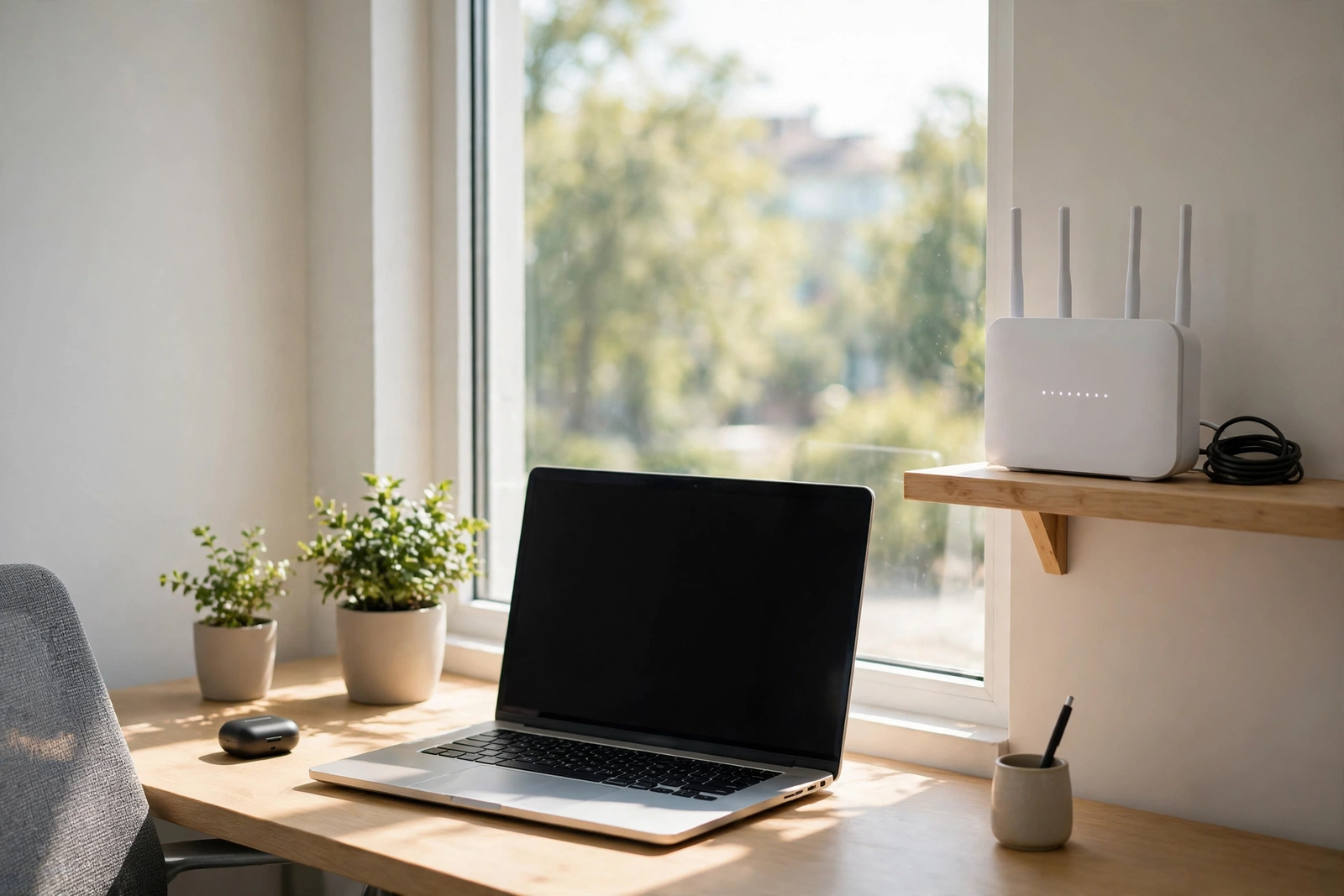
Placement is the single biggest factor in how fast and reliable your Internet Air connection will be. The 5G Gateway receives a wireless signal from a cell tower, so the signal gets weaker as it passes through walls, metal, and other obstacles. The goal is simple: give the gateway the clearest possible line to the outside. AT&T recommends placing the gateway near a window, elevated — on a shelf or table rather than on the floor — and away from large metal objects, microwaves, and other electronics that can interfere with the signal.
Here is a practical placement checklist for a business space: put the gateway on a shelf or counter near an exterior window, ideally on the side of the building that faces the nearest cell tower (you cannot always know which direction that is, so try the window with the clearest view outside). Keep it at least a few feet away from metal filing cabinets, server racks, and thick concrete or brick walls. Avoid tucking it inside a cabinet or behind a TV — closed spaces block the signal and trap heat. If your office has a windowed front room or reception area, that is often a better home for the gateway than a back server closet, even if it means running an Ethernet cable or relying on Wi-Fi for the rest of the office. For more detail on getting this right, see our guide to where to place your AT&T 5G gateway for the strongest signal.
Once you have a spot, set the gateway upright on a flat surface with the LEDs facing where you can see them — you will need to read them in Step 4. Do not stack anything on top of it, and leave a little airflow around it. If your first placement gives a weak signal (red LEDs or very slow speeds), move the gateway to a different window before you assume anything is wrong with the service — placement is the fix in most “slow Internet Air” cases. Try two or three spots, giving the gateway a minute or two to reconnect at each one, and keep the spot with the strongest, most consistent signal.
Step 3: Power On Your 5G Gateway
With the gateway in place, connect the power supply to the gateway and plug it into a wall outlet. The gateway will power on automatically — there is no separate power button to press on most models. The LEDs will light up and cycle as the device boots and searches for the network. AT&T says to allow up to three minutes for the gateway to connect to the mobile network; in practice, most gateways connect in one to two minutes, but give it the full three before you judge the result.
During this window, do not unplug or move the gateway, and do not repeatedly press anything — interrupting the boot sequence just restarts the clock. You may see the LEDs flash, change color, or go dark briefly; that is normal while the gateway negotiates with the network. If the LEDs settle into a steady state (covered in Step 4) you are connected. If after three minutes the LEDs are red, or the gateway shows no lights at all, check the power connection first — confirm the outlet works and the power cable is fully seated — then move on to the troubleshooting section below rather than resetting the device.
Step 4: Verify Gateway Activation With the LED Signal Lights
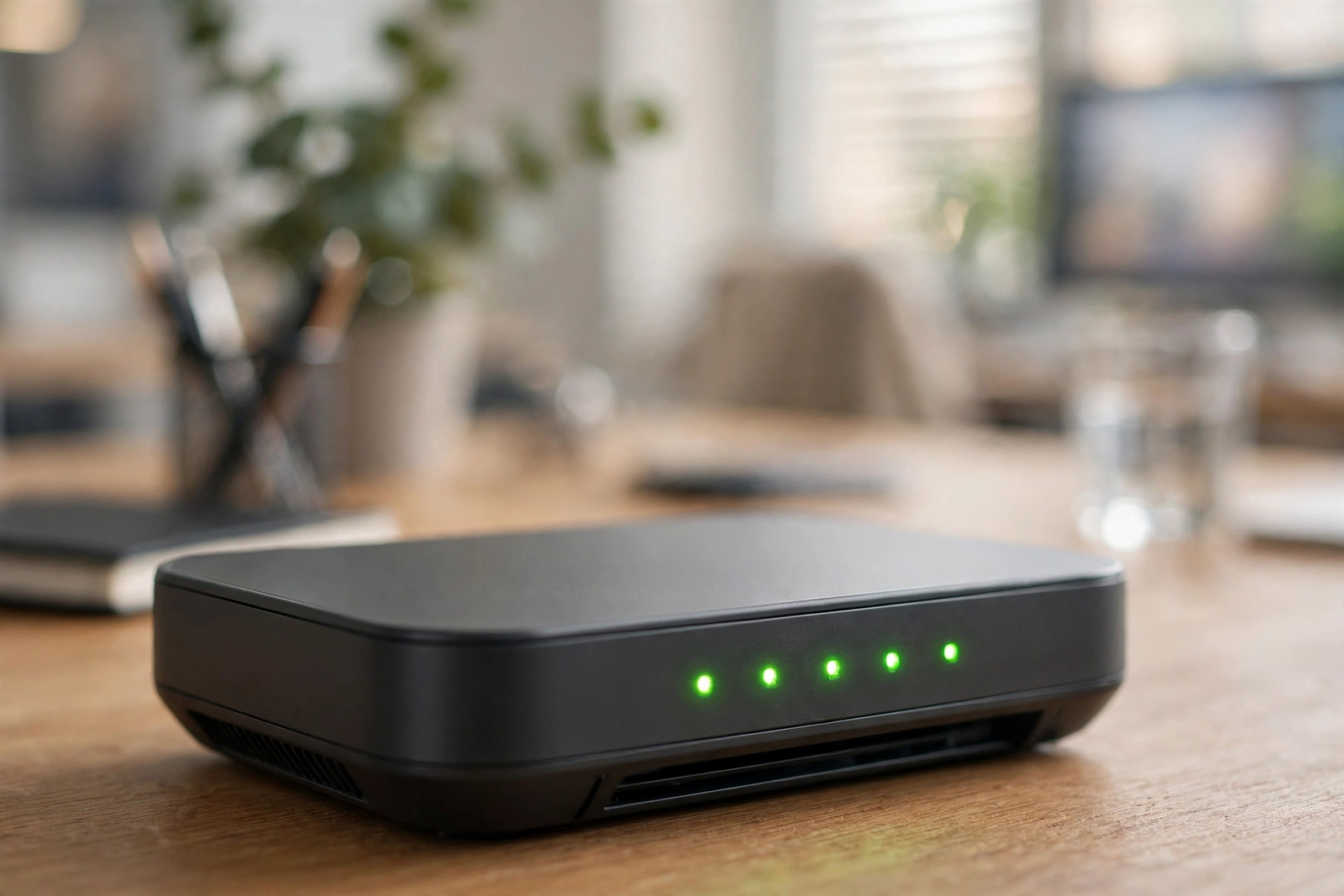
Green or blue lights mean your gateway is connected and working. Here is how to read what the 5G Gateway LEDs are telling you — for the full breakdown, see our guide to how to read your AT&T gateway LED lights.
| LED color | What it means | What to do |
|---|---|---|
| Green | Connected to the network with a good signal | You are online — connect your devices |
| Blue | Connected, often on a 5G signal | You are online — connect your devices |
| Red | Weak signal or a connection problem | Move the gateway to a better spot (see Step 2), wait 2 minutes, and recheck |
| Gray / no light | No signal or the gateway is off | Check power, then move the gateway and wait |
Once you see green or blue, it is time to connect your devices. The Wi-Fi network name (SSID) and password are printed on a sticker on the bottom or back of the gateway. On your phone or laptop, open the Wi-Fi settings, choose that network name, and enter the password exactly as printed — it is case-sensitive. If you are setting up for a whole office, connect a few devices in different rooms to confirm coverage, and consider writing the network name and password down somewhere safe for staff (or changing them later through the gateway’s admin settings if you prefer a custom name).
After your first devices are online, run a quick speed test to establish a baseline. Typical Internet Air speeds run around 225 Mbps, but your real-world speed depends on signal strength, tower congestion, and how many devices are connected. Test from a laptop connected over Wi-Fi in your main work area, then compare with a test from a wired connection if your gateway supports Ethernet. If speeds are well below what you expect, revisit placement first — it is the most common cause — before calling support. For a methodical approach, see our guide on how to fix slow AT&T business internet.
Internet Air Business Setup Troubleshooting: Quick Fixes
Most setup problems come down to a short list of causes. Work through these before you call support, in this order:
- No lights at all: Confirm the power cable is fully plugged into both the gateway and a working outlet. Try a different outlet to rule out a dead socket.
- Red LEDs after 3 minutes: Move the gateway to a different window or a higher shelf, wait two minutes, and recheck. Repeat at two or three spots.
- Gateway connects but Wi-Fi does not appear: Wait another minute — Wi-Fi can take a moment after the network connection — then restart the gateway by unplugging it for 30 seconds and plugging it back in.
- Wi-Fi appears but the password is rejected: Re-read the sticker carefully; passwords are case-sensitive and can confuse similar characters (0 vs O, 1 vs l). Try connecting from a second device to rule out a device problem.
- Online but very slow: Check how many devices are streaming or downloading, move the gateway to a better spot, and run a wired speed test if possible to separate a Wi-Fi problem from a signal problem.
- Activation never completed: Check your myAT&T business account or order email for a pending activation step, and confirm the gateway is at the qualified business address.
If none of these resolve the issue, a factory reset is the last self-service step — hold the reset button (usually a small pinhole on the gateway) for about 10 seconds, then repeat Steps 2 through 4. Note that a reset clears any custom Wi-Fi settings you changed, so the sticker credentials will apply again. If the problem persists after a reset, contact AT&T Business support with your account number and the LED colors you are seeing; that detail alone will speed up the call.
Internet Air Setup FAQs
How long does AT&T Internet Air setup take?
Plan on 15 to 30 minutes total: a few minutes to activate (if needed), a few minutes to find a good placement, up to three minutes for the gateway to connect after you plug it in, and a few minutes to connect your first devices and run a speed test. If you need to try several placements, allow a little more.
Do I need a technician to install Internet Air for Business?
No. Internet Air for Business is a self-install service — the kit ships with the gateway and power supply, and there is no technician visit or wiring work. If you get stuck, AT&T Business support can walk you through the steps.
Where should I put my AT&T 5G Gateway?
On an elevated shelf or table near a window on an exterior wall, away from metal objects, large appliances, and thick walls. Avoid cabinets, server closets, and the floor. If the signal is weak, try two or three different windows before assuming there is a service problem.
What do the AT&T gateway LED lights mean?
Green or blue means you are connected and online. Red means a weak signal or connection problem — move the gateway and wait. Gray or no light means no signal or no power — check the power connection, then reposition the gateway.
Can I move my Internet Air gateway to another office?
No — the service is tied to the qualified business address it was ordered for, and the gateway must stay at that address. If your business moves, contact AT&T to check whether the new address qualifies and to arrange a service transfer.
What speeds should I expect from Internet Air for Business?
Typical speeds run around 225 Mbps, with no data caps and no speed caps on the plan itself. Your actual speed varies with signal strength, tower load, and the number of devices connected, so test from your main work area after setup to set expectations.
Setting up AT&T Internet Air for Business is genuinely one of the simpler business internet installs — no wiring, no technician, and a four-step process you can finish on a lunch break. The two things that make or break it are confirming your address qualifies before you order and giving the gateway a good spot near a window once it arrives. Get those right, and your office can be online the same afternoon the box shows up. If you have not ordered yet, check Internet Air availability and pricing for your business address to get started.
Disclaimer: This article contains affiliate links to AT&T Business services. If you purchase through these links, we may earn a commission at no extra cost to you. Pricing, speeds, and availability are based on AT&T’s published information as of October 2026 and may change; always confirm details with AT&T before ordering.

