
The short answer: put your POS devices on the 2.4 GHz band (or better yet, Ethernet), give them reserved IP addresses, keep the register in strong Wi-Fi coverage, and keep every payment device off the guest network. Most card readers and receipt printers are 2.4 GHz-only devices, which is the single biggest cause of “the printer keeps disconnecting” complaints in small businesses — the device cannot see the 5 GHz network at all, or it was joined to the wrong band during a rushed setup. Get the band right, stabilize the IP address, and most POS Wi-Fi problems disappear.
One important framing note: what follows is best-practice guidance for small-business networks, not AT&T specifications. AT&T provides the connectivity; how you organize devices on it is your network design. The recommendations below reflect widely agreed small-business networking practice for keeping payment and printing devices reliable. Where your card processor or POS vendor gives specific network requirements — and for anything touching payment-card security rules — their documentation wins over any general guide, including this one.
Give your POS system the reliable connection it deserves
AT&T Business Fiber keeps registers, readers, and printers online — plans from $60/mo list.
Why POS devices drop off business Wi-Fi (the 2.4 GHz problem)
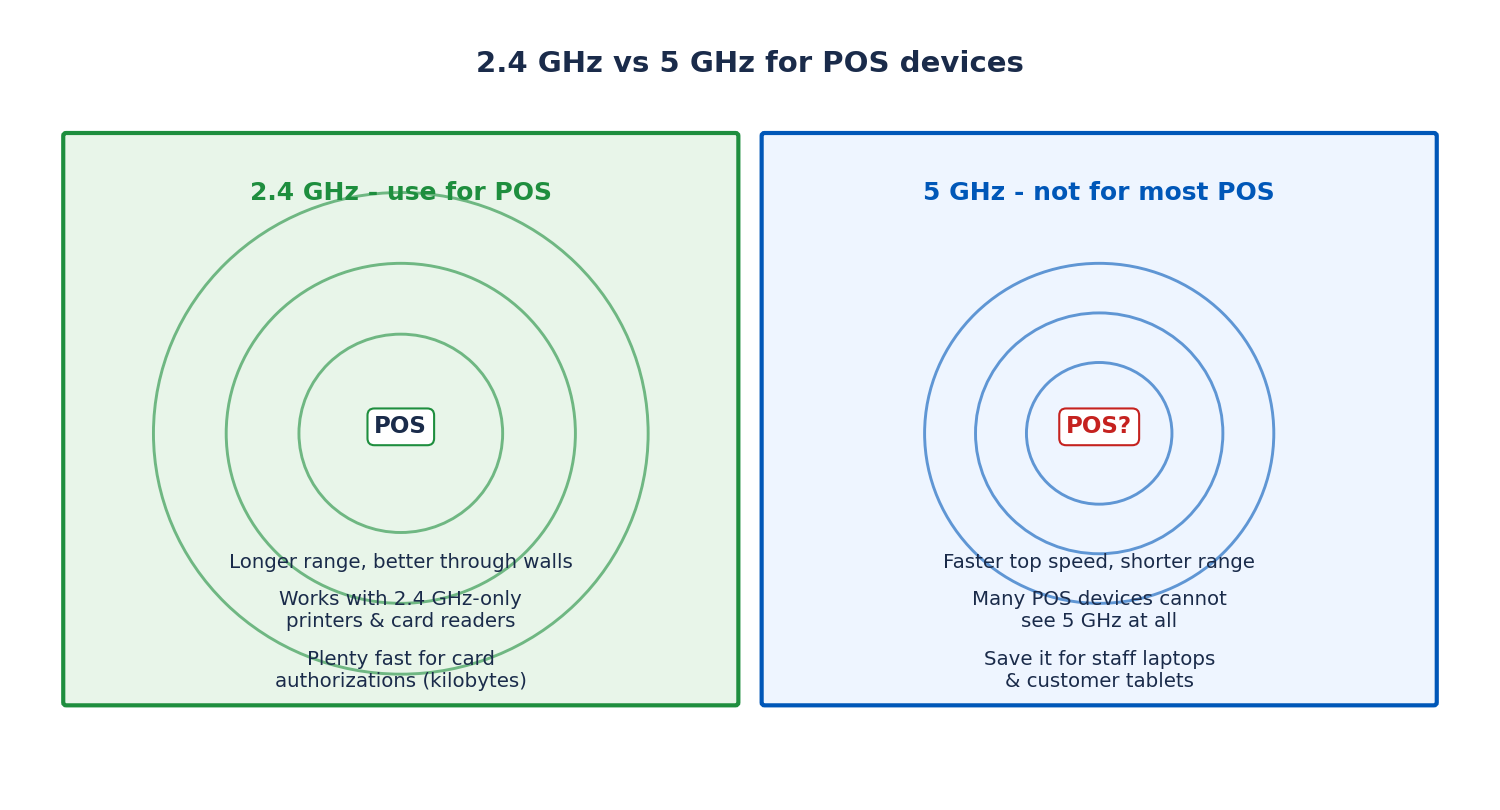
Walk into any small retail shop with a flaky receipt printer and you will usually find the same story: the printer was set up once, in a hurry, on whatever network the phone happened to be on, and it has been intermittently vanishing ever since. The root cause is a frequency mismatch. Wi-Fi runs on (mainly) two bands — 2.4 GHz and 5 GHz — and a large share of purpose-built POS hardware (receipt printers, many card readers, older barcode scanners, kitchen printers) contains 2.4 GHz-only radios. These devices physically cannot join a 5 GHz network. When a modern phone or laptop tries to walk them through setup while itself connected to 5 GHz, the setup fails or the device lands on the wrong configuration and drops offline at random.
The 2.4 GHz band is also the right band for these devices on the merits, not just by necessity. It travels farther and penetrates walls, shelves, and stockroom clutter better than 5 GHz — exactly what a printer in the back or a card reader at the far end of the counter needs. Its downside, lower top speed, is irrelevant here: a receipt printer or card reader exchanges tiny amounts of data. A card authorization is kilobytes. These devices need reliability and range, not bandwidth, and 2.4 GHz delivers both.
The second classic cause of POS dropouts is the IP address shuffle. Most gateways hand out IP addresses dynamically (DHCP), and a printer that was 192.168.1.42 yesterday might be 192.168.1.47 today. The register app or driver that was told to look for the printer at the old address now prints into the void. Nothing is actually broken — the printer is online and happy at its new address — but from the cashier’s perspective, “the printer stopped working.” Reserving a fixed IP for each POS device (a DHCP reservation in the gateway settings) ends this permanently: the device always gets the same address.
The third cause is plain coverage. Card readers get carried to the far end of the counter, the patio, or the stockroom — wherever the customer or the task is — and every wall between the reader and the gateway costs signal. A reader with one bar of Wi-Fi will time out authorizations at the worst possible moment: with a customer waiting. Coverage at the register is not a nice-to-have; it is part of the payment infrastructure. If the register area is far from the gateway, that is what Wi-Fi extenders are for — and the fix should be in place before the busy season, not during it.
The right connection for each device: POS Wi-Fi setup table
Not every device wants the same connection. The table below gives a recommended connection type per device class — use it as the plan when setting up or auditing a retail or restaurant network:
| Device | Recommended connection | Why |
|---|---|---|
| POS register / terminal (counter) | Ethernet first; 2.4 GHz Wi-Fi as fallback | Processes payments — deserves the most stable link; wired eliminates Wi-Fi variables entirely |
| Card reader (countertop) | Ethernet if supported; otherwise 2.4 GHz Wi-Fi | 2.4 GHz reaches through counter clutter; many readers are 2.4 GHz-only anyway |
| Card reader (mobile/handheld) | 2.4 GHz Wi-Fi with strong coverage at its roaming area | Moves around — needs the longer-range band; verify coverage everywhere it travels |
| Receipt printer | Ethernet or USB to the register; 2.4 GHz Wi-Fi if wireless is required | Almost always 2.4 GHz-only when wireless; wired avoids the band issue completely |
| Kitchen / prep printer | Ethernet preferred; 2.4 GHz Wi-Fi otherwise | Kitchen is a hostile RF environment (metal, microwaves) — wire it if you can |
| Barcode scanner (wireless) | 2.4 GHz Wi-Fi or its own dongle per maker instructions | Typically 2.4 GHz; follow the scanner maker’s pairing guide |
| Customer-facing display / tablet | 5 GHz Wi-Fi | Benefits from 5 GHz speed for rich content; usually modern hardware |
| Back-office PC | Ethernet | Stationary — no reason to spend Wi-Fi airtime on it |
| Security cameras | Ethernet preferred; 2.4 GHz Wi-Fi if wireless | Constant upstream video; keep off the band the POS uses if possible |
The pattern: anything that takes money gets the most reliable connection available, preferably a cable. Anything mobile gets 2.4 GHz for range. Anything stationary and non-critical gets whatever is left. When you wire what can be wired, you also free Wi-Fi airtime for the devices that genuinely need it — a small office where every device is wireless for no reason is a small office with avoidable congestion.
How to connect a receipt printer to business Wi-Fi
Receipt printers cause more support headaches than any other POS peripheral, almost always for the band reason described above. Here is a setup sequence that avoids the common traps:
Step 1 — Decide wired vs wireless before you unbox. If the printer sits next to the register and has Ethernet or USB, wire it. A cabled printer never has a band problem, a signal problem, or a roaming problem. Go wireless only when the printer genuinely lives away from the register — a kitchen printer, a bar printer, a warehouse label printer.
Step 2 — Put your setup phone on the 2.4 GHz network. Most printers are configured through a maker app on your phone. If your phone is on 5 GHz (or on a band-steered single SSID that prefers 5 GHz), temporarily join the 2.4 GHz network — some gateways let you separate the bands in the Wi-Fi settings, or you can step far enough from the gateway that the phone drops to 2.4 GHz on its own. The printer and the phone must be on the same band during setup.
Step 3 — Join the printer to the 2.4 GHz business network (not the guest network — more on that below), following the printer maker’s app or button sequence. Use a strong Wi-Fi password; printers store it, and a printer with your network password on it is a credential worth protecting if the printer is ever serviced or discarded.
Step 4 — Give the printer a reserved IP address. In the gateway’s admin interface, find the DHCP or LAN settings and create a reservation tying the printer’s MAC address to a chosen IP (for example, 192.168.1.50). Menu names vary by gateway — look for “DHCP reservation,” “address reservation,” or “static lease,” and check your gateway’s guide for the exact path. Then point the register’s printer driver or app at that reserved address. This single step prevents the largest category of “printer stopped working” incidents.
Step 5 — Print a test page from the register, then power-cycle everything and print again. The power-cycle test catches DHCP and discovery issues that only appear on reboot — exactly the condition you will face after every power blip. If the printer survives a reboot and still prints, the setup is solid.
A note on USB-connected printers: a printer plugged directly into the register via USB sidesteps the network entirely — simple and bulletproof for a single-register shop. The trade-off is that only that register can print to it, so multi-register setups still want the printer on the network with a reserved IP.
How to connect a card reader to business Wi-Fi
Card readers are the device where reliability matters most — a failed authorization with a customer standing there is the most expensive Wi-Fi problem a shop can have. The setup principles mirror the printer’s, with extra attention to coverage:
Step 1 — Check what the reader supports. Read the reader maker’s specs for its Wi-Fi bands. Many popular readers are 2.4 GHz-only; some newer ones do both bands. If it is 2.4 GHz-only, there is no decision to make — it goes on the 2.4 GHz business network, period. If it supports 5 GHz, still prefer 2.4 GHz for a countertop reader (range and wall penetration beat speed for authorizations) unless the reader sits within clear sight of the gateway.
Step 2 — Consider Ethernet for countertop readers. Several business card readers offer an Ethernet cradle or dongle. A reader that never moves should be cabled — it removes the single most failure-prone link in the payment chain. Mobile readers that travel the floor stay wireless by necessity.
Step 3 — Join the reader to the 2.4 GHz business network using the maker’s app, with your phone on the same 2.4 GHz band during setup. As with printers: business network, not guest. Enter the Wi-Fi password carefully — readers have no screen for diagnosing a typo, and a wrong password looks exactly like “broken reader.”
Step 4 — Reserve its IP address in the gateway’s DHCP settings, same as the printer. Readers that change IP addresses can confuse the paired register app the same way printers do.
Step 5 — Walk-test the reader everywhere it will go. Take it to the far end of the counter, the patio tables, the stockroom door — every spot a transaction might happen — and run a test authorization (or the maker’s connectivity check) at each. If any spot fails, you have a coverage problem to fix before opening, not a reader problem. Fix it with repositioning the gateway, adding an extender, or both — and re-test after the fix.
Keep the reader’s firmware current through the maker’s app. Reader makers push security and compatibility updates regularly, and an outdated reader can fail against updated processor requirements in ways that look like network problems. When a reader misbehaves, check for a pending firmware update before you start rewiring the network.
Disclaimer: This article contains affiliate links to AT&T Business services. We may earn a commission if you purchase through them, at no extra cost to you. Ortelcom.com is an independent publisher and is not affiliated with or endorsed by AT&T. Pricing, speeds, and availability are not guaranteed, were checked in October 2026, and vary by address and promotions — please confirm all details before ordering. AT&T and all related marks are trademarks of their respective owners.
How to connect a POS register or terminal to your network
The register is the hub: it talks to the reader, the printer, the internet, and your POS cloud service simultaneously. Give it the best connection in the building. For a fixed countertop register, that means Ethernet — a cable from the register to the gateway or switch. The AT&T gateways commonly used with business service include multiple Ethernet LAN ports (the Internet Air 5G Gateway, for example, has four), so a short cable run is usually all it takes, and it removes Wi-Fi from the payment path entirely.
If the register must be wireless — a tablet-based system on a movable stand, a food-truck-style setup — join it to the 2.4 GHz band for range and stability unless it sits very close to the gateway with clear line of sight, in which case 5 GHz is fine. Either way, reserve its IP address. And keep the register’s own software updated: POS app updates frequently include connectivity and payment-security fixes, and running months behind is asking for trouble.
One often-overlooked register issue is Bluetooth interference. Tablet registers commonly pair with the card reader over Bluetooth while using Wi-Fi for the internet — and Bluetooth also lives in the 2.4 GHz band. In practice this coexistence usually works, but if a specific register shows flaky reader connections, try increasing the physical separation between the tablet and any 2.4 GHz noise sources, and keep the tablet’s OS updated (Bluetooth/Wi-Fi coexistence handling improves with updates).
Giving POS devices reserved IP addresses to reduce dropouts
This deserves emphasis because it is the highest-value five minutes in POS networking. A DHCP reservation (sometimes called a static lease or address reservation) tells the gateway: whenever this device — identified by its MAC address — asks for an IP, always give it this one. The printer is always at .50, the reader at .51, the register at .52. Drivers, apps, and bookmarks that point at those addresses never go stale.
The general procedure: find each device’s MAC address (usually on a sticker or in its network settings), log in to the gateway’s admin interface, open the LAN/DHCP settings, and add a reservation mapping each MAC to your chosen IP. Pick addresses outside the gateway’s dynamic pool if the interface shows the pool range — or at the high end of the subnet (e.g., .200+) where dynamic assignments rarely reach. Exact menu names differ between the fiber gateways and the 5G Gateway, so check your gateway’s user guide for the precise path; the concept is identical everywhere. Document the assignments (device, MAC, reserved IP) somewhere the next person can find them — a note taped inside the network cabinet beats a memory.
Keeping the register in strong Wi-Fi coverage (retail Wi-Fi setup)
For the devices that must stay wireless, coverage at the point of sale is infrastructure, not convenience. Start by measuring: stand at the register with your phone and check the Wi-Fi signal — full or nearly full bars on the 2.4 GHz network is the target. Then walk the reader’s full roaming range and check again at each transaction spot. Anything below about two bars (or, if you use a Wi-Fi analyzer app, weaker than roughly -70 dBm) is a dead zone wearing a disguise.
If the register area is marginal, the fixes in order of preference are: move the gateway to a more central, elevated position (for Air gateways, this must be balanced against cellular signal — the gateway needs both a good tower signal and good Wi-Fi reach, so find the position that satisfies both); add the official Wi-Fi extender for the gateway platform to cover the retail floor; or run Ethernet to the register and stop depending on Wi-Fi there at all. What you should not do is install a random third-party repeater with a different network name — staff and devices end up on the wrong network, and you have traded one problem for two.
Also mind what shares the air. A busy shop’s Wi-Fi carries the POS, staff phones, the music streamer, the security cameras, and the guest network. Cameras in particular stream constantly upstream. If authorizations slow down specifically when the shop is packed, congestion — not signal — may be the culprit, and the fix is reducing load (wire the cameras, wire the back-office PC, throttle the guest network) rather than adding signal. For the broader question of how much speed a small business actually needs, our best business internet for small business guide and upload speed explainer help size the connection behind the Wi-Fi.
Keep POS devices off the guest network
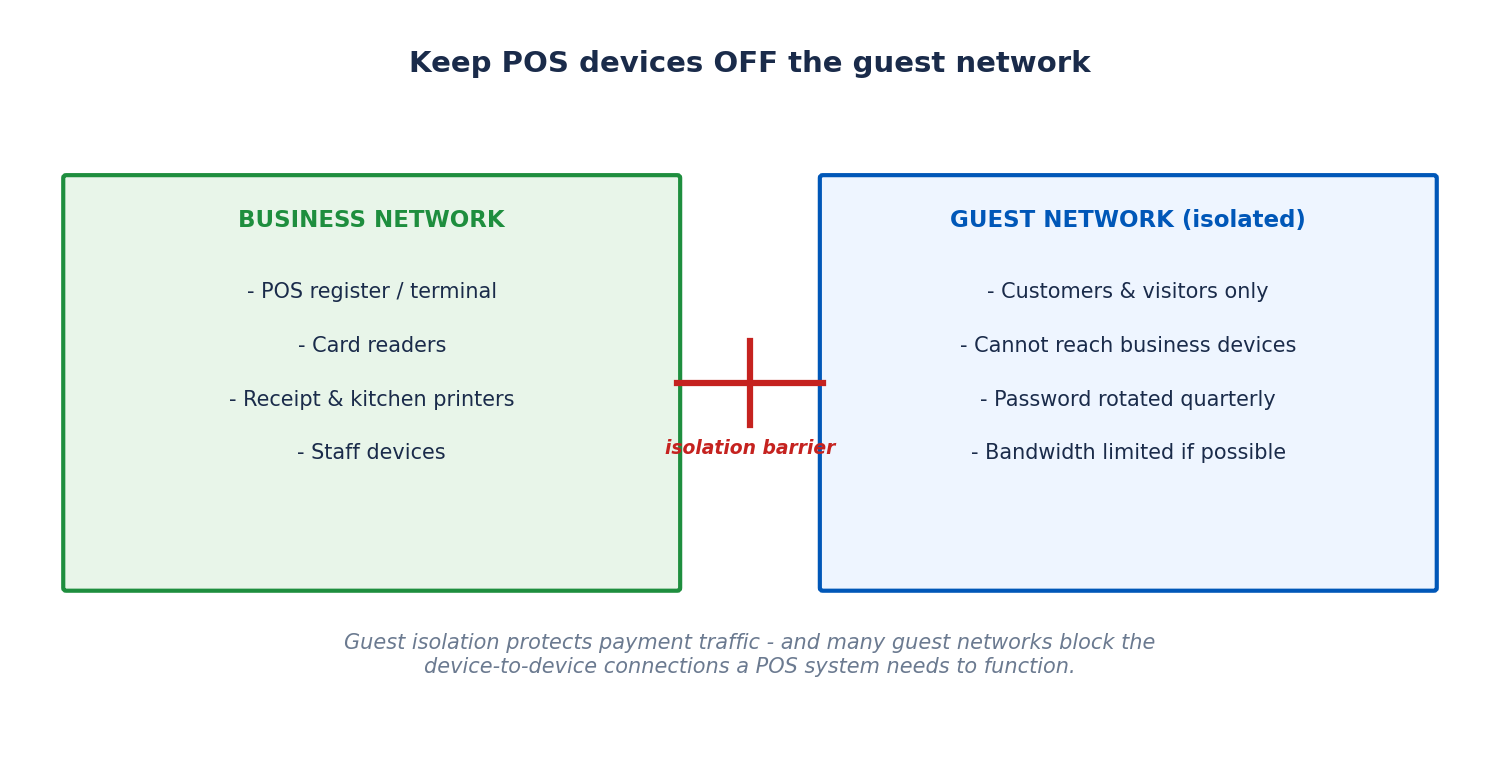
This rule is absolute: payment and printing devices belong on the main business network, never on the guest network. Guest networks are designed for isolation — many guest implementations block devices from talking to each other (client isolation) precisely so a visitor’s infected laptop cannot reach your systems. That same isolation will prevent the register from reaching the printer, or make the reader unreachable from the register app. Even on guest networks without full isolation, mixing customer traffic with payment traffic is poor security practice and can complicate your payment-card security posture.
The correct design is two networks with two jobs: the business network (strong password, WPA2/WPA3 encryption) carries the register, readers, printers, and staff devices; the guest network (separate name and password, rotated periodically) serves customers and visitors, isolated from everything business-critical. Set both up in the gateway’s admin interface — on AT&T fiber gateways this is typically in the Smart Home Manager app or web interface, and on the 5G Gateway in the web admin portal under the Wi-Fi settings. If your gateway supports bandwidth limits on the guest network, use them: there is no reason a customer’s video streaming should be able to starve a card authorization of airtime.
When you are choosing or upgrading the internet service behind all of this, run through our business internet buying checklist so the connection itself — speed, reliability, support — is sized for a business that takes money over it.
Which fiber plan fits a busy retail Wi-Fi setup
POS devices themselves sip bandwidth — the connection size question is really about everything else: staff devices, cameras, cloud backups, music, guests, and headroom for the Saturday rush. AT&T Business Fiber’s official list pricing (checked October 2026) runs $60, $100, $140, $185, and $285 per month across its speed tiers. For a typical single-register shop with a handful of staff, the lower tiers are plenty; a busy restaurant with cameras, online ordering tablets, guest Wi-Fi, and a back office should size up so the POS never competes for bandwidth.
The fiber advantage for retail is less about download speed and more about two things: symmetrical upload (cloud POS, cameras, and backups all upload constantly — cable’s slow uploads are the usual bottleneck) and reliability (fiber lines go down less often, and every avoided outage is a day of uninterrupted sales). If you are comparing fiber against what you have now, that reliability difference is worth more to a retailer than any speed number. Our AT&T Business Fiber overview details the tiers and what each suits.
Check AT&T Business Fiber availability for your shop — confirm which speed tiers reach your address and get the full monthly total before ordering.
POS Wi-Fi setup: frequently asked questions
Why does my receipt printer keep disconnecting from business Wi-Fi?
The most common causes, in order: the printer is a 2.4 GHz-only device joined to the wrong band, its IP address changed and the register is looking at the old one, or the signal is weak where the printer sits. Fix the band (2.4 GHz), reserve its IP in the gateway’s DHCP settings, and verify coverage — that resolves the large majority of printer dropouts. Or wire it via Ethernet/USB and skip Wi-Fi entirely.
Should card readers use 2.4 GHz or 5 GHz Wi-Fi?
2.4 GHz for almost every card reader. Many readers are 2.4 GHz-only, and even dual-band readers benefit from 2.4 GHz’s longer range and better wall penetration at the counter. Reserve the reader’s IP address, keep it on the business network (never guest), and walk-test it everywhere a transaction might happen.
Can POS devices go on the guest Wi-Fi network?
No. Keep registers, card readers, and printers off the guest network. Guest networks are built for isolation and can block the device-to-device communication POS systems need; mixing customer traffic with payment traffic is also poor security practice. Put POS devices on the main business network with a strong password and WPA2/WPA3 encryption.
Is Ethernet better than Wi-Fi for a POS register?
Yes, whenever the register does not move. A cable eliminates band mismatches, signal fade, interference, and roaming glitches in one stroke. AT&T business gateways include multiple Ethernet LAN ports, so wiring a countertop register is usually a single short cable. Reserve Wi-Fi for the devices that genuinely move.
What is a DHCP reservation and why do POS devices need one?
A DHCP reservation (static lease) tells your gateway to always assign the same IP address to a specific device, identified by its MAC address. POS setups need it because register apps and printer drivers point at the device’s IP — if the IP changes overnight, printing and pairing break even though nothing is actually offline. Set reservations for the printer, reader, and register.
How much internet speed does a retail POS setup need?
The POS devices themselves need very little — card authorizations are kilobytes. Size the connection for everything else: staff devices, security cameras (constant upload), cloud backups, guest Wi-Fi, and busy-period headroom. Fiber’s symmetrical upload speeds matter more here than big download numbers, since POS, cameras, and backups all upload.

