
Verdict: For most dental and medical offices, the best internet for medical offices is symmetrical fiber sized to your scheduling, check-in, phones, and large-file uploads, with patient systems kept off guest Wi-Fi and a tested backup for appointments. AT&T Business Fiber fits that job because it offers symmetrical upload and download speeds, no data caps, and no annual contract on its listed plans, so a practice can send large files outward as readily as it receives information inward, without worrying that a busy clinic day will hit a data limit. If your practice depends on online scheduling, electronic health record-style systems, patient check-in, and phones all day long, fiber is the safer starting point than a connection built mainly for downloading.
This guide explains that choice without jargon. It avoids technical terms wherever plain language will do, and where a technical term is unavoidable — such as symmetrical speeds, which simply means upload and download speeds are the same — it explains it in the same sentence. It covers what a practice actually uses the internet for during a clinic day, how to size a connection by practice size, what official fiber pricing looks like, how to keep patient systems separate from guest Wi-Fi, how to think about backup, and how to prepare for installation. It does not promise compliance with any law or standard: privacy and compliance details should always be confirmed with the practice’s own IT or compliance advisor, because every practice’s systems and obligations are different.
Best Internet for Dental and Medical Offices: Scheduling, Check-In and Phones
Choose symmetrical fiber sized to your appointments, check-in and large-file uploads, with patient systems kept off guest Wi-Fi.
Why the Best Internet for Medical Offices Matters Every Day
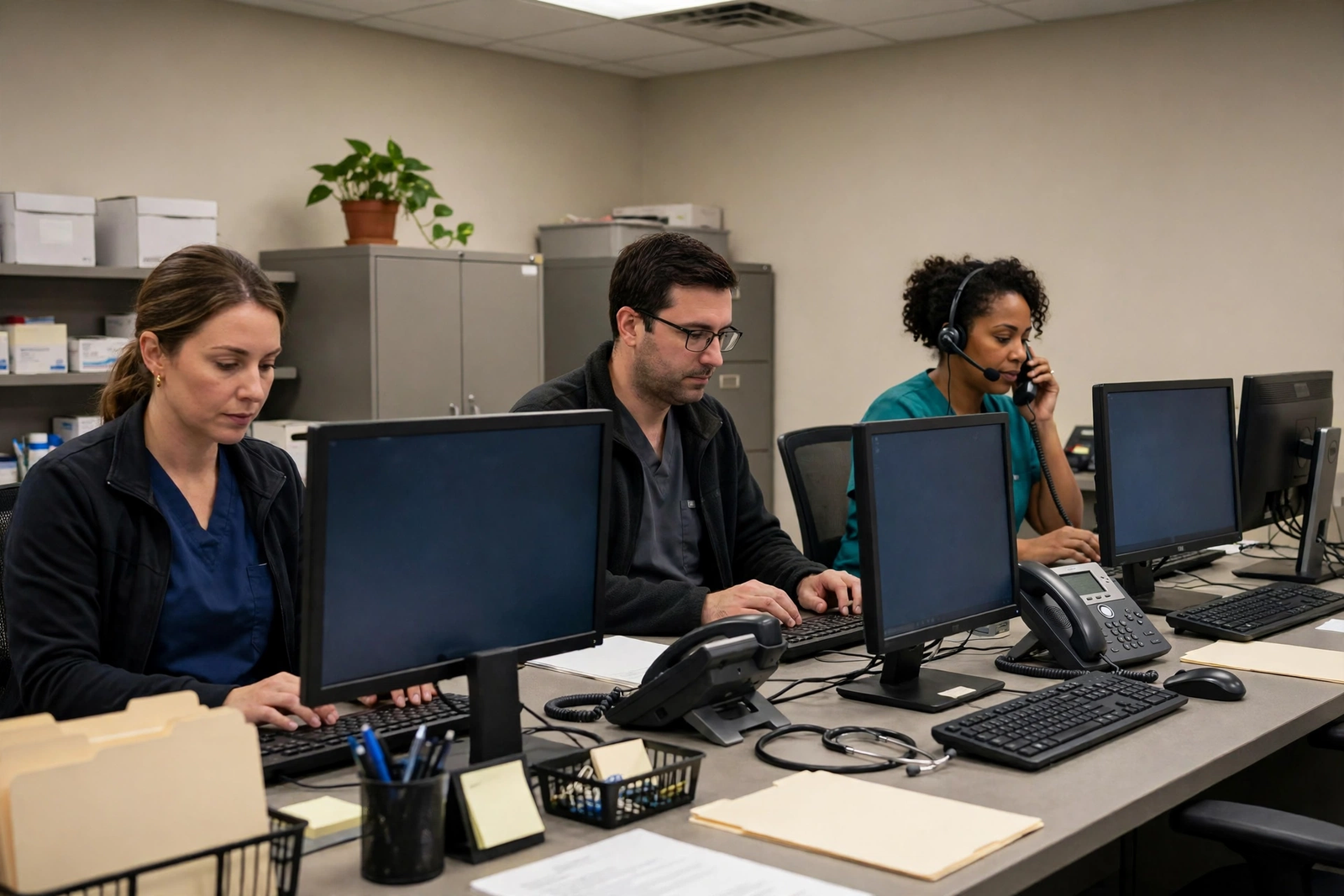
A medical or dental office internet connection is part of patient care in a quiet, everyday way. Patients book online, check in on a tablet or at reception, staff pull up records and schedules, phones ring, and large files such as images need to be sent to another clinician or a lab. When the connection works, none of that is noticed. When it stalls, the effects are felt immediately: a queue forms at reception, a phone call drops, a check-in tablet freezes, or a file that should have been sent before a consultation is still uploading when the patient is already in the chair. A practice therefore judges internet quality not by a speed test taken before opening, but by whether a full clinic day runs without staff having to work around the connection.
How Medical Office Internet Speed Affects Appointments and Phones
Internet speed affects appointments and phones in practical terms: it decides how quickly a schedule loads, how promptly an online booking confirms, how smoothly a check-in tablet responds, and how reliably a phone call stays connected if the phone system uses the internet. A slow or unstable connection rarely produces a dramatic failure. More often it produces small delays that accumulate — a record that takes a few extra seconds to open, a booking page that refreshes late, a check-in that needs to be entered twice. Staff learn to work around those delays, but workarounds cost attention, and during a busy clinic attention is better spent on patients than on restarting devices.
Scheduling and Patient Check-In on Medical Office Internet
For check-in tablets and roaming devices, Wi-Fi is unavoidable, so give those devices a clean, well-covered staff network that guests cannot join. Test check-in from the exact spot where patients will use it, not just from beside the router. If a tablet only works reliably in one corner, that is a coverage problem to fix before the clinic opens, not a fault to discover when a queue has formed. Keep check-in tablets charged, updated, and on the staff network, and make sure reception staff know what to do if a tablet needs restarting. A smooth check-in sets the tone for the whole appointment; a stalled check-in does the opposite.
Phones and Patient Communication on Office Wi-Fi
Phones are often overlooked when practices think about internet, because a traditional phone line feels separate from the computer network. Many modern business phone systems, however, use the internet to carry calls, which means call quality depends on the same connection and the same network setup as everything else. If phones share a congested guest network, or if the wireless coverage in a consultation room is weak, calls can break up or drop at exactly the moment a patient is trying to book, reschedule, or discuss a result. Keep phone traffic on the staff side of the network, check call quality from every room where phones are used, and treat a crackling call as a network report, not merely as a handset fault. For a broader framework, see how to choose business internet.
Large-File Uploads and Imaging on Medical Fiber
For a practice, the test is simple and practical: send a typical file through your actual system during a clinic hour and see whether staff can carry on with the next patient without waiting. If files move promptly while schedules, check-in, and phones are also in use, the connection and the network setup are working together. If uploads stall only when the practice is full, review coverage, separation, and tier together, and confirm plan details with an AT&T Business representative before changing anything.
Keeping Patient Systems Off Guest Wi-Fi
Guest Wi-Fi in a waiting room is a kindness to patients: it lets them message family, look up directions, or pass the time before an appointment. But guest Wi-Fi should never share the same network as patient systems. Keeping guests on a separate, isolated network protects scheduling, records-style systems, check-in, and phones from guest devices, prevents a single guest streaming video from affecting a consultation room, and makes the whole setup easier to manage. You can change the guest password regularly, set a simple sign-in step if you wish, and limit guest access without touching staff systems. Separation is a standard, sensible practice for any office that handles patient information, and it should be part of the setup from day one. See the guide on setting up guest Wi-Fi for a business.
Sizing Medical Fiber Speed by Practice Size
Sizing medical office internet by practice size is a useful starting point, provided the assumptions are stated plainly. The examples below assume a typical clinic pattern: scheduling, records-style systems, and check-in on a staff network, phones on the staff side, large-file uploads happening during clinic hours, and guests on a separate isolated waiting-room network. They also assume that peak use happens when the practice is full — mornings and the start of afternoon clinics — because that is when schedules, check-in, phones, and uploads all peak together. If your practice does not offer guest Wi-Fi, or rarely sends large files, your needs will be lower than the examples suggest. If you run many treatment rooms, a large imaging workload, or a very busy waiting room, your needs may be higher. Use the examples as a sizing conversation starter, then confirm the tier with an AT&T Business representative who knows your address and your actual setup.
| Practice size | Typical peak picture | Starting tier to discuss |
|---|---|---|
| Small practice, 1 to 3 clinicians | Reception, a few treatment rooms, modest waiting-room Wi-Fi | 300 Mbps |
| Mid-size practice, 4 to 8 clinicians | Busy reception, several treatment rooms, regular large-file uploads | 500 Mbps |
| Large practice, 9 or more clinicians | Multiple reception points, many treatment rooms, heavy uploads and phones | 1 GIG |
| Multi-site or imaging-heavy practice | Extensive uploads, many rooms, large waiting-room load | 1 GIG or 2 GIG, depending on workload |
A Small Medical Office Internet Sizing Example
Consider a small dental practice with two clinicians, a reception desk, two treatment rooms, and a small waiting room. The daily load is scheduling, check-in, phones, and occasional large-file uploads to a lab. In that picture, a 300 Mbps symmetrical tier is a sensible starting point for discussion, because it gives the practice headroom above the quiet-hour load and room for a busy morning clinic without paying for capacity the rooms will rarely use. The more important investments for this practice are likely to be a wired reception computer, a separate guest network for the waiting room, and a check-in setup tested from the exact spot where patients use it. For a small-business framework, see choosing the best business internet for a small business.
A Mid-Size Medical Office Internet Sizing Example
Consider a mid-size medical practice with six clinicians, a busy reception area, several treatment and consultation rooms, regular large-file uploads, and a waiting room full of patients during morning clinic. Here the peak is a genuine combination: schedules, check-in, phones, and uploads all arrive at once. A 500 Mbps symmetrical tier is a reasonable starting point for that conversation, because it provides more headroom for the simultaneous peak than a small-practice tier, while still leaving the network setup — Ethernet for fixed reception devices, a separate staff network, and good room-by-room coverage — to do much of the real work. Test the setup during a full clinic, not just during a quiet setup hour, and watch for the specific symptoms that matter: slow schedule loading, delayed check-in, crackling phone calls, or uploads that stall.
A Large Medical Office Internet Sizing Example
Consider a large practice with more than ten clinicians, multiple reception points, many treatment rooms, and a heavy imaging workload. The peak load here is not just larger; it is more spread out, which makes coverage as important as tier. A 1 GIG symmetrical tier is a sensible starting point for discussion, with 2 GIG worth considering if the imaging workload is extensive or the practice spans multiple floors or buildings. The key point for a large practice is to plan the network room by room: each treatment and consultation room needs its own coverage check, each reception point needs its own wired or strong wireless path, and waiting-room Wi-Fi needs to be strong where patients wait, without becoming the network that staff devices rely on.
AT&T Business Fiber Pricing for Medical Offices, Checked October 2026
AT&T Business Fiber list pricing, checked in October 2026, is set out in the table below. Prices are per month, speeds are symmetrical, and the lower figure in each row applies with an eligible wireless plan. These are official list figures for discussion, not a quote for a specific address: pricing, speeds, and availability vary by address and promotions, so confirm all details before ordering. If a dealer or landing page shows a different figure, treat that figure as a promotion or a bundled offer unless AT&T confirms otherwise, and do not assume it is the standard list price.
| AT&T Business Fiber tier | List price per month | With eligible wireless |
|---|---|---|
| 300 Mbps | $60 | $40 |
| 500 Mbps | $100 | $60 |
| 1 GIG | $140 | $90 |
| 2 GIG | $185 | $135 |
| 5 GIG | $285 | $235 |
There are no data caps on these fiber plans and no annual contract is required, which matters for practices because usage is steady and file-heavy rather than occasional. A practice should not have to worry that a busy month of uploads, scheduling, and patient communication will trigger a cap, or that a growing practice will be locked into a long term that no longer fits. AT&T ActiveArmor is included, which is AT&T’s built-in security offering for business internet, and 1 GIG and higher tiers include built-in 5G backup at no extra cost, subject to the power point explained in the backup section below. For more detail on the price tiers, see AT&T Business Fiber pricing, and for the security features, see the guide to AT&T ActiveArmor for business. As with every price in this article, the figures were checked in October 2026; confirm before ordering.
Disclaimer: This article contains affiliate links to AT&T Business services. We may earn a commission if you purchase through them, at no extra cost to you. Ortelcom.com is an independent publisher and is not affiliated with or endorsed by AT&T. Pricing, speeds, and availability are not guaranteed, were checked in October 2026, and vary by address and promotions — please confirm all details before ordering. AT&T and all related marks are trademarks of their respective owners.
Fiber Pricing Tiers and Medical Office Internet Speed
Choosing between tiers is partly a cost decision and partly a peak-load decision. A small practice that chooses 300 Mbps and spends the saving on better coverage and a wired reception setup may end up with a better clinic experience than a practice that buys a larger tier but leaves check-in on a congested guest network. Conversely, a busy practice that chooses too low a tier to save money may find that the saving is wiped out by repeated delays during full clinics, when schedules load slowly and uploads stall. The right question is not “what is the cheapest tier?” but “what tier, combined with a sensible network setup, keeps appointments, check-in, phones, and uploads flowing on our busiest clinic day?”
Medical Office Wi-Fi Setup for Staff and Guests
A good medical office Wi-Fi setup has three separate jobs, and it helps to name them explicitly: a staff and patient-systems network, a guest network, and a management or back-office network if needed. The staff network carries scheduling, records-style systems, check-in, phones, and uploads. The guest network carries only waiting-room guests, isolated from staff systems. The back-office network, if you use one, carries administrative computers, printers, and management work. Keeping those jobs separate means a problem in one area does not automatically become a problem in all three, and it means you can change a guest password or restart a guest access point without touching patient systems.
Ethernet for Patient Systems and Fixed Medical Internet Devices
Wherever a device does not move, prefer Ethernet. Fixed reception computers, check-in terminals that stay in one place, and back-office computers are all candidates. Run cables during setup or renovation if you can, because retrofitting cables after a practice is finished is more disruptive. Label the cables and the ports they connect to, so that a future technician or manager can trace a fault without guessing. A labelled, wired reception setup is one of the least glamorous but most effective reliability improvements a practice can make, and it pays for itself the first time a busy clinic runs without a single reception device dropping out.
Medical Internet Backup for Appointments and Phones
Every practice needs a backup plan for internet outages, because an outage during a clinic is not a minor inconvenience — it can stop online bookings, delay check-in, interrupt phones, and stall uploads at the moment they matter most. On AT&T Business Fiber, 1 GIG and higher tiers include built-in 5G backup at no extra cost, which is designed to keep the business online if the fiber connection fails. That is a valuable feature, but it is not magic, and it needs to be understood correctly. The backup needs power: if the building loses power and the backup equipment has no uninterruptible power supply, known as a UPS, the backup will die with the outage. A practice that relies on backup should therefore pair it with a UPS for the essential equipment — router, backup device, and at least the core reception setup — and should check that the UPS itself is working, not merely plugged in.
Medical Fiber Installation: What to Prepare
Preparing for fiber installation is mostly about access, placement, and a clear list of what must work on day one. Before installation day, walk the practice with a simple plan: where will the main router or gateway sit, where will reception and check-in sit, where will treatment and consultation rooms sit, and where will patients wait? The gateway should be in a secure, ventilated spot that staff can reach but patients cannot tamper with, and ideally near the centre of the areas that need wireless coverage, rather than hidden in a far back room behind thick walls. If the building has thick walls, multiple floors, or shielded treatment rooms, mention that during planning, because it affects access-point placement and cabling.
Installation Day Checks for Medical Office Internet
On installation day, or in the days immediately after, run a practical checklist rather than relying on a single speed test. Test scheduling and check-in from reception and from the waiting-room tablet location. Make a test phone call from every room where phones are used. Send a typical large file through your actual system and confirm it completes promptly. Connect to guest Wi-Fi from several waiting-room seats and confirm it works in each one. Check that the guest network cannot reach staff systems, and that changing the guest password does not affect staff devices. If any check fails, raise it while the installer or support team is still engaged, rather than discovering it during the next full clinic. See how to prepare for office fiber installation day.
Medical Office Internet FAQ: Pricing, Speed, Wi-Fi and Backup
What Internet Speed Does a Medical Office Need for Scheduling and Check-In?
There is no single speed that fits every practice, because the answer depends on clinicians, rooms, phones, and large-file uploads at peak. As a starting point for discussion, a small practice might begin at 300 Mbps, a mid-size practice at 500 Mbps, and a large or imaging-heavy practice at 1 GIG, using the sizing examples earlier in this guide. The more important checks are whether schedules load promptly during a full clinic, whether check-in responds quickly, whether phones stay clear, and whether uploads finish without staff waiting. If those checks pass, the tier is working; if they fail only at peak, review coverage, separation, and tier together, and confirm plan details with an AT&T Business representative. Prices and availability were checked in October 2026; confirm before ordering.
Should Patient Systems Stay Off Guest Wi-Fi?
Yes. Scheduling, records-style systems, check-in, phones, and uploads should stay on a separate staff network, never on guest Wi-Fi. Separation protects patient systems, prevents guest streaming from affecting consultations, and makes troubleshooting much easier. Where a fixed reception device supports Ethernet, use a wired connection for the greatest reliability. Where a tablet must use Wi-Fi, use the staff network and test it from the exact location where patients or staff will use it. Guest Wi-Fi should be isolated, easy to find, and easy to update, but it should never be the network that carries patient work. Confirm compliance details with the practice’s IT or compliance advisor.
Can a Small Dental Office Use the Same Fiber Internet as a Large Medical Practice?
A small dental office and a large medical practice can both use AT&T Business Fiber, but they will usually choose different tiers and different coverage setups. A small practice might start at 300 Mbps with a simple staff and guest separation, while a large practice might start at 1 GIG or 2 GIG with multiple access points and wired reception clusters. The product family is the same; the sizing and the network layout are what change. Revisit the tier as the practice grows, adds clinicians, or increases imaging work, and judge the connection by the busy-clinic experience rather than by a single speed test.
Choosing the best internet for medical offices is therefore a two-part decision: pick a symmetrical fiber tier that fits your peak clinic load, and set up the practice so patient systems, phones, and guests each have a clear, tested path. Get those two parts right, and the internet stops being something staff worry about during clinic and becomes something patients barely notice — which is exactly how it should be. Check AT&T Business Fiber for your medical or dental office and confirm pricing, speeds, and availability for your address before ordering; all figures in this article were checked in October 2026. Confirm compliance details with the practice’s IT or compliance advisor before relying on any setup described here.

