
When fiber goes down, most offices discover the same uncomfortable truth at the same moment: almost everything they do depends on that one connection. Card payments, cloud software, email, booking systems, and internet-based phones all stop together, and staff are left wondering whether the problem is the office network, the provider, or something in between. A fiber outage failover plan answers that question in advance, so the office has a second way online already in place and the team knows what should happen next, rather than improvising under pressure.
In this fiber outage walk-through, we explain what happens when a fiber connection fails, how an automatic failover gateway switches your office to a backup connection, what that backup can and cannot keep running, and how to test the arrangement before a real outage. The focus is practical: what staff will notice, what they should do, what they should leave alone, and how the office returns to its main fiber connection once service is restored. Pricing and plan details mentioned here were checked 1 November 2026, and you should confirm the specifics for your address on your quote before ordering.
Keep Your Office Online When Fiber Goes Down
Check AT&T Business Fiber plans and availability for your office, including qualifying plans with built-in backup.
What a Fiber Outage Failover Walk-Through Actually Covers
A fiber outage failover walk-through is a plain-language rehearsal of an outage, written down before anything goes wrong. It starts with the moment the main fiber connection fails and follows the office through the switch to a backup connection, the period spent working on that backup, and the return to normal service. It is not a technical manual for engineers. It is a shared understanding for everyone in the office: what the backup is, how it starts, which systems matter most while it is running, and who to contact if something does not behave as expected.
The value of writing this down is that an outage is a poor time to make decisions. When screens freeze and phones stop working, people naturally try everything at once: restarting equipment, unplugging cables, and calling different support numbers. A walk-through prevents that scramble by giving the team one order of operations. It also reveals gaps while there is still time to fix them, such as a backup that has never been tested, a gateway tucked somewhere with poor wireless signal, or a payment terminal that nobody realised depended on the office Wi-Fi. A short document that everyone has seen beats a perfect plan that nobody knows exists.
First Signs of a Fiber Outage in Your Office Internet
The first sign of a fiber outage in your office internet is rarely a single clear message. More often, several things fail at once or in quick succession: web pages stop loading, cloud applications show connection errors, video calls freeze, and internet-based phones stop ringing or drop calls. If only one computer or one application is affected, the cause is more likely to be that device or application. If many devices lose connectivity at the same time, and the pattern matches across wired and wireless devices, the shared connection itself is the more likely culprit.
Before assuming a fiber outage, it helps to check the simple things in a calm order. Look at the gateway: are its indicator lights showing a normal pattern, or does something look different from usual? Ask a colleague whether they are affected too, and check whether a device connected by cable behaves the same way as a device on Wi-Fi. If both are down, the problem sits further up the chain than office Wi-Fi. This distinction matters, because restarting office Wi-Fi equipment will not fix a failed fiber line, and it can delay the real response if everyone assumes the office network is at fault. Our guide to fixing slow business internet covers the basic checks that help separate a local network problem from a connection problem.
How Automatic Failover Gateway Switching Works During a Fiber Outage
Automatic failover gateway switching is the mechanism that keeps an office online when its main connection fails. In a setup with a fiber backup connection, the gateway monitors the wired fiber line and, when it detects that the line has failed, routes office traffic over a second connection instead. On qualifying AT&T Business Fiber plans, that second connection is a built-in wireless backup, so the gateway switches to its wireless connection without staff needing to change settings, unplug cables, or restart equipment. The design goal is simple: the office keeps working while the fault is repaired, with as little manual intervention as possible.
The reason this works is independence. A fiber outage is often caused by something physical affecting the wired network, such as a damaged cable or a fault in the local wired infrastructure. A wireless backup travels over a different network, so it is not affected by the same fault. That separation is the whole point of a backup connection: it should survive the events that break the primary connection. The trade-off is performance. Backup speeds may vary with wireless signal strength, network conditions, building materials, and how many devices are connected, and they will generally be lower than fiber speeds. The backup is a continuity measure, not a like-for-like replacement for fiber.
What Your Fiber Backup Connection Keeps Running First

When your office moves to a fiber backup connection, the first priority is the work that directly affects customers and revenue. For most offices, that means card payments, booking and ordering systems, email, and internet-based phone calls. These are the systems where even a short interruption is immediately visible to customers, and they are also the systems that a backup connection is best suited to carrying, because they generally need steady connectivity rather than very high speeds. Knowing this priority list in advance stops the team from spending backup capacity on the least important tasks first.
Cloud applications, shared documents, and messaging tools usually keep working on a backup connection as well, though they may feel slower than on fiber, especially if many people are using them at once. Video calls are the area where the difference is most noticeable: a call or two will generally work, but a full office of simultaneous video calls may strain the backup. That is normal for a backup connection and is not a sign that the failover has failed. It is a sign that the office should prioritise: keep the calls that genuinely need to happen, postpone the rest, and hold off on large downloads, cloud backups, and software updates until the fiber line is restored.
What a Business Internet Failover Cannot Fix on Its Own
A business internet failover solves one specific problem: the loss of the primary internet connection. It does not solve every problem that can look like an internet outage, and understanding its limits prevents false confidence. If the office loses power, the gateway itself loses power, and no backup connection can help until power is restored or the gateway is protected by backup power. If the office router or a key switch fails, traffic may never reach the gateway at all. If an application provider has its own outage, the office connection may be fine while that one service is unavailable. Failover is powerful, but it is not a cure for every fault.
The same honesty applies to performance expectations. A wireless backup connection shares a mobile network and is affected by signal strength and congestion, so speeds on the backup may vary from moment to moment. An office with strong wireless signal will generally have a better backup experience than one with weak signal, and the physical placement of the gateway matters: a gateway buried in a metal cabinet or a basement corner may struggle to hold a good wireless signal. These are not reasons to dismiss a backup connection. They are reasons to test it in its real location, with the office’s real workload, rather than assuming it will behave exactly like fiber.
Fiber Outage Failover Steps for Your Team: An Office Walk-Through
Here is a practical fiber outage failover walk-through your team can follow, adapted to your own office. When connectivity drops across the office, first confirm the pattern: check whether colleagues are affected too and whether both wired and wireless devices are down. If the pattern points to the shared connection, give the gateway a short moment to switch to the backup, then test a basic task such as loading a website or sending an email. If basic connectivity returns, the office is running on its backup connection, and the priority list from the previous section applies: payments, bookings, phones, and essential cloud tools first, with heavy downloads and updates postponed.
Next, tell the team clearly that the office is on its backup connection and what that means in plain language. A short message is enough: the main fiber line is down, the backup is carrying the office, please keep video calls to essential ones, and please hold off on large downloads until the fiber line is back. Name one person as the point of contact for the outage, so staff report problems to that person rather than each raising separate support requests. If customers are affected, that same person, or someone they nominate, sends a brief customer update. Keeping the message short and factual avoids rumours and repeated questions while the outage is ongoing.
Disclaimer: This article contains affiliate links to AT&T Business services. We may earn a commission if you purchase through them, at no extra cost to you. Ortelcom.com is an independent publisher and is not affiliated with or endorsed by AT&T. Pricing, speeds, and availability are not guaranteed, were checked 1 November 2026, and vary by address and promotions — please confirm all details before ordering. AT&T and all related marks are trademarks of their respective owners.
Testing Your Business Internet Failover Before You Need It
Testing your business internet failover before you need it is the single most valuable step in this whole walk-through, because an untested backup is an assumption, not a plan. A test does not need to be elaborate. During a quiet period, and ideally with support guidance if your provider recommends it, simulate the conditions of an outage as far as your setup allows, then work through the tasks that matter most: process a test payment, join a video call, open shared files, and check that internet-based phones behave as expected. Note anything that surprises you, because a surprise during a test is cheap and a surprise during a real outage is not.
A good test also checks the human side of the plan, not just the technology. Did staff know the office was on its backup connection? Did they know which tasks to prioritise and which to postpone? Did the named point of contact receive reports in an orderly way, or did everyone try to fix things independently? These questions matter as much as whether the gateway switched over, because the gateway can only carry the connection; people carry the response. If the test reveals confusion, the fix is usually a clearer note to the team, not new equipment.
Fiber Backup Connection Options Compared for Small Offices
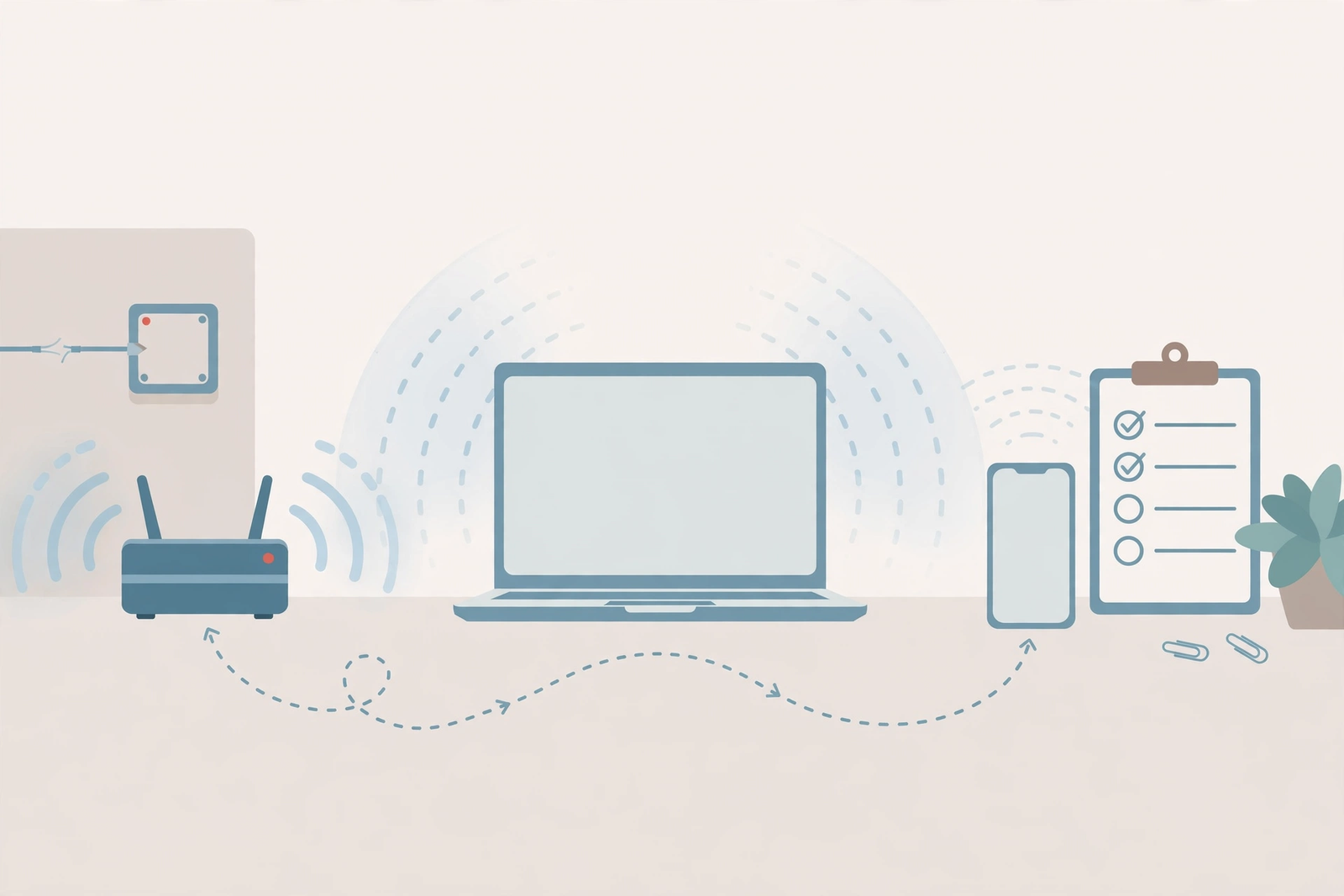
Small offices have several ways to build a fiber backup connection, and the right choice depends on budget, risk tolerance, and how heavily the office depends on connectivity. The simplest option is a built-in wireless backup on a qualifying fiber plan, which is automatic and included at no extra cost on qualifying plans. The main alternative is a separate backup service, which adds an independent connection but also adds a monthly cost and something else to manage. A second wired line is the most robust option for larger offices, but it is also the most expensive and may share some of the same physical risks as the first line if both enter the building the same way.
| Fiber backup connection option | How failover works | Extra cost | Best suited for |
|---|---|---|---|
| Built-in wireless backup on a qualifying fiber plan | Automatic failover gateway switching to a wireless connection | Included on qualifying 1 GIG and faster plans | Most small and mid-sized offices |
| Separate wireless backup service | A second wireless service paired with the office network | Monthly price of the second service, confirm on your quote | Offices wanting an additional independent backup |
| Second wired line | Another wired service into the building | Monthly price of the second line plus installation, confirm on your quote | Larger offices and critical systems |
| No backup connection | Office waits for the primary line to be repaired | None upfront | Not recommended for any office that depends on connectivity |
For most small offices, the built-in backup is the sensible starting point, because it removes the cost and complexity of a second service while still providing a genuinely independent second way online. The case for adding a separate backup is strongest where an outage would halt the business entirely, or where the office wants redundancy beyond a single provider’s networks. Whatever option you choose, the comparison that matters is not just price, but whether the backup has been tested with your real workload. An inexpensive backup that has been tested is worth more than an expensive one that has never been tried. Our guide to business internet backup connections explains these options in more depth, and our guide to how fiber 5G backup works covers the built-in option in detail.
AT&T Business Fiber Plans and 5G Backup for Fiber Outage Failover
AT&T Business Fiber plans that qualify for built-in backup are the 1 GIG and faster plans, where the 5G backup feature is included at no extra cost. On the list price checked 1 November 2026, AT&T Business Fiber is 300 at $60 per month, 500 at $100 per month, 1 GIG at $140 per month, 2 GIG at $185 per month, and 5 GIG at $285 per month, plus taxes and fees. With an eligible wireless plan, those prices are $40, $60, $90, $135, and $235 per month respectively. Slower plans do not include the built-in backup, so an office that wants automatic failover through the gateway needs to be on a qualifying plan, and should confirm on its quote that the backup feature is included for its specific address.
Choosing between qualifying plans is mainly a question of everyday speed needs, since the backup concept is the same across them. A small office will usually find 1 GIG more than enough for normal work, while a larger office with many users and heavy cloud use may benefit from faster tiers. Availability and backup performance are location-dependent, so wireless signal strength at your address matters, and the quote for your address is the document that confirms what you are actually getting. Do not assume the backup feature is included just because a plan is 1 GIG or faster: ask directly and get the confirmation before signing up. Our overview of AT&T Business Fiber is a useful companion if you are still comparing plans.
After a Fiber Outage: Returning to Your Main Fiber Connection
After a fiber outage, the return to your main fiber connection is usually handled by the gateway, which moves traffic back to the wired line once it is repaired. Staff may notice speeds returning to normal, and video calls and large downloads that were postponed can resume. The important human step is to confirm the return rather than assume it: test the systems that mattered during the outage, check that payment terminals, phones, and cloud tools are behaving normally, and let the team know that the office is back on its main connection and that postponed work can resume. A short all-clear message prevents staff from unnecessarily restricting their work after the outage has ended.
The recovery period is also the right time for a brief review, while memories are fresh. Gather the note kept during the outage and ask three questions: what worked well, what felt slower or confusing, and what would we change next time? The answers often point to small, inexpensive improvements, such as a clearer team message, a better gateway location, or a priority list that needs updating because the office has added a new system since the last outage. Record the answers with the walk-through, so the next outage benefits from this one. Offices that review after every outage build a plan that gets steadily more reliable, without needing a major project.
Fiber Goes Down Failover: Frequently Asked Questions
What Happens First When a Fiber Outage Failover Begins?
When a fiber outage failover begins, the gateway detects that the wired fiber line has failed and routes office traffic over its backup connection instead. On a qualifying plan with a built-in wireless backup, this happens automatically, without staff needing to change settings. The office may notice a brief interruption, then basic connectivity returns on the backup, though speeds may vary and will generally be lower than fiber speeds. If connectivity does not return, note what you have checked and contact support.
Does Automatic Failover Gateway Switching Need Staff to Do Anything?
In a typical setup, automatic failover gateway switching needs no action from staff: the gateway handles the switch to the backup connection and the return to the main connection. What staff do need to do is adjust how they work while on the backup, prioritising payments, bookings, phones, and essential cloud tools, and postponing large downloads and updates until the fiber line is restored. Staff should also avoid repeatedly restarting equipment, unless support asks them to, since restarts can interrupt the backup connection.
Will My Office Internet Outage Affect Phone Calls on a Fiber Backup Connection?
Internet-based phone calls can keep working on a fiber backup connection, because the backup keeps the office connected to the internet. Call quality may vary with backup performance, signal strength, and how many devices are using the connection, so keeping video calls to essential ones during an outage helps preserve capacity for voice calls. Traditional phone lines that do not depend on the office internet are unaffected by a fiber outage in the first place, which is worth confirming when you review your office setup.
How Long Can a Business Internet Failover Keep an Office Running?
There is no single answer to how long a business internet failover can keep an office running, because it depends on the backup connection, signal strength, workload, and the nature of the fault. A backup connection is designed to carry the office through a fiber fault while the main line is repaired, not to serve as a permanent replacement for fiber. During a longer outage, prioritising essential systems, postponing heavy tasks, and staying in contact with support will help the backup go further. Confirm any time limits or usage terms that apply to your plan on your quote or with your provider.
Should Every Office Test Its Fiber Backup Connection Before an Outage?
Yes, every office that depends on connectivity should test its fiber backup connection before an outage, during a quiet period and with its real workload. A test reveals whether the gateway switches over as expected, which systems work well on the backup, and which feel slower, while there is still time to fix problems. It also tests the human side of the plan: whether staff know the office is on its backup, which tasks to prioritise, and who the point of contact is. Repeat the test after significant network changes.
Final Word on Fiber Failover for Your Business
A fiber outage does not have to mean a lost day. With a backup connection in place, an automatic failover gateway to switch to it, a short priority list for the team, and a test behind you, your office can keep serving customers while the main fiber line is repaired. The walk-through in this guide is deliberately simple, because the plans that survive a real outage are the ones people actually remember and follow. Write yours down, share it with the team, test it, and review it after every outage, and it will quietly become one of the most valuable documents in your office.
If your office is still on a single connection with no backup, or on a slower plan without a built-in backup feature, consider whether a qualifying fiber plan fits your needs. You can check AT&T Business Fiber plans and availability for your office and confirm whether built-in backup is included for your address. Pricing, speeds, and availability vary by address and promotion, so confirm all details on your quote before ordering, and test the backup once it is installed so you know your office is covered.

