
The short answer: On the AT&T 5G Gateway used with Internet Air for Business, the 4G/5G LED lights report your cellular signal: solid green means strong, solid blue means fair, solid red means weak (move the gateway), blinking red means a SIM error, and solid gray means no signal. The separate Wi-Fi LED shows green or blue when your office Wi-Fi is working fine, and gray when Wi-Fi is turned off. Learn these two small light sets and you can diagnose most connection problems in under a minute — no tools, no support call.
Every networking device speaks in lights, and the AT&T 5G Gateway is no exception. The trouble is that the colors mean different things on different AT&T hardware — the Internet Air 5G Gateway, the fiber BGW320, and the newer All-Fi Hub each have their own LED language, and mixing them up leads to exactly the wrong fix. This guide gives you the complete gateway LED lights meaning reference for the Internet Air 5G Gateway, a quick-action table for every color and state, what to do about red and blue lights specifically, and — in a clearly separated box — what the lights mean if you have AT&T Business Fiber instead. Everything below was checked in October 2026 against AT&T’s small-business support documentation. For the service itself, see our overview of AT&T Internet Air for Business.
Internet Air for Business: Simple Setup, Clear Signal Lights
Internet Air for Business lists at $65/mo (Standard) or $105/mo (Premium) — $60/$100 with AutoPay and paperless billing, or $40/$80 with an eligible AT&T business wireless plan. Confirm availability for your address before ordering.
AT&T 5G Gateway LED Lights: The Full Table
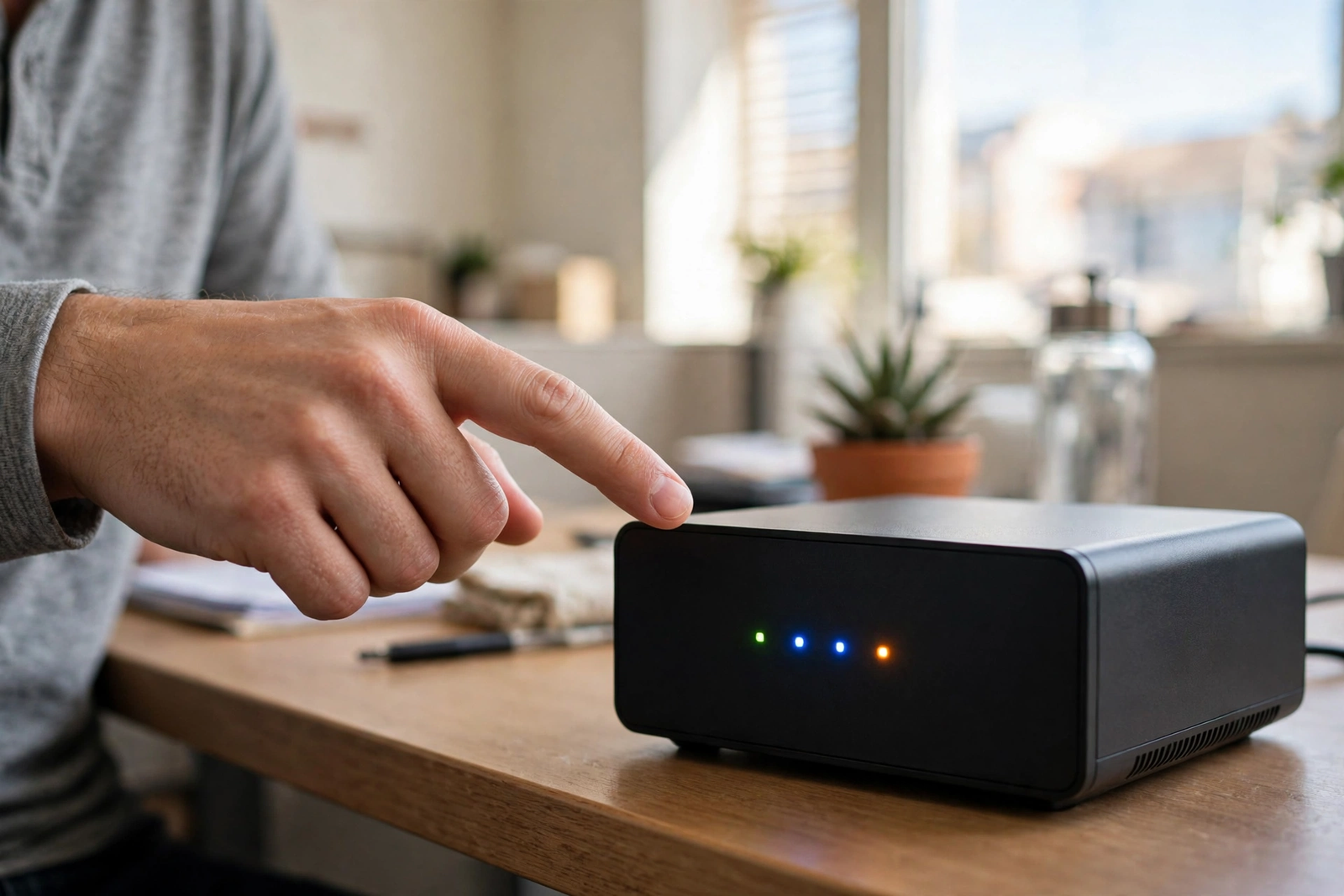
The business 5G Gateway — the device AT&T ships for Internet Air for Business, documented in models including the NCM1120D2 and the newer BGW830 — has two LED sets that matter: the 4G/5G signal LEDs and the Wi-Fi LED. Here is every state AT&T documents for them, in one table. Bookmark this page; it is the table you will want open the next time the internet acts up.
| LED | Color / state | Meaning |
|---|---|---|
| 4G/5G | Solid green | Strong cellular signal — the gateway is well connected |
| 4G/5G | Solid blue | Fair signal — usable, but check whether a better spot gives green |
| 4G/5G | Solid red | Weak signal — move the gateway to a better spot |
| 4G/5G | Blinking red | SIM error — the gateway is not registering on the network |
| 4G/5G | Solid gray (or off) | No signal reaching the gateway |
| Wi-Fi | Green | Wi-Fi is on and working normally |
| Wi-Fi | Blue | Wi-Fi is on; WPS pairing is active |
| Wi-Fi | Gray (or off) | Wi-Fi is turned off — re-enable it in the web admin portal |
The most important mental model: the 4G/5G LEDs describe the internet connection coming into the gateway from the cell tower, while the Wi-Fi LED describes the wireless network going out to your devices. They are independent. You can have a green Wi-Fi LED (your office network is fine) alongside a red 4G/5G LED (the internet feeding it is weak) — and the fix for each is completely different. When something goes wrong, always check both sets before you act.
What the 4G/5G Gateway LED Lights Mean
The 4G/5G LEDs are your signal meter and your first diagnostic stop. Here is what each state means in practice and what to do about it.
Solid Green 4G/5G LED: Strong Signal
Solid green is the goal — it means the gateway has a strong cellular signal and the internet side of your setup is healthy. If the 4G/5G LEDs are green but devices are still having trouble, the problem is almost certainly inside your office network rather than with the internet connection: Wi-Fi coverage dead zones, too many devices on a crowded channel, or an individual device issue. Do not move a gateway that shows solid green; you will only make things worse chasing a problem that is not signal-related.
Solid Blue Gateway LED Lights: Fair Signal
Solid blue means a fair signal — the gateway is connected and working, but the signal is not as strong as it could be. For many businesses, blue is perfectly fine day to day: typical Internet Air speeds around 225 Mbps are still achievable, and light-to-moderate office use will feel normal. Treat blue as “good enough, but worth one experiment”: if you have ten minutes, try the gateway at one alternate window-side spot and see if it turns green. If it does, keep the new spot. If it stays blue everywhere, stop optimizing — blue is a working connection, and your time is better spent on Wi-Fi coverage and the other parts of your setup.
Solid Red Light on the AT&T Gateway: Weak Signal
Solid red on the 4G/5G LEDs means a weak signal, and this is the light that actually demands action. A red-signal gateway will deliver slower speeds, higher latency, and more frequent hiccups — the classic symptoms are video calls freezing, cloud apps lagging, and card readers timing out. The fix is placement, not settings: move the gateway to an elevated shelf near a window on an exterior wall, away from metal objects, thick concrete, and large appliances, then give it several minutes to re-measure before you judge. Do not factory-reset the gateway over a red light and do not call support about a red light until you have tried at least two better spots — support cannot improve the signal inside your building for you.
Blinking Red Gateway Light: SIM Error
Blinking red is the one 4G/5G state that is not about signal strength. It means the gateway’s SIM is not registering on the AT&T network — a provisioning or hardware issue rather than a placement issue. Moving the gateway will not help. Power-cycle the gateway once (unplug for about ten seconds, plug back in, and wait the full few minutes for it to boot). If the blinking red returns, contact AT&T Business support: they can re-provision the line or replace a faulty SIM or gateway remotely. Mention the blinking red LED explicitly when you call — it tells the rep exactly which diagnostic path to take and saves you twenty minutes of generic troubleshooting.
Solid Gray LED: No Signal
Solid gray — or LEDs that appear off on the 4G/5G side — means the gateway is detecting no cellular signal at all. The most common cause is placement deep inside the building: a basement, an interior room surrounded by concrete, or a metal enclosure. Move the gateway to a window-side spot on an exterior wall and recheck after several minutes. If gray persists even at a window, verify that the service is active on your account and that the gateway is at the qualified business address — then contact AT&T Business support, because a complete absence of signal at a qualified address with good placement points to an account or network issue rather than anything you can fix by rearranging furniture.
What the Wi-Fi LED Light Means on the 5G Gateway
The Wi-Fi LED is simpler than the 4G/5G set, but it causes its own share of confusion — mostly because people read it as a second signal meter. It is not. It tells you only whether the gateway’s Wi-Fi radios are on and what they are doing.
Wi-Fi LED Green or Blue: Your Network Is OK
A green Wi-Fi LED means your office Wi-Fi is broadcasting normally — devices should be able to see the network name and connect. A blue Wi-Fi LED also means Wi-Fi is working; blue specifically indicates that WPS pairing is active, which you will see when you are pairing a device like the official AT&T Internet Air for Business Wi-Fi Extender using the WPS buttons. If the blue persists long after pairing finished, it is still harmless — it just means the pairing window is open. Neither green nor blue says anything about your internet speed; for that, look at the 4G/5G LEDs.
Wi-Fi LED Gray: Wi-Fi Is Off — How to Re-enable It
A gray (or dark) Wi-Fi LED means the gateway’s Wi-Fi is turned off. Your wired devices — anything plugged into the gateway’s Ethernet LAN ports — may still have internet, but no wireless device will see the network. This usually happens because someone disabled Wi-Fi in the settings, sometimes accidentally during a configuration change. The fix per AT&T’s documentation: open the Internet Air web admin portal, go to Network, then Wi-Fi, and turn Wi-Fi back on. If you did not turn it off and it keeps switching off on its own, note the pattern and mention it to AT&T Business support — but in the vast majority of cases it is a settings toggle, not a hardware fault.
Red Light on Your AT&T Gateway? Do This First
Red lights cause the most panic and the most misdiagnosis, so here is the decision tree in plain order. First, identify which LED is red: the 4G/5G set or the Wi-Fi LED. A red 4G/5G LED is about the cellular signal; the Wi-Fi LED does not normally show red at all, so if you think you see red there, double-check which light you are looking at in good lighting.
If the 4G/5G LED is solid red, treat it as a placement problem: move the gateway to an elevated shelf near a window on an exterior wall, away from metal and large appliances, wait several minutes, and recheck. Try a second spot if the first does not improve. If the 4G/5G LED is blinking red, treat it as a SIM error: power-cycle once, and if it comes back, call AT&T Business support and say “blinking red SIM error” so they route you correctly. What not to do for either red state: do not factory-reset the gateway as a first step (it wipes your Wi-Fi name and password customizations without fixing signal or SIM issues), and do not unplug and replug repeatedly in quick succession — every power cycle restarts a multi-minute boot and measurement cycle, so rapid cycling just guarantees you never get a clean reading.
One more red-light scenario worth naming: the gateway was green for months and suddenly went red. Placement did not change, so something else did — new equipment installed near the gateway (a metal cabinet, a big appliance), construction in the building, or a network issue on AT&T’s side. Check for new obstructions first, then check whether neighbors or AT&T report an outage, and only then start moving the gateway. A sudden change with no environmental cause deserves a support call, not a furniture rearrangement.
Blue Light on AT&T Internet: When It Is Fine and When It Is Not
Blue is the most misunderstood color on the gateway because it means different things in different places. On the 4G/5G LEDs, solid blue means a fair cellular signal — usable, not alarming, and worth one placement experiment to see if green is available. On the Wi-Fi LED, blue means WPS pairing is active — a normal, temporary state during device pairing. Neither blue state means something is broken, and neither requires a support call.
The confusion usually comes from fiber customers reading Internet Air guides or vice versa: on AT&T’s fiber gateways, a solid blue light means the gateway is in cellular backup mode (more on that in the fiber box below), which is a genuinely different situation. This is why identifying your hardware matters before you interpret any light. If you have the 5G Gateway for Internet Air for Business — the box that came with your fixed wireless service — blue is fine. If you are unsure which gateway you have, check the model label on the device: the Internet Air business gateways are documented as the NCM1120D2 and BGW830, while fiber gateways are typically the BGW320 or the newer All-Fi Hub.
Disclaimer: This article contains affiliate links to AT&T Business services. We may earn a commission if you purchase through them, at no extra cost to you. Ortelcom.com is an independent publisher and is not affiliated with or endorsed by AT&T. Pricing, speeds, and availability are not guaranteed, were checked in October 2026, and vary by address and promotions — please confirm all details before ordering. AT&T and all related marks are trademarks of their respective owners.
Gateway Troubleshooting Lights: A Quick-Reference Action Table
When the internet is down and employees are waiting, you want a lookup table, not an essay. Find your light below and do the action in the right column — in order, without skipping ahead.
| What you see | What it means | Do this |
|---|---|---|
| 4G/5G solid green | Strong signal; internet side is healthy | Look inside the office network: Wi-Fi coverage, device issues, or congestion — do not move the gateway |
| 4G/5G solid blue | Fair signal; working but not optimal | Try one alternate window-side spot; keep it if it turns green, otherwise stop optimizing |
| 4G/5G solid red | Weak signal | Move the gateway: elevated shelf, near a window on an exterior wall, away from metal/appliances; wait several minutes; try a second spot |
| 4G/5G blinking red | SIM error | Power-cycle once; if blinking red returns, call AT&T Business support |
| 4G/5G solid gray | No signal | Move to a window-side exterior-wall spot; if gray persists there, verify the account is active and call support |
| Wi-Fi green | Wi-Fi broadcasting normally | Nothing — this light is fine |
| Wi-Fi blue | WPS pairing active | Nothing — normal during pairing; harmless if it lingers |
| Wi-Fi gray | Wi-Fi turned off | Re-enable in the web admin portal: Network > Wi-Fi |
| All lights dark | No power | Check the power supply seating; try a different wall outlet |
If You Have AT&T Business Fiber Instead: BGW320 Light Meanings
Separate hardware, separate light language. The table below is for the BGW320 fiber gateway — the box AT&T installs for wired Business Fiber service. Do not apply these meanings to the Internet Air 5G Gateway above, and do not apply the 5G Gateway meanings to a BGW320. If you are setting up fiber rather than fixed wireless, see our guide on how to order and install AT&T Business Fiber.
| BGW320 light | Meaning |
|---|---|
| Solid white | Online and working normally |
| Blinking white (fast) | Starting up |
| Blinking white (slow) | Powering up |
| Blinking green (fast) | Connected, ready for activation (initial install only) |
| Solid red + WPS LED off | Overheating — move to a flat, ventilated surface |
| Solid red + WPS LED solid red | Hardware issue — reboot; if it persists, the gateway needs replacement |
| Blinking red (fast) | Network service issue — may need AT&T support |
| Blinking red (slow) | No broadband — check cables, then hold the red reset button for 10 seconds |
| Solid amber | Powered on, starting up |
| Blinking amber (slow) | Receiving a firmware update — do not unplug |
| Blinking blue (fast) | Outage detected, trying to enter internet backup mode |
| Solid blue | In internet backup mode — running on cellular backup, slower than fiber |
The one fiber light worth memorizing: solid blue on a BGW320 means the gateway has failed over to cellular backup — your internet works, but slower than fiber, and it signals that the fiber line itself has a problem worth reporting. Newer fiber installs may ship the All-Fi Hub (BGW720) instead, which uses its own simpler set: solid white for online, pulsing white for starting up, solid red for overheating or hardware issues, pulsing red for network service issues, and solid blue for backup mode. If your hardware does not match either description, check the model label and confirm with an AT&T Business rep before interpreting the lights.
AT&T Gateway LED Lights FAQs
All the Gateway LED Lights Are Off — Is the Gateway Dead?
Probably not — dark LEDs most often mean no power, not a dead gateway. Check that the power supply is firmly seated in the gateway and plugged into a working wall outlet; try a different outlet to rule out a tripped circuit or a dead power strip. If the outlet is live and the gateway stays dark, try the power supply that came in the box (third-party adapters can under-power the gateway). A gateway that remains completely dark on a known-good outlet with its original power supply is the rare case that genuinely needs a hardware replacement — contact AT&T Business support.
The 4G/5G Light Is Red but the Internet Works — Is That OK?
It works, but it is not OK to ignore. A solid red 4G/5G LED means a weak signal, and a weak signal delivers slower speeds, higher latency, and less headroom for busy periods — even if pages load right now. The connection is also more fragile: anything that degrades it further, like peak-hour congestion, hits a red-signal gateway harder than a green one. Spend the 20 minutes to test alternate placements; a green or blue LED is cheap insurance for every video call and card transaction the business runs.
How Do Internet Air LED Meanings Differ From Fiber Gateway Lights?
They are entirely different languages for different hardware. On the Internet Air 5G Gateway, green/blue/red on the 4G/5G LEDs describe cellular signal strength (strong/fair/weak), and the Wi-Fi LED just reports whether office Wi-Fi is on. On the fiber BGW320, the main LED is white when all is well, red signals overheating or hardware faults, and blue means cellular backup mode. The practical rule: identify your gateway model from the label on the device first, then read only the table for that hardware. Guessing across hardware types is how a “weak signal” gets misdiagnosed as a “hardware fault.”
Can I Turn Off the Gateway LED Lights at Night?
AT&T does not document a setting to disable the status LEDs on the business 5G Gateway, and we do not recommend covering them — those lights are your early-warning system for signal and SIM problems. If the gateway sits in a space where the lights bother people (a bedroom-adjacent home office, for example), the practical answer is placement: the ideal signal spot is an elevated shelf near a window, which is rarely at eye level in a sleeping area. Do not put tape over the LEDs and forget them; a blinking red SIM error you cannot see is a problem you will discover at the worst possible time.
Which Gateway LED Lights Should I Check First When the Internet Goes Down?
Check the 4G/5G LEDs first, then the Wi-Fi LED — in that order. The 4G/5G LEDs tell you whether the internet connection itself is healthy (green/blue) or the problem (red/gray/blinking red). If those are green and the internet is still down, check the Wi-Fi LED: gray means Wi-Fi got turned off, and green means the office network is up and the issue is elsewhere (a device, an outage, or congestion). This two-step check resolves the “is it the internet or is it my Wi-Fi” question in seconds. For a broader pre-purchase checklist, see our business internet buying checklist.
The LED lights on your AT&T gateway are a free, always-on diagnostic panel — green and blue mean things are working, red means act, and gray means something is off or missing. For the Internet Air 5G Gateway, the only table you need is the one at the top of this guide; keep the fiber box separate in your mind and you will never misread a light again. If you are still deciding on service, check Internet Air availability for your business address — Standard lists at $65/mo and Premium at $105/mo, with AutoPay and wireless-bundle discounts available.

